Format Link
Format a link and copy it to the clipboard.
As of June 2026, Format Link has 1,000 users and a 4.50/5 rating from 12 reviews in the Productivity category.
Usersno change0%
1.0K
1,000
Ratingno change0%
4.50
12 reviews
Reviewsno change0%
12
Version
5.2.1
Manifest V3
90-day change · In the last 90 days this extension 1 version update.
History
1 snapshotsTracking since Apr 19, 2026.
View as table
| Date | Users | Rating | Reviews | Version |
|---|---|---|---|---|
| Apr 19, 2026 | 1.0K | 4.50 | 12 | 5.1.0 |
| Now | 1.0K | 4.50 | 12 | 5.2.1 |
Changelog
- Apr 19, 2026description
## Why do I need it? To format the link of the active tab instantly to use in Markdown, reST, HTML, Text, Textile or other formats. ## How to use You can use keyboard shortcuts, context menus, or the toolbar button of Format Link extension to copy a link in the specified format. Before doing that, you can optionally select some text which may or may not contain a link. ### keyboard shortcut The keyboard shortcut for "Copy a link in the default format" is shortcut for clicking the toolbar button. The link is copied in the default format and the popup is shown under the toolbar button. Also there are shortcuts for copying in the link in the corresponding format regardless of the default format. You can change shortcuts at chrome://extensions/shortcuts ### context menu Open the context menu and select the "Format Link as XXX" menu item. "XXX" in the menu item label changes as you change the default format by clicking the "Set as default" button in the popup page for the toolbar button. If you check the "Create submenus" in the options page and save the options, submenus for each format are created under the "Format Link" context menu group. ### toolbar button When you press the toolbar button of "Format Link", the link is copied in the default format, the popup page becomes open, and the formatted text is shown in the text area. If you want to copy the link in different format, you can press one of the radio buttons. Also if you want to change the default format, you can press the "Set as default" button. ## Flexible settings You can modify formats in [Tools] -> [Extensions] -> Clik "Options" link in "Format Link" Extension. In format settings, you can use the mini template language. * {{variable}} * variable = title / url / pageUrl / text * The value of variable `title` is the HTML page title. * The value of variable `text` is the selected text if some text is selected, the link text if you open the context menu over a link (see KNOWN LIMITATION below for link text), or the page URL if no text is selected and you open the context menu not over a link. * The value of the variable `url` is the link if you open the context menu over a link, the first link if selection contains a link, or the HTML page URL otherwise. * The value of the variable `pageUrl` is always the page URL. * No spaces are allowed between variable name and braces. * {{variable.s("foo","bar")}} * Which means `variable.replace(new RegExp("foo", 'g'), "bar")` * You can use escape character \ in strings. * You must escape the first argument for string and regexp. For example, `.s("\\[","\\[")` means replacing `\[` with `\\[` * You can chain multiple .s("foo","bar") * You can use the escape character \ in strings. For example, you need to escape `\` with `\` like `\\`, and also you need to escape `{` with `\` like `\{`. See the LaTeX example below. * Other characters are treated as literal strings. Here are examples: * Markdown ``` [{{text.s("\\[","\\[").s("\\]","\\]")}}]({{url.s("\\(","%28").s("\\)","%29")}}) ``` * reST ``` {{text}} <{{url}}>`_ ``` * HTML ``` <a href="{{url.s("\"",""")}}">{{text.s("<","<")}}</a> ``` * Text ``` {{text}}\n{{url}} ``` * Redmine Texitile ``` "{{title.s("\"",""").s("\\[","[")}}":{{url}} ``` * LaTeX ``` \\href\{{{url}}\}\{{{text}}\} ``` ## Permissions required by this extension * To use this extension, the following two permissions are required: * "Read and change all your data on all websites" * This permission is needed for this extension to run the ["content script"](https://developer.chrome.com/docs/extensions/develop/concepts/content-scripts?hl=en) into the content of pages you visit in order to get the page title, the selected text, the page URL, or the link URL. * "Modify data you copy and paste" * This permission is needed to copy a URL and a text to the clipboard. For technical details, see the following pages: * [Declare permissions](https://developer.chrome.com/docs/extensions/develop/concepts/declare-permissions?hl=en) * ["content_scripts.matches"](https://developer.chrome.com/docs/extensions/develop/concepts/match-patterns?hl=en) * This extension uses `"<all_urls>"`. * [Permissions](https://developer.chrome.com/docs/extensions/reference/permissions-list?hl=en) * This extension requires the following permissions: * "activeTab" * "clipboardWrite" * "contextMenus" * "storage" ## License MIT License. Source codes are hosted at [Github](https://github.com/hnakamur/FormatLink-Chrome) ## KNOWN LIMITATIONS * Due to security reason, you cannot copy the URL on some pages like the Chrome Extension Gallary. * Chrome allow each extension to have at most 4 keyboard shortcuts. One shortcut is used for copying a link with the default format, and the rest of three are used for copying a link with the corresponding format 1 to format 3. So format 4 to format 9 does not have keyboard shortcut.## Why do I need it? To format the link of the active tab instantly to use in Markdown, reST, HTML, Text, Textile or other formats. ## How to use You can use keyboard shortcuts, context menus, or the toolbar button of Format Link extension to copy a link in the specified format. Before doing that, you can optionally select some text which may or may not contain a link. ### keyboard shortcut The keyboard shortcut for "Copy a link in the default format" is shortcut for clicking the toolbar button. The link is copied in the default format and the popup is shown under the toolbar button. Also there are shortcuts for copying in the link in the corresponding format regardless of the default format. You can change shortcuts at chrome://extensions/shortcuts ### context menu Open the context menu and select the "Format Link as XXX" menu item. "XXX" in the menu item label changes as you change the default format by clicking the "Set as default" button in the popup page for the toolbar button. If you check the "Create submenus" in the options page and save the options, submenus for each format are created under the "Format Link" context menu group. ### toolbar button When you press the toolbar button of "Format Link", the link is copied in the default format, the popup page becomes open, and the formatted text is shown in the text area. If you want to copy the link in different format, you can press one of the radio buttons. Also if you want to change the default format, you can press the "Set as default" button. ## Flexible settings You can modify formats in [Tools] -> [Extensions] -> Clik "Options" link in "Format Link" Extension. In format settings, you can use the mini template language. * {{variable}} * variable = title / url / pageUrl / text * The value of variable `title` is the HTML page title. * The value of variable `text` is the selected text if some text is selected, the link text if you open the context menu over a link (see KNOWN LIMITATION below for link text), or the page URL if no text is selected and you open the context menu not over a link. * The value of variable `selectedText` is * the selected text if some text is selected, * empty string if no text is selected. * The value of the variable `url` is the link if you open the context menu over a link, the first link if selection contains a link, or the HTML page URL otherwise. * The value of the variable `pageUrl` is always the page URL. * No spaces are allowed between variable name and braces. * {{variable.s("foo","bar")}} * Which means `variable.replace(new RegExp("foo", 'g'), "bar")` * You can use escape character \ in strings. * You must escape the first argument for string and regexp. For example, `.s("\\[","\\[")` means replacing `\[` with `\\[` * You can chain multiple .s("foo","bar") * {{variable.urlencode()}} * Which means `encodeURIComponent(variable)` * You can use the escape character \ in strings. For example, you need to escape `\` with `\` like `\\`, and also you need to escape `{` with `\` like `\{`. See the LaTeX example below. * Other characters are treated as literal strings. Here are examples: * Markdown ``` [{{text.s("\\[","\\[").s("\\]","\\]")}}]({{url.s("\\(","%28").s("\\)","%29")}}) ``` * reST ``` {{text}} <{{url}}>`_ ``` * HTML ``` <a href="{{url.s("\"",""")}}">{{text.s("<","<")}}</a> ``` * HTML with selected text ``` <a href="{{page_url.s("\"",""")}}#:~:text={{selected_text.urlencode()}}">{{title.s("<","<")}}</a> ``` * Text ``` {{text}}\n{{url}} ``` * Redmine Texitile ``` "{{title.s("\"",""").s("\\[","[")}}":{{url}} ``` * LaTeX ``` \\href\{{{url}}\}\{{{text}}\} ``` ## Permissions required by this extension * To use this extension, the following two permissions are required: * "Read and change all your data on all websites" * This permission is needed for this extension to run the ["content script"](https://developer.chrome.com/docs/extensions/develop/concepts/content-scripts?hl=en) into the content of pages you visit in order to get the page title, the selected text, the page URL, or the link URL. * "Modify data you copy and paste" * This permission is needed to copy a URL and a text to the clipboard. For technical details, see the following pages: * [Declare permissions](https://developer.chrome.com/docs/extensions/develop/concepts/declare-permissions?hl=en) * ["content_scripts.matches"](https://developer.chrome.com/docs/extensions/develop/concepts/match-patterns?hl=en) * This extension uses `"<all_urls>"`. * [Permissions](https://developer.chrome.com/docs/extensions/reference/permissions-list?hl=en) * This extension requires the following permissions: * "activeTab" * "clipboardWrite" * "contextMenus" * "storage" ## License MIT License. Source codes are hosted at [Github](https://github.com/hnakamur/FormatLink-Chrome) ## KNOWN LIMITATIONS * Due to security reason, you cannot copy the URL on some pages like the Chrome Extension Gallary. * Chrome allow each extension to have at most 4 keyboard shortcuts. One shortcut is used for copying a link with the default format, and the rest of three are used for copying a link with the corresponding format 1 to format 3. So format 4 to format 9 does not have keyboard shortcut.
Permissions & access
- Permissions
- activeTabclipboardWritecontextMenusstorage
- Host access
- None declared
Screenshots


About
## Why do I need it?
To format the link of the active tab instantly to use in Markdown, reST, HTML, Text, Textile or other formats.
## How to use
You can use keyboard shortcuts, context menus, or the toolbar button of Format Link extension
to copy a link in the specified format. Before doing that, you can optionally select some text
which may or may not contain a link.
### keyboard shortcut
The keyboard shortcut for "Copy a link in the default format" is shortcut for clicking the
toolbar button. The link is copied in the default format and the popup is shown under
the toolbar button.
Also there are shortcuts for copying in the link in the corresponding format regardless of
the default format.
You can change shortcuts at chrome://extensions/shortcuts
### context menu
Open the context menu and select the "Format Link as XXX" menu item.
"XXX" in the menu item label changes as you change the default format by clicking the "Set as default" button in the popup page for the toolbar button.
If you check the "Create submenus" in the options page and save the options,
submenus for each format are created under the "Format Link" context menu group.
### toolbar button
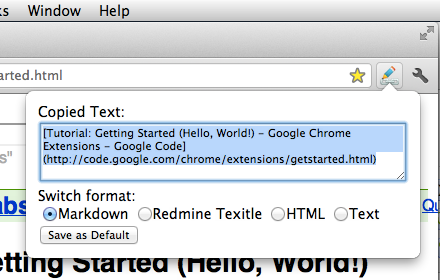
When you press the toolbar button of "Format Link", the link is copied in the default format,
the popup page becomes open, and the formatted text is shown in the text area.
If you want to copy the link in different format, you can press one of the radio buttons.
Also if you want to change the default format, you can press the "Set as default" button.
## Flexible settings
You can modify formats in [Tools] -> [Extensions] -> Clik "Options" link in "Format Link" Extension.
In format settings, you can use the mini template language.
* {{variable}}
* variable = title / url / pageUrl / text
* The value of variable `title` is the HTML page title.
* The value of variable `text` is the selected text if some text is selected,
the link text if you open the context menu over a link (see KNOWN LIMITATION below for link text),
or the page URL if no text is selected and you open the context menu not over a link.
* The value of variable `selectedText` is
* the selected text if some text is selected,
* empty string if no text is selected.
* The value of the variable `url` is the link if you open the context menu over a link,
the first link if selection contains a link, or the HTML page URL otherwise.
* The value of the variable `pageUrl` is always the page URL.
* No spaces are allowed between variable name and braces.
* {{variable.s("foo","bar")}}
* Which means `variable.replace(new RegExp("foo", 'g'), "bar")`
* You can use escape character \ in strings.
* You must escape the first argument for string and regexp.
For example, `.s("\\[","\\[")` means replacing `\[` with `\\[`
* You can chain multiple .s("foo","bar")
* {{variable.urlencode()}}
* Which means `encodeURIComponent(variable)`
* You can use the escape character \ in strings. For example, you need to escape `\` with `\` like `\\`,
and also you need to escape `{` with `\` like `\{`. See the LaTeX example below.
* Other characters are treated as literal strings.
Here are examples:
* Markdown
```
[{{text.s("\\[","\\[").s("\\]","\\]")}}]({{url.s("\\(","%28").s("\\)","%29")}})
```
* reST
```
{{text}} <{{url}}>`_
```
* HTML
```
<a href="{{url.s("\"",""")}}">{{text.s("<","<")}}</a>
```
* HTML with selected text
```
<a href="{{page_url.s("\"",""")}}#:~:text={{selected_text.urlencode()}}">{{title.s("<","<")}}</a>
```
* Text
```
{{text}}\n{{url}}
```
* Redmine Texitile
```
"{{title.s("\"",""").s("\\[","[")}}":{{url}}
```
* LaTeX
```
\\href\{{{url}}\}\{{{text}}\}
```
## Permissions required by this extension
* To use this extension, the following two permissions are required:
* "Read and change all your data on all websites"
* This permission is needed for this extension to run the ["content script"](https://developer.chrome.com/docs/extensions/develop/concepts/content-scripts?hl=en) into the content of pages you visit in order to get the page title, the selected text, the page URL, or the link URL.
* "Modify data you copy and paste"
* This permission is needed to copy a URL and a text to the clipboard.
For technical details, see the following pages:
* [Declare permissions](https://developer.chrome.com/docs/extensions/develop/concepts/declare-permissions?hl=en)
* ["content_scripts.matches"](https://developer.chrome.com/docs/extensions/develop/concepts/match-patterns?hl=en)
* This extension uses `"<all_urls>"`.
* [Permissions](https://developer.chrome.com/docs/extensions/reference/permissions-list?hl=en)
* This extension requires the following permissions:
* "activeTab"
* "clipboardWrite"
* "contextMenus"
* "storage"
## License
MIT License.
Source codes are hosted at [Github](https://github.com/hnakamur/FormatLink-Chrome)
## KNOWN LIMITATIONS
* Due to security reason, you cannot copy the URL on some pages like the Chrome Extension Gallary.
* Chrome allow each extension to have at most 4 keyboard shortcuts. One shortcut is used for copying a link with the default format, and the rest of three are used for copying a link with the corresponding format 1 to format 3. So format 4 to format 9 does not have keyboard shortcut.Technical
- Version
- 5.2.1
- Manifest
- V3
- Size
- 52.45KiB
- Min Chrome
- 88
- Languages
- 1
- Featured
- No
Metadata
- ID
- pocemhmkmchpgamlnocemnbhlcjcbjgg
- Developer ID
- u19fb2243c30d9354d77cad9fb781f521
- Developer Email
- [email protected]
- Created
- May 23, 2012
- Last Updated (Store)
- Apr 5, 2026
- Last Scraped
- Jun 9, 2026
- Website
- —
- Privacy Policy
- —
Similar extensions
Alternatives to Format Link, ranked by description similarity.

SmartURLs - Copy and Open URLs
Copy and open URLs easily. Export links in multiple formats or open them from text or clipboard.
187
★ 4.5

Title-Link Copy: AP-style Casing & Hyperlink
AP-style title casing + selected text options for perfect link sharing
—

Copy Formatter
Format copy pasted text
50

EasyCopyLink
You can copy page link from right-click menu to clipboard in various formats: Title, URL, Title+URL, HTML, Markdown, RichText.
1.0K
★ 5.0

Copy All URLs
The new Copy All URLs Chrome extension is a fast URL copier that lets you save URLs from multiple tabs with a single click.
1.0K
★ 4.9

Copy URL for Slack, Redmine & Markdown
Copy current page URL in one click. Auto-extracts 'ID: Title'from Redmine issues for Slack, Redmine, and Markdown formats.
52
★ 5.0

Enhanced Copy
Copy text, links, and images with absolute URLs and enhanced formatting.
90
★ 5.0

Copy Text as Link
Copy the selected text as a HTML link to the clipboard that can be pasted in in supported editors with the hyperlink intact.
1.0K
★ 3.5
Data sourced from the Chrome Web Store · last verified Jun 9, 2026.