
Documate OCR
Documate OCR
As of May 2026, Documate OCR has 2,000 users and a 2.50/5 rating from 2 reviews in the art category.
Usersno change0%
2.0K
2,000
Ratingno change0%
2.50
2 reviews
Reviewsno change0%
2
Version
1.1.0908
Manifest V3
Permissions & access
- Permissions
- storagemanagement
- Host access
- None declared
Screenshots


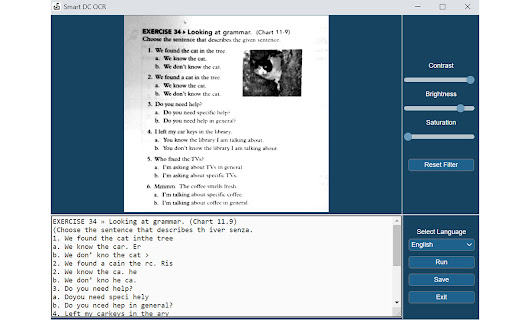
About
Documate includes optical character recognition (OCR) functionality to directly extract editable text from scans (JPG, PNG) made with your INSWAN document camera.

How to scan a document in Documate:

1. Connect your INSWAN document camera to your Chromebook using the USB cable.
2. Open the “Documate” software.
3. Capture document images.
4. Go to “Gallery mode” and double click the thumbnail of the captured image.
5. When the thumbnail image is expanded to full screen, click the “Keystone correction” tool to select the area to be scanned and start to correct image distortion.
6. Click on “Save to gallery ” to confirm and save the scanned file as PDF, JPG, PNG, of TIFF.
7. Click the “OCR” icon to extract editable text from the scan.
8. Click on “Return to gallery mode” to return to the thumbnail preview mode to review all captured images.


How to extract text in Documate:

Method 1: Extract editable text from scans

1.	Capture the image and enter gallery mode (Steps 1-6 above.)
2.	Click on the “OCR” icon to activate optical character recognition.
3.	Select the primary language of the target document. If the document has two languages, select both the primary and secondary languages.
4.	Click “Run” to extract text. Extraction may take 2 to 3 minutes, depending on the amount of text.
5.	Click “Save” to confirm and save the extracted text file or click on “Exit” to cancel extraction.

Method 2: Extract editable text from JPG or PNG

1.	Go to gallery mode and click on “Import image file”  to import a JPG or PNG file to the gallery.
2.	Click on the “OCR” icon to activate optical character recognition.
3.	Select the primary language of the target document. If the document has two languages, select both the primary and secondary languages.
4.	Click “Run” to extract text. Extraction may take 2 to 3 minutes, depending on the amount of text.
5.	Click “Save” to confirm and save the extracted text file or click on “Exit” to cancel extraction.
Technical
- Version
- 1.1.0908
- Manifest
- V3
- Size
- 59.67MiB
- Min Chrome
- 88
- Languages
- 1
- Featured
- No
Metadata
- ID
- phiedbebmmcaeemplngfafginbilgikp
- Developer ID
- u9f043cbc3a269a381b328a85a8e80658
- Developer Email
- [email protected]
- Created
- Feb 28, 2021
- Last Updated (Store)
- Sep 14, 2022
- Last Scraped
- May 22, 2026
- Website
- —
- Support URL
- —
- Privacy Policy
- https://www.inswan.com/en/privacy
Similar extensions
Alternatives to Documate OCR, ranked by description similarity.

AI Scribble Remover: Erase Pen Marks & Doodles from Photos
Instantly erase pen scribbles, marker doodles, and digital annotations from any photo online with AI for clean, professional…
18

Inkscape editor for draws and graphics
Create or edit vector graphics such as illustrations, diagrams, line arts, charts, logos and complex paintings
100.0K
★ 3.1
Gimp online - image editor and paint tool
Create and edit images and photos with Gimp Online
300.0K
★ 2.6

Photo Editor Online
Online image editor lets you create, edit images, graphic design using HTML5 technologies. No need download or have obsolete flash.
8.0K
★ 4.4

AI Scriber
Estensione Chrome per trascrizione audio, generazione prompt e immagini AI.
—

Bulk Image Downloader - HImage
Easily batch download images from web pages
20.0K
★ 4.2

KitsuTL
AI-powered manga translation and artwork restoration
156

Drive Webcam, Camera for Drive
Take a picture and record videos from webcam and save them to Google Drive and PC. Share them with your friends such as Instagram.
—
★ 3.7
Data sourced from the Chrome Web Store · last verified May 22, 2026.