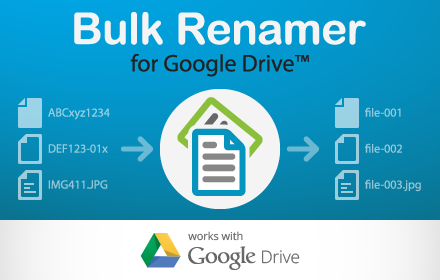
Bulk Renamer for Drive
Rename multiple files in a Google Drive folder!
As of May 2026, Bulk Renamer for Drive has 5,000 users and a 2.71/5 rating from 79 reviews in the Workflow & Planning category.
Usersno change0%
5.0K
5,000
Ratingno change0%
2.71
79 reviews
Reviewsdown 1.3 percent−1.3%
79
Version
3.0.0.2
Manifest V2
History
2 snapshotsTracking since Apr 25, 2026.
View as table
| Date | Users | Rating | Reviews | Version |
|---|---|---|---|---|
| Apr 25, 2026 | 5.0K | 2.71 | 80 | 3.0.0.2 |
| May 22, 2026 | 5.0K | 2.71 | 80 | 3.0.0.2 |
| Now | 5.0K | 2.71 | 79 | 3.0.0.2 |
Permissions & access
- Permissions
- None declared
- Host access
- None declared
Screenshots




About
Bulk Renamer for Google Drive™ renames all files in selected Drive folder according to chosen settings.

No more need to sync files to your desktop, rename them using OS-specific tools and sync them back to Drive. Just select a folder, choose rename options (see details below) and sit back and watch your files being renamed!

3 easy steps:

1) Select a Folder
Use Drive Picker to select a folder to rename files in.
Note: Only folders you are the owner of can be selected. Sub-folders are not processed. Only files you have owner or editor permissions for can be renamed.

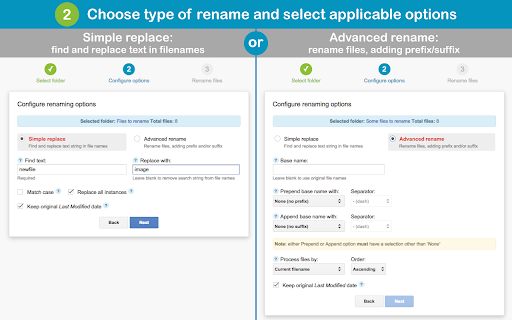
2) Choose Rename Options
Choose between Simple Replace and Advanced Rename, with available options as follows:
Simple Replace:
- Find text (string to look for in file names)
- Replace with string (text to replace search string with; leave blank to remove search string from file names)
- Match case (whether to perform case-sensitive search or nor)
- Replace all instances (whether to replace all occurrences of search string in file names or only the first one)
- Keep original Last Modified date (whether to preserve file modification date or update it with current date)

Advanced Rename:
- Base name (base filename part to give all files; leave blank to use original file names)
- Prepend base name with (prefix to add to all filenames; select between none, numeric iterator or timestamp)
- Prefix separator (select character to separate prefix and base name with)
- Start numbering from (for Numeric iterator prefix type, the number to start iterating from)
- Append base name with (suffix to add to all filenames; select between none, numeric iterator or timestamp)
- Suffix separator (select character to separate base name and suffix with)
- Start numbering from (for Numeric iterator suffix type, the number to start iterating from)

3) Confirm Settings and Rename Files
Confirm selected rename options and preview list of files with new filenames. Watch your files being renamed in real-time. Results page will show any errors encountered during rename (e.g. files with no matching string in filename, or files with insufficient access permissions)
Note: It can take your Google Drive™ user interface a few seconds to update with new file names after a bulk rename.

Google Drive is a trademark of Google Inc. Use of this trademark is subject to Google Permissions.
Technical
- Version
- 3.0.0.2
- Manifest
- V2
- Size
- 44.99KiB
- Min Chrome
- 66
- Languages
- 1
- Featured
- No
Metadata
- ID
- peboiggabkeljjdnbelmhbpnmonomngo
- Developer ID
- u753b390dec7faf8621933ae4246a0c80
- Developer Email
- [email protected]
- Created
- Dec 7, 2014
- Last Updated (Store)
- Jun 27, 2019
- Last Scraped
- May 22, 2026
- Website
- appsscript.ninja
- Privacy Policy
- —
Similar extensions
Alternatives to Bulk Renamer for Drive, ranked by description similarity.

Adam
Bulk rename Google Drive files with custom patterns. Select files and apply naming rules instantly.
7

Google Drive Download Link Extractor
Ekstrak link download dari folder Google Drive
208
★ 3.0

Cloud File Renamer Pro
Rename Files on OneDrive, Google Drive, Dropbox and Amazon S3
713
★ 3.7

Google Drive Mini
Create and manage Google Drive files.
50.0K
★ 4.2

Drive File List Printer
Drive File List creator
4.0K
★ 4.5

DriveFinder
Simple and straightforward, makes it clear it's about searching Google Drive.
5
★ 5.0

Google Drive Quick Search
Google Drive Quick Search is a powerful yet simple Google Chrome extension that allows you to search your Google Drive with live…
1.0K
★ 2.8

Quick Create Plus
Create new files for Google Drive from your browser bar. Links include Docs, Sheets, Slides, Drawings, Forms, and Scripts.
60.0K
★ 4.6
Data sourced from the Chrome Web Store · last verified May 22, 2026.