
MemoPad New Tab
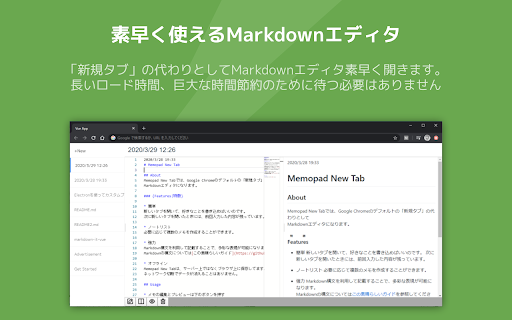
Memopad New Tab makes it a Markdown editor instead of the default [New Tab] in Google Chrome.
As of June 2026, MemoPad New Tab has 42 users and a 4.00/5 rating from 4 reviews in the Workflow & Planning category.
Usersup 40.0 percent+40.0%
42
42
Ratingup 100.0 percent+100.0%
4.00
4 reviews
Reviewsup 300.0 percent+300.0%
4
Version
1.3.14
Manifest V3
90-day change · In the last 90 days this extension 1 version update, changed permissions.
History
4 snapshotsTracking since Apr 29, 2026.
View as table
| Date | Users | Rating | Reviews | Version |
|---|---|---|---|---|
| Apr 29, 2026 | 30 | 2.00 | 1 | 1.0.14 |
| May 26, 2026 | 29 | 2.00 | 1 | 1.0.14 |
| Jun 2, 2026 | 42 | 3.67 | 3 | 1.3.14 |
| Jun 8, 2026 | 43 | 4.00 | 4 | 1.3.14 |
| Now | 42 | 4.00 | 4 | 1.3.14 |
Changelog
- May 26, 2026description
Memopad New Tab makes it a Markdown editor instead of the default "New Tab" in Google Chrome.

 Open a new tab to 🗒️ take notes, save ⏰ reminders, 🔗 paste links, or create a table.
 The emphasis is on quick, clean, and simple to use as an alternative to the default "New Tab".

* Easy.
You can open a new tab and write whatever you like.
The next time you open a new tab, you'll still have what you entered last time.

* Note list.
You can create multiple notes as needed.

* Powerful.
By using Markdown syntax, you can express yourself in a variety of ways.
See [this great guide] (https://github.github.com/gfm/) for Markdown syntax.

* Offline description
Memopad New Tab is stored in the browser, not on the server.
You can create and edit notes offline as well.
Memopad New Tab is a Chrome extension that turns your new tab into a Markdown editor.

Open a new tab to instantly 🗒️ take notes, save ⏰ reminders, 🔗 paste links, or create tables.
Designed for those who want a quick, clean, and smart way to make the most of every new tab.

* Simple and Easy to Use
Just open a new tab and start writing.
Your notes are automatically saved and ready the next time you open a tab.

* Note List
Create multiple notes for different purposes and switch between them with ease.

* More Expressive with Markdown
Use Markdown syntax to write with headings, lists, tables, code blocks, and more.
See [the official guide](https://github.github.com/gfm/) for Markdown syntax.

* Works Offline
Memopad New Tab stores your data in the browser, not on any server.
You can create and edit notes even without an internet connection.

* Powered by Monaco Editor — the Same Editor as VS Code
Enjoy a rich editing experience with Monaco Editor, the same editor used in VS Code.
Syntax highlighting and autocompletion make writing Markdown smooth and comfortable.

* Diagrams with Mermaid and PlantUML
Memopad New Tab supports Mermaid and PlantUML, letting you create sequence diagrams, class diagrams, flowcharts, and more from plain text.
Just write the code and your diagram appears instantly.

* Real-time Preview
Your content is reflected in the preview pane as you type.
See the final result right alongside your writing for a seamless note-taking experience.

---------
[Updates]

v1.3.14 (2026/05/25)
* Added bilingual (English/Japanese) text support for the Settings page
The Settings page now follows your Language setting (en/ja), and section headings, descriptions, tab names, and sort options are displayed in the selected language.

* Applied language changes instantly without reload
You can now switch language while keeping the Settings page open, and all displayed text updates immediately.

v1.3.11 (2026/05/22)
* Added nested list conversion for full-width-space-prefixed "・"
We revised Settings -> multibyte -> Enable convert rules so lines starting with ` ・` are now correctly converted into nested Markdown lists.

* Changed the default breaks setting to ON
The Markdown Settings breaks option is now enabled by default, so notes with line breaks are displayed more naturally.

v1.3.10 (2026/05/22)
* Moved the delete action to each note item in the list
The delete action is now available directly on each note item, making it easier to remove the intended note.

* Separated view switching and destructive actions
We removed the delete action from the footer to avoid mixing it with view mode switching (F8/F9/F10).

v1.3.9 (2026/05/22)
* Visualized the selected view mode
The currently selected mode (F8/F9/F10) is now highlighted by button color, making the current state easier to understand.

* Saved and restored the selected view mode
Your last selected view mode is now persisted and restored when you open the app again.

v1.3.7 (2026/05/19)
* Improved the timing of Markdown autocompletion popups
Unintended suggestion popups are now suppressed so completions appear only when needed.

* Show completion suggestions with Ctrl+Space
Suggestions are now explicitly shown with Ctrl+Space to reduce interruption while typing.

v1.3.6 (2026/05/12)
* Added instant Privacy Blur activation with F6
When you need to hide the screen immediately, pressing F6 now enables Privacy Blur on the spot and switches to a blurred view right away.

* Fixed an issue where Privacy Blur did not work correctly

v1.3.5 (2026/05/11)
* Fixed delayed note update reflection
Resolved an issue where updates made in another tab could appear with a delay, so the latest content is now shown more smoothly.

* Adjusted export reminder animation for new installations
For new installations, the export reminder bounce animation is suppressed for the first 30 days to improve initial usability and visual comfort.

v1.3.3 (2026/05/07)
* Added idle timeout detection to Privacy Blur
The screen will automatically blur after 5 minutes of inactivity, even while the window is focused. Click to instantly remove the blur.

* Added hover tooltips and F8-F10 hotkey support for view toggle buttons
Added descriptions to the edit/preview/column view toggle buttons and can now be controlled with F8, F9, and F10 keys.

* Added export button to sidebar footer
An export button is now permanently displayed at the bottom of the note list for easier backup.

v1.3.0 (2026/05/07)
* Mermaid diagram support
You can now draw diagrams using Mermaid syntax — flowcharts, sequence diagrams, and more. Toggle it on or off in settings.

v1.2.0 (2026/05/05)
* Auto-reload when another tab updates your note
When the same note is open in multiple tabs and updated elsewhere, it reloads automatically. If you are currently editing, a copy is created so you can continue without losing your work.

* Improved sidebar usability
Added a toggle button for the sidebar, and you can now switch between notes using the up/down arrow keys.

* Added Unicode Highlight and Minimap editor settings
New ON/OFF options for "Unicode Highlight (Ambiguous Characters)" and "Minimap" are now available in the editor settings.

v1.1.5 (2026/05/04)
* Updated internal libraries for improved security
Internal libraries have been updated to their latest versions, enhancing overall security and stability.

* Introduced Privacy Blur mode
Added a new "Privacy Blur" feature that blurs the screen when the window becomes inactive, helping prevent others from seeing your notes.
Enable it in settings to automatically hide your content whenever you step away.
- May 26, 2026category
productivity/communication
productivity/workflow
- May 26, 2026permissions
(empty)
storage
Permissions & access
- Permissions
- storage
- Host access
- None declared
Screenshots


About
Memopad New Tab is a Chrome extension that turns your new tab into a Markdown editor.

Open a new tab to instantly 🗒️ take notes, save ⏰ reminders, 🔗 paste links, or create tables.
Designed for those who want a quick, clean, and smart way to make the most of every new tab.

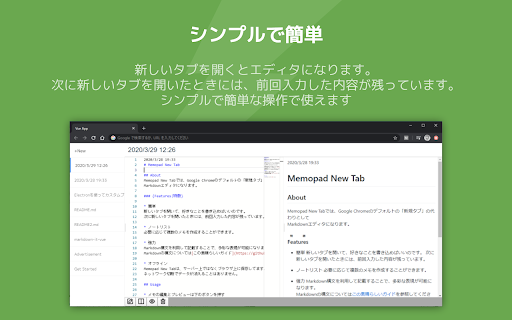
* Simple and Easy to Use
Just open a new tab and start writing.
Your notes are automatically saved and ready the next time you open a tab.

* Note List
Create multiple notes for different purposes and switch between them with ease.

* More Expressive with Markdown
Use Markdown syntax to write with headings, lists, tables, code blocks, and more.
See [the official guide](https://github.github.com/gfm/) for Markdown syntax.

* Works Offline
Memopad New Tab stores your data in the browser, not on any server.
You can create and edit notes even without an internet connection.

* Powered by Monaco Editor — the Same Editor as VS Code
Enjoy a rich editing experience with Monaco Editor, the same editor used in VS Code.
Syntax highlighting and autocompletion make writing Markdown smooth and comfortable.

* Diagrams with Mermaid and PlantUML
Memopad New Tab supports Mermaid and PlantUML, letting you create sequence diagrams, class diagrams, flowcharts, and more from plain text.
Just write the code and your diagram appears instantly.

* Real-time Preview
Your content is reflected in the preview pane as you type.
See the final result right alongside your writing for a seamless note-taking experience.

---------
[Updates]

v1.3.14 (2026/05/25)
* Added bilingual (English/Japanese) text support for the Settings page
The Settings page now follows your Language setting (en/ja), and section headings, descriptions, tab names, and sort options are displayed in the selected language.

* Applied language changes instantly without reload
You can now switch language while keeping the Settings page open, and all displayed text updates immediately.

v1.3.11 (2026/05/22)
* Added nested list conversion for full-width-space-prefixed "・"
We revised Settings -> multibyte -> Enable convert rules so lines starting with ` ・` are now correctly converted into nested Markdown lists.

* Changed the default breaks setting to ON
The Markdown Settings breaks option is now enabled by default, so notes with line breaks are displayed more naturally.

v1.3.10 (2026/05/22)
* Moved the delete action to each note item in the list
The delete action is now available directly on each note item, making it easier to remove the intended note.

* Separated view switching and destructive actions
We removed the delete action from the footer to avoid mixing it with view mode switching (F8/F9/F10).

v1.3.9 (2026/05/22)
* Visualized the selected view mode
The currently selected mode (F8/F9/F10) is now highlighted by button color, making the current state easier to understand.

* Saved and restored the selected view mode
Your last selected view mode is now persisted and restored when you open the app again.

v1.3.7 (2026/05/19)
* Improved the timing of Markdown autocompletion popups
Unintended suggestion popups are now suppressed so completions appear only when needed.

* Show completion suggestions with Ctrl+Space
Suggestions are now explicitly shown with Ctrl+Space to reduce interruption while typing.

v1.3.6 (2026/05/12)
* Added instant Privacy Blur activation with F6
When you need to hide the screen immediately, pressing F6 now enables Privacy Blur on the spot and switches to a blurred view right away.

* Fixed an issue where Privacy Blur did not work correctly

v1.3.5 (2026/05/11)
* Fixed delayed note update reflection
Resolved an issue where updates made in another tab could appear with a delay, so the latest content is now shown more smoothly.

* Adjusted export reminder animation for new installations
For new installations, the export reminder bounce animation is suppressed for the first 30 days to improve initial usability and visual comfort.

v1.3.3 (2026/05/07)
* Added idle timeout detection to Privacy Blur
The screen will automatically blur after 5 minutes of inactivity, even while the window is focused. Click to instantly remove the blur.

* Added hover tooltips and F8-F10 hotkey support for view toggle buttons
Added descriptions to the edit/preview/column view toggle buttons and can now be controlled with F8, F9, and F10 keys.

* Added export button to sidebar footer
An export button is now permanently displayed at the bottom of the note list for easier backup.

v1.3.0 (2026/05/07)
* Mermaid diagram support
You can now draw diagrams using Mermaid syntax — flowcharts, sequence diagrams, and more. Toggle it on or off in settings.

v1.2.0 (2026/05/05)
* Auto-reload when another tab updates your note
When the same note is open in multiple tabs and updated elsewhere, it reloads automatically. If you are currently editing, a copy is created so you can continue without losing your work.

* Improved sidebar usability
Added a toggle button for the sidebar, and you can now switch between notes using the up/down arrow keys.

* Added Unicode Highlight and Minimap editor settings
New ON/OFF options for "Unicode Highlight (Ambiguous Characters)" and "Minimap" are now available in the editor settings.

v1.1.5 (2026/05/04)
* Updated internal libraries for improved security
Internal libraries have been updated to their latest versions, enhancing overall security and stability.

* Introduced Privacy Blur mode
Added a new "Privacy Blur" feature that blurs the screen when the window becomes inactive, helping prevent others from seeing your notes.
Enable it in settings to automatically hide your content whenever you step away.
Technical
- Version
- 1.3.14
- Manifest
- V3
- Size
- 12.87MiB
- Min Chrome
- 88
- Languages
- 2
- Featured
- No
Metadata
- ID
- iohinadgijcpmclidcgalomljfabkpde
- Developer ID
- u44cd90511dc9290ccae5938b144aedb9
- Developer Email
- [email protected]
- Created
- Mar 26, 2020
- Last Updated (Store)
- May 25, 2026
- Last Scraped
- Jun 8, 2026
- Website
- —
- Privacy Policy
- —
Similar extensions
Alternatives to MemoPad New Tab, ranked by description similarity.

Memopad
A seamless, minimalistic tool for capturing tasks and ideas.
20
★ 5.0

MadNotes
Minimalistic markdown notepad. Boost your efficiency with quick note-taking app.
254
★ 4.6

MemoTab - New Tab Notes
Turn your new tab into a sticky note board
1.0K
★ 4.9

TabNotes
Take notes in new tab
1.0K
★ 4.1

New Tab Text
A Chrome extension that transforms new tabs into a text editor
20

PaperNote
A clean, minimalist new tab note-taking experience with some formatting options and Google Drive syncing.
9

Novum
A powerful new tab experience with note-taking and productivity tools.
37
★ 5.0

SnapMemo - Quick Note-Taking
Quick, Simple Note-Taking Right in Your Browser. No sign-up required!
94
★ 5.0
Data sourced from the Chrome Web Store · last verified Jun 8, 2026.