
Screen Capture - A Review and Feedback Tool
Extension to aid the process of reviews and audits
As of June 2026, Screen Capture - A Review and Feedback Tool has 88 users and a 5.00/5 rating from 4 reviews in the Workflow & Planning category.
Usersdown 13.7 percent−13.7%
88
88
Ratingno change0%
5.00
4 reviews
Reviewsno change0%
4
Version
3.0.0
Manifest V3
History
3 snapshotsTracking since Apr 23, 2026.
View as table
| Date | Users | Rating | Reviews | Version |
|---|---|---|---|---|
| Apr 23, 2026 | 102 | 5.00 | 4 | 3.0.0 |
| May 12, 2026 | 99 | 5.00 | 4 | 3.0.0 |
| Jun 7, 2026 | 92 | 5.00 | 4 | 3.0.0 |
| Now | 88 | 5.00 | 4 | 3.0.0 |
Permissions & access
- Permissions
- contextMenusactiveTabscriptingtabs
- Host access
- None declared
Screenshots

About
Easily annotate screenshots, prioritize comments, and export feedback.
Tired of losing context and tracking multiple documents?
Screen Capture is the all-in-one tool for all your audit and review needs.
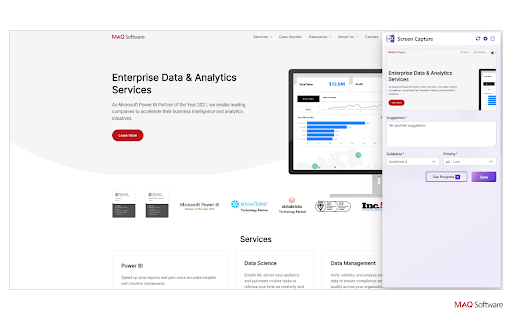
Add screenshots of review elements, provide comments, and categorize your feedback—all using Screen Capture.
You can even prioritize your findings to manage them more effectively. Easily download your findings in a sharable PDF file when you’re done, ensuring everyone is on the same page.
Use cases
• Auditors and reviewers – Screenshot elements and easily include relevant context, suggestions, guideline violations, and priority levels. Effectively communicate findings to the team.
• Development teams – Get properly documented bugs and issues to fix in the product. Effortlessly document and provide updates to the review and design teams.
• Product owners – Understand what issues and bugs are affecting the product and track their progress to help plan upcoming features.

How to use Screen Capture
1. Take a screenshot with your preferred tool (e.g., Windows Snip, Greenshot, etc.). Copy the screenshot to your clipboard.
2. Activate the Screen Capture extension from the toolbar or the context menu. Click on the screenshot loading area, as directed on the interface, to paste the screenshot.
3. Add comments and details as desired. Click Save to save your changes.
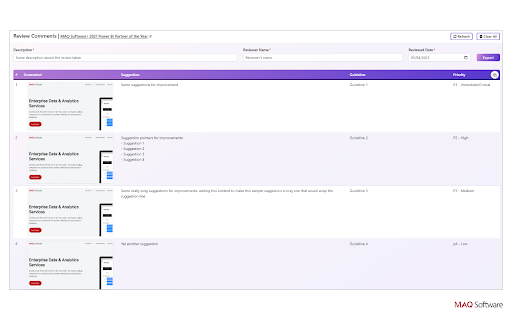
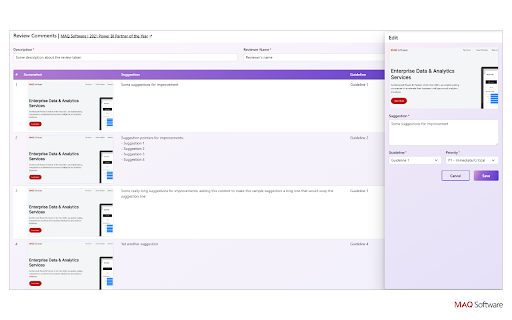
4. Click See Progress to view, edit, or delete screenshots and added details. Provide metadata of the reviewed items (description of the report, the reviewer, and the review date) on this page as well.
5. Click Export to download a report of your screenshot and its details as a PDF file.

Features
• Easily add review comments and feedback to your screenshots using the text field.
• Categorize your feedback with drop-down lists.
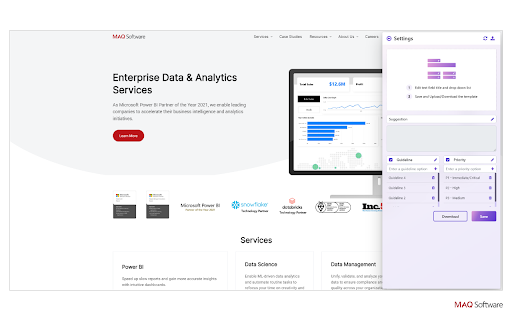
• By default, the text field is titled Suggestion, and the feedback can be categorized based on Priority and Guideline (violation).
• Rename and customize all the sections, categories, and drop-down options as per your requirements.
• Easily download and share your customized section and category settings for a unified team experience.
• Edit and delete screenshots and added details at any point prior to exporting.
• Export your report in a PDF file or just copy it to paste anywhere you want.
• Privacy is one of our core values. All your data stays with you on your local machine except the exported document that you share with other folks.

Streamline your audit and review processes with Screen Capture, making it easier than ever to identify and resolve issues. Try it today!
Technical
- Version
- 3.0.0
- Manifest
- V3
- Size
- 117KiB
- Min Chrome
- 88
- Languages
- 1
- Featured
- No
Metadata
- ID
- efblhoabkicmaaaaldebhmmelllidili
- Developer ID
- u2ff816191374dc903c990f01ebdd9f15
- Developer Email
- [email protected]
- Created
- May 15, 2023
- Last Updated (Store)
- Jun 11, 2024
- Last Scraped
- Jun 7, 2026
- Website
- —
- Support URL
- —
- Privacy Policy
- —
Similar extensions
Alternatives to Screen Capture - A Review and Feedback Tool, ranked by description similarity.

Recorder & Screenshot | Sitespedia - Screen Video Recorder & Screenshot
Take screenshots entirely or partially of websites, annotate them, and manage them in a centralized place.
6

Awesome Screen Recorder & Screenshot
The best screen recorder and screen capture & screenshot tool to record screen.
3.0M
★ 4.7

Free Screenshot Capture & Annotation Tool
Useful extension for taking screenshots and adding annotations to them. Visualize, annotate, and share screenshots in a few clicks!
1.0K
★ 5.0

Screenshotify
Lightweight Screenshot + Annotate Chrome Extension. Capture, annotate, blur, crop, and zoom screenshots - all offline and private.
11
★ 5.0
Simple Screen Capture: Full Page Screenshot
Simple Screen Capture is a handy Chrome Extension that allows you to effortlessly capture full page screenshots with just a click.
5.0K
★ 4.3

Annotation, Full Page Capture & Snipping Tool
Instacap is a screenshot editor & annotation tool for full page screen capture, pdf annotation & more—for instant visual feedback
7.0K
★ 4.8

Zoho Annotator
The most elegant and efficient annotation tool.
20.0K
★ 4.7

Scrolling screenshot tool & screen capture
Scrolling Screenshot tool for screen capture and screen sharing
400.0K
★ 4.3
Data sourced from the Chrome Web Store · last verified Jun 7, 2026.