
Screenshot a Tab
Capture viewport, full page, or element screenshots — like Chrome DevTools.
As of June 2026, Screenshot a Tab has 24 users and a 5.00/5 rating from 1 reviews in the Developer Tools category.
Usersup 166.7 percent+166.7%
24
24
Ratingno change0%
5.00
1 reviews
Reviewsno change0%
1
Version
1.0.2
Manifest V3
History
8 snapshotsTracking since Apr 1, 2026.
View as table
| Date | Users | Rating | Reviews | Version |
|---|---|---|---|---|
| Apr 1, 2026 | 9 | 5.00 | 1 | 1.0.2 |
| Apr 17, 2026 | 10 | 5.00 | 1 | 1.0.2 |
| Apr 27, 2026 | 12 | 5.00 | 1 | 1.0.2 |
| May 4, 2026 | 11 | 5.00 | 1 | 1.0.2 |
| May 15, 2026 | 14 | 5.00 | 1 | 1.0.2 |
| May 22, 2026 | 12 | 5.00 | 1 | 1.0.2 |
| May 31, 2026 | 14 | 5.00 | 1 | 1.0.2 |
| Jun 9, 2026 | 20 | 5.00 | 1 | 1.0.2 |
| Now | 24 | 5.00 | 1 | 1.0.2 |
Permissions & access
- Permissions
- activeTabdownloadsscripting
- Host access
- <all_urls>
Screenshots

About
Screenshot the visible area, entire scrollable page, or a single element. One click, save as PNG. Works on any website. Fast, easy! Just 3 buttons!


Save exactly what you need - no cropping, no scrolling, no hassle

Screenshot a Tab gives you three ways to capture any web page, so you can document designs, save references, report bugs, or share content without extra steps.

Capture viewport — what you see is what you get
Capture the visible area of the tab in one click. No scrolling, no stitching. Ideal for quick references, social shares, or saving a single “above the fold” view. You get a clean PNG of exactly what’s on screen.

Capture full page — the whole page in one image
Need the entire scrollable page? Full-page capture scrolls automatically, stitches everything into one tall image, and saves it as a single PNG. No manual scrolling or third‑party tools. Great for long articles, documentation, receipts, or any page you want to archive or share in one file.

Capture node — screenshot only the part that matters
Click any element on the page and capture just that element. Buttons, cards, tables, headers — whatever you click is what gets saved. No cropping in an image editor. Perfect for design references, UI snippets, bug reports, or saving a specific block of content without the rest of the page.

Why use Screenshot a Tab?
One click, then save — Choose capture type, then use your browser’s “Save as” dialog. No account, no sign‑up, no cloud.
Privacy-first — Everything happens locally. Screenshots are not uploaded or sent anywhere.
Works where you browse — Use it on any normal website (http/https). No need to open DevTools or leave your tab.

Consistent, predictable filenames — Downloads use clear names (e.g. viewport/fullpage/node, page title, date, time) so you can find and organize screenshots easily.

No clutter — Simple popup with three options. No ads, no extra features you don’t need.

Whether you’re documenting designs, building a reference library, reporting issues, or saving content for later, Screenshot a Tab helps you capture the right part of the page and save it as a PNG - fast and without leaving Chrome.
Technical
- Version
- 1.0.2
- Manifest
- V3
- Size
- 43.3KiB
- Min Chrome
- 88
- Languages
- 1
- Featured
- No
Metadata
- ID
- jlmfhgkgdlhmemmlnlhglhlnemchdkdh
- Developer ID
- u1a3a7e3ea0573f8d8c2784539b9cae40
- Developer Email
- [email protected]
- Created
- Feb 13, 2026
- Last Updated (Store)
- Feb 17, 2026
- Last Scraped
- Jun 9, 2026
- Website
- —
- Support URL
- —
- Privacy Policy
- —
Similar extensions
Alternatives to Screenshot a Tab, ranked by description similarity.

Website Full Page Screenshot
Capture a full-page screenshot of the current website.
12
★ 5.0

Quick Screenshot
Take full page or selected area screenshots.
7

FullPageShot
Capture full-page screenshots as images or PDFs with automatic scrolling
5
★ 5.0

Page Screenshot
Take a screenshot of the current page
1

Screenshot with URL - Full Page Screenshot
Capture full page, visible & selected area screenshots with URL bar & hidden Bookmarks, record screen with inbuilt editor.
7.0K
★ 4.9

Capture Screenshot
Simple & powerful screenshot tool — visible, full page, select area, and snap.
116
★ 5.0
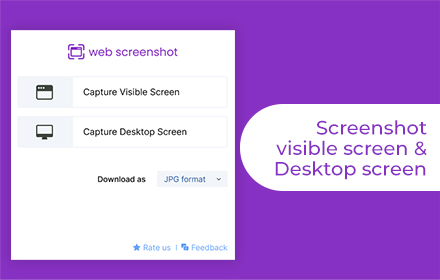
Web Screenshot
Takes Web and Desktop screenshots with a single click
10.0K
★ 4.5

ShotMyPage - Full Page Screen Capture
Chrome full page screenshot and screen capture extension with professional editing tools and project management
224
★ 5.0
Data sourced from the Chrome Web Store · last verified Jun 9, 2026.