
BrickBuddy
BrickBuddy makes your orders of LEGO parts on Bricklink much easier checking what items you are still missing from your Wanted List
As of May 2026, BrickBuddy has 32 users and a 5.00/5 rating from 6 reviews in the Workflow & Planning category.
Usersdown 5.9 percent−5.9%
32
32
Ratingno change0%
5.00
6 reviews
Reviewsno change0%
6
Version
1.0.1
History
3 snapshotsTracking since Apr 1, 2026.
View as table
| Date | Users | Rating | Reviews | Version |
|---|---|---|---|---|
| Apr 1, 2026 | 34 | 5.00 | 6 | 1.0.1 |
| May 1, 2026 | 35 | 5.00 | 6 | 1.0.1 |
| May 30, 2026 | 33 | 5.00 | 6 | 1.0.1 |
| Now | 32 | 5.00 | 6 | 1.0.1 |
Permissions & access
- Permissions
- None declared
- Host access
- None declared
Screenshots


About
WHY USE BrickBuddy© ?

When making large orders of LEGO parts on Bricklink, most of the times you won't find eveything from a single store.
You will inevitably need to make multiple orders, but Bricklink doesn't tell you which and how many items you would still need to complete your Wanted List if you would place an order (the 'Apply order' functionality is simply not good enough).
The only alternative is manually checking lot by lot, store by store, wasting a ridiculous amount of time and probably still making some mistakes, ending up with parts still missing, or duplicates lots from multiple stores.
Well, BrickBuddy© will now do that for you IN A SECOND and WITHOUT MISTAKES.


WHAT IT DOES?

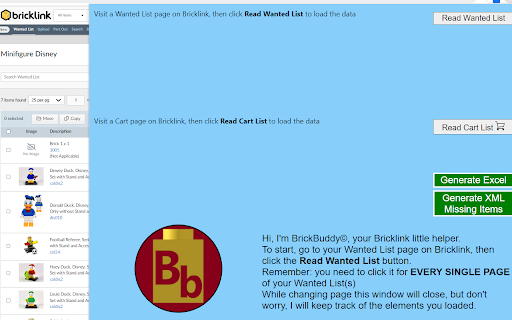
BrickBuddy© reads the HTML of the Bricklink pages with your Wanted List and Carts.
With those data, it generates an Excel file with a summary of your Bricklink orders, specifying for each item the quantity put in cart across all the selected stores, the price per unit and the total.
Then it evidentiates the cells with an appropriate color, depending if the quantity has been reached, exceeded or not met.
No more hours spent to manually double-check lot by lot.
But there is more: BrickBuddy© is also able to istanlty generate a new Wanted List in Bricklink XML format with the items that didn't reach the quantity needed and still need to be bought to complete your Wanted List(s).
It automatically copies the XML string in your clipboard, ready to be pasted in the 'Upload BrickLink XML format' section.


HOW TO USE IT

Use it BEFORE you place the orders, to make sure you are not leaving anything out.
In order to function properly BrickBuddy© needs data from at least one Wanted List and one cart.
You can load the data in the order you like (first WL then carts or viceversa).
Keep in mind that BrickBuddy© can only load the data that is currently displayed in the page.
So, in case you have a WL with many pages you will have to click "Read Wanted List" for every single WL page.
In order to reduce the iteractions, is better if you set the items displayed per page at 100 (the maximum).
Once you load all the data needed (WL and cart(s)), you can proceed generating the Excel File or the XML string.

Note: BrickBuddy© (like every other Chrome Extension popup) will close once you click outside of it or change page.
You will need to open it again from the new page, but the data will still be saved.


WAIT A SECOND, DO YOU SAVE OUR DATA ???

No, ABSOLUTELY NOT! All data are stored inside your Chrome local storage, a special memory your browser has, so exclusively inside your device.


HOW MANY WANTED LIST AND CARTS CAN I UPLOAD?

There is virtually no limit to the number of WL and carts you can upload, except for the Chrome local storage memory, which is about 5 MB.
But you would really need to have an insane amount of WL and carts to exceed it.
I tested the extension with a couple WL of thousands of elements and it was ok.


HOW DO I INTERPRET THE COLORS IN THE EXCEL?

Inside the generated Excel File, you will find a second sheet called 'Color Guide' that will explain you everything.


SPECIAL CASES

1 - USED ITEMS: When reading the WL BrickBuddy© doesn't distinguish between New, Used or Any condition.
So if you have 3 lots of the same item, all with the same color (1 new, 1 used, 1 any), you will see three of them in the table loaded in the User Interface, but in the Excel File will be merged in a single row with wanted quantity equal to the sum of the quantities specified for each lot.
The Excel file will still notify how many of the selected items are Used in a comment inside the cell (Used items cells have RED BOLD text)

2 - COLOR NOT APPLICABLE: In the WL it is possible not specify the color for a certain part, leaving it as "Not Applicable".
Usually is done for parts that will not be visible in the final build, so can be of any color.
If you have lots with "Not Applicable" color in your WL, BrickBuddy© will interpret the lots in your carts with the same Bricklink Code as candidates to fill that "Not Applicable" wanted items (unless you have a wanted lot with that specific color).
Example: you have a WL with 10 1x1 bricks white and 10 'Not Applicable', and a cart with 5 1x1 bricks blue, 5 red and 10 white.
The 10 white will fill the lot with the color white specified, the 5 red and 5 blue will fill the 'Not Applicable' lot.
In the Excel file, the 'Not Applicable' rows will have specified in the store cells comment the quantity for each color
Technical
- Version
- 1.0.1
- Manifest
- —
- Size
- 15.17MiB
- Min Chrome
- 88
- Languages
- 1
- Featured
- No
Metadata
- ID
- gakoikejnplaodanboajkfchicgbkede
- Developer ID
- u9ead28d3f6ff9d2aa44a83c9855178ae
- Developer Email
- [email protected]
- Created
- Apr 26, 2023
- Last Updated (Store)
- Jul 10, 2023
- Last Scraped
- May 30, 2026
- Website
- —
- Support URL
- —
- Privacy Policy
- —
Similar extensions
Alternatives to BrickBuddy, ranked by description similarity.

BrickTinker
Adds useful features for sellers on BrickLink.com
182

DIM Wishlist Builder
Build a large DIM Wishlist.
466
★ 4.9

License Buddy Free
This chrome extension fills in your information automatically. No more copying and pasting - let License Buddy take care of it!
312
★ 5.0

PS SKU Grabber
SKU grabber for PlumbersStock
52
★ 1.0

SellerBot StockSpy - Free Amazon Inventory Checker
Free, unlimited Amazon stock checker — see real-time inventory counts for every seller on any listing. No signup, no limits
211
★ 5.0

WalmartHunt-Walmart Dropshipping Tools
Walmart dropshipping product research tool and improve listing page for Walmart sellers and brands.
4.0K
★ 4.3

Auto B.O.M. Filler
Right-click any product page to add components to your Google Sheets BOM
2

AWB Generator
The AWB Generator Chrome extension is a simple tool designed to generate AWB numbers with a mod check for logistics purposes.
285
★ 5.0
Data sourced from the Chrome Web Store · last verified May 30, 2026.