
One Signer
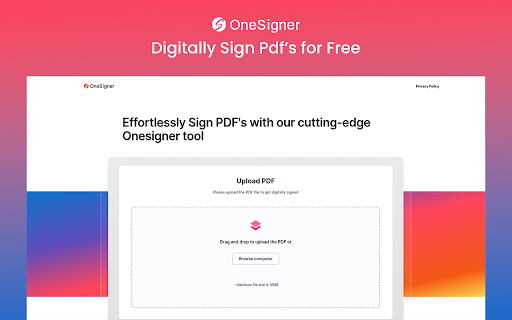
Sign your PDF files digitally with free online PDF signer Chrome Extension.
As of May 2026, One Signer has 389 users in the Workflow & Planning category.
Usersup 20.1 percent+20.1%
389
389
Ratingno change0%
—
— reviews
Reviewsno change0%
—
Version
1.0
Manifest V3
History
3 snapshotsTracking since Apr 1, 2026.
View as table
| Date | Users | Rating | Reviews | Version |
|---|---|---|---|---|
| Apr 1, 2026 | 324 | — | — | 1.0 |
| Apr 30, 2026 | 337 | — | — | 1.0 |
| May 28, 2026 | 347 | — | — | 1.0 |
| Now | 389 | — | — | 1.0 |
Permissions & access
- Permissions
- storagenotifications
- Host access
- None declared
Screenshots
About
One Signer is a powerful and user-friendly Chrome extension designed to simplify the process of signing PDF files digitally. With its intuitive interface and versatile features, you can now create your digital signature effortlessly. Whether you prefer uploading an existing signature, drawing it on the screen, or automatically converting your typed name, One Signer has got you covered.


Key Features

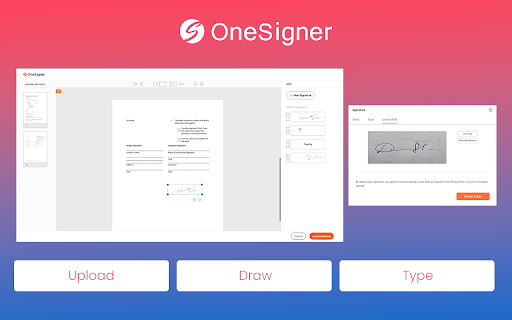
>> Multiple Signature Options: One Signer offers three convenient ways to create your digital signature. You can upload an image of your existing signature, draw a signature directly on the screen using your mouse or touchscreen, or type your name and let the extension automatically generate your signature.

>> Seamless Integration: As a Chrome extension, One Signer seamlessly integrates with your browser, making it easily accessible whenever you need to sign a PDF file.

>> Time-Saving Efficiency: With One Signer, signing PDF files becomes a breeze. Say goodbye to printing, manually signing, and scanning documents. Save time by digitally signing your PDF files directly within your browser.


How to Use One Signer?

>> Install the extension
>> Click the extension icon to enable it
>> Upload your PDF file which you need to sign
>> Click on the Add button to sign PDF if you already have uploaded signature
 >> If you are a new user then you need to choose from the three signature options available - "Upload Signature," "Draw Signature," or "Type Name." Select the option that suits you best.
>> Signing the PDF: Once you have created your signature, click on the "Sign PDF" button.
Technical
- Version
- 1.0
- Manifest
- V3
- Size
- 3.45MiB
- Min Chrome
- 88
- Languages
- 1
- Featured
- Yes
Metadata
- ID
- dngoflkdbglcihacgjkgbgabdenhegio
- Developer ID
- u76c33c0dc35c02c320e68a583b8af9c6
- Developer Email
- [email protected]
- Created
- Jun 21, 2023
- Last Updated (Store)
- Jun 21, 2023
- Last Scraped
- May 28, 2026
- Website
- —
- Support URL
- —
- Privacy Policy
- —
Similar extensions
Alternatives to One Signer, ranked by description similarity.

OnePen Sign
Draw handwritten signatures on web pages and PDFs opened in your browser. Export as PNG or capture signed documents.
6

Topaz Adobe Sign Extension
The Topaz Chrome Extension for Adobe Sign enables users to sign PDFs on a variety of Topaz signature pads.
10.0K
★ 4.3
Digital Signature for PDF Files
Create beautiful signature with ease and optionally put in a PDF file.
10.0K
★ 1.4

Secure Signature
Secure Signature for Web
3
Docusign eSignature for Chrome
Access Docusign eSignature anytime you’re in Chrome.
300.0K
★ 4.3

PDF Editor for Chrome:Edit, Fill, Sign, Print
Edit, e-sign, print or fax PDFs directly from search engine results and webpages with the pdfFiller extension.
200.0K
★ 2.3

Legally Binding Electronic Signatures
Super simple signatures
Upload a document now — get it legally signed blazing fast
Are you struggling to sign
documents…
22

SignNow - Sign and Fill PDF & Word Documents
Sign PDF and Word documents from the web by clicking "Open in SignNow" from any document in your browser.
20.0K
★ 4.0
Data sourced from the Chrome Web Store · last verified May 28, 2026.