Save Page WE
Save a complete web page (as curently displayed) as a single HTML file that can be opened in any browser.
As of May 2026, Save Page WE has 100,000 users and a 4.45/5 rating from 441 reviews in the Productivity category.
Usersno change0%
100.0K
100,000
Ratingup 0.2 percent+0.2%
4.45
441 reviews
Reviewsup 1.4 percent+1.4%
441
Version
33.9
Manifest V3
History
2 snapshotsTracking since May 1, 2026.
View as table
| Date | Users | Rating | Reviews | Version |
|---|---|---|---|---|
| May 1, 2026 | 100.0K | 4.44 | 435 | 33.9 |
| May 30, 2026 | 100.0K | 4.44 | 436 | 33.9 |
| Now | 100.0K | 4.45 | 441 | 33.9 |
Permissions & access
- Permissions
- tabswebNavigationdownloadscontextMenusscriptingnotificationsstorage
- Host access
- http://*/*, https://*/*, file:///*
Screenshots


About
CHANGES

Version 33.9

• Automatically selects the original or new save method.
• Minor bug fix.

OVERVIEW

Save Page WE provides a simple facility to save a web page (as currently displayed) as a single HTML file that can be opened in any browser. The saved page is a highly accurate representation of the original page. Multiple pages can be saved either by selecting multiple tabs or by loading a list of page URLs.

If used  with Print Edit WE, Save Page WE now requires Print Edit WE 26.1 or later for full compatibility.

TOOLBAR BUTTON

After installation of Save Page WE, there will be a new blue 'floppy-disk' button on the main toolbar.

To save the web pages in all of the currently selected tabs file, just click on the Save Page WE toolbar button.

There are options to set the button action as:

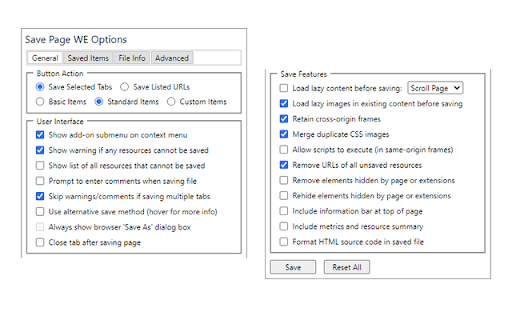
• Save Selected Tabs (Basic, Standard or Custom Items)
• Save Listed URLs (Basic, Standard or Custom Items)

There is an option to use the new save method, which can save more pages (see the 'Save Methods' section below).

By default the saved HTML file will have a '.html' extension.

CONTEXT MENU & BUTTON MENU

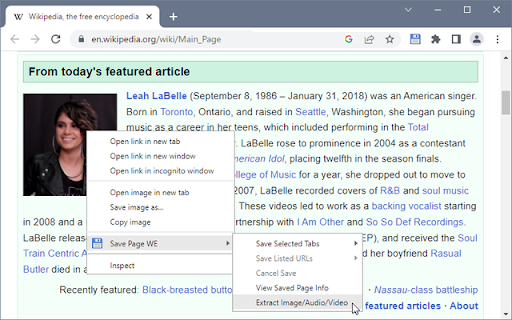
To save a web page as an HTML file, or to perform operations on a previously saved page, right-click on the page contents to open the context menu, select the 'Save Page WE' sub-menu, and then select one of the menu items:

• Save Selected Tabs (Basic, Standard or Custom Items)
• Save Listed URLs (Basic, Standard or Custom Items)
• Cancel Save
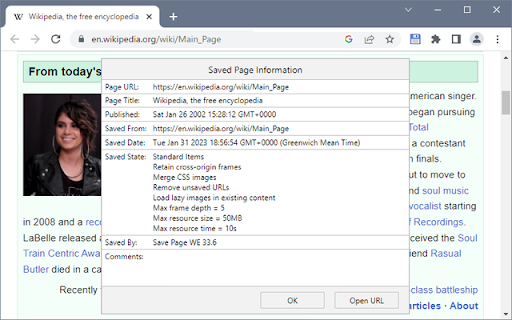
• View Saved Page Info (when viewing a saved page)
• Remove Resource Loader (when viewing a saved page - pre 15.2)
• Extract Image/Audio/Video (when viewing a saved page)

KEYBOARD SHORTCUTS

To save a web page as an HTML file, press Alt+A.

To cancel a single or multiple page save, press Alt+C.

SAVING MULTIPLE PAGES

There are two ways to save multiple pages:

• Highlight multiple tabs and then select the 'Save Selected Tabs' menu item.
• Load a file containing a list of URLs in the Zoom Page WE Options dialog and then select the 'Save Listed URLs' menu item.

When saving multiple pages, tabs are switched to foreground if the load lazy content option is enabled.

SAVED ITEMS

There are options to select the saved items:

• Save Basic Items - saves the essential items.
• Save Standard Items - saves the Basic Items and some addtional items.
• Save Custom Items - saves the Basic Items and items selected from a list.

SAVED FILE NAME

There is an option to specify the format of the saved file name.

This format is used when saving the complete page and when extracting a resource (Image/Audio/Video).

The saved file name may contain the following predefined fields:

• %TITLE% - (saving page) the document title, or if missing same as %FILE%.
• %TITLE% - (extracting resource) the same as %FILE%.
• %DATE(x)% - saved date in YYYYxMMxDD format, 'x' is optional separator.
• %TIME(x)% - saved time in HHxMMxSS format, 'x' is optional separator.
• %DATEP(x)% - published date in YYYYxMMxDD format, 'x' is optional separator.
• %TIMEP(x)% - published time in HHxMMxSS format, 'x' is optional separator.
• %DATEPF(x)% - same as %DATEP(x)%, or if missing falls back to saved date.
• %TIMEPF(x)% - same as %TIMEP(x)%, or if missing falls back to saved time.
• %HOST% - host name in URL.
• %HOSTW% - same as %HOST%, but without 'www.' prefix.
• %PATH% - path name in URL.
• %PATHW% - same as %PATH%, but without '.extension' suffix.
• %FILE% - file name in the last segment of URL path.
• %FILEW% - same as %FILE%, but without '.extension' suffix.
• %QUERY(p)% - query string in URL if 'p' omitted, else value of parameter 'p'.
• %FRAGMENT% - fragment string in URL.

There are options to replace spaces in the saved file name with a user-defined character and to set the maximum length of the saved file name.

SAVE METHODS

There are two alternative save methods: old and new. The old save method is the default

The old save method remembers the last save location, but it cannot save a some pages (e.g Yahoo) in Chrome 84 or later.

The new save method does not remember the last save location, but it can save all pages.

CONFIGURING CHROME

Go to Chrome Menu Button > Settings > Advanced.

In the Downloads section, set the downloads folder location, and enable or disable the 'Ask where to save each file before downloading' option.

After saving a page, a download item will appear in the download bar at the bottom of the browser window. Click on the arrow in the download item and enable or disable the 'Always open files of this type' option.

USING AUTOMATION

There is an option to use automation mode, allowing a page to be saved from the command line.

If this option is enabled:

• When Firefox starts, Save Page WE will be automatically initiated using the current Button Action.
• When the save operation is complete, Firefox will be automatically closed.

To exit automation mode, immediately after Firefox starts up, use the 'Cancel Save' menu command or keyboard shortcut to cancel the save operation, and then disable the option to use automation.

SUPPORT

Please e-mail:  [email protected]

LICENSE

Distributed under the GNU General Public License version 2.
See LICENCE.txt file and http://www.gnu.org/licenses/
Technical
- Version
- 33.9
- Manifest
- V3
- Size
- 96.34KiB
- Min Chrome
- 88
- Languages
- 1
- Featured
- Yes
Metadata
- ID
- dhhpefjklgkmgeafimnjhojgjamoafof
- Developer ID
- ua5322ee4078535123b27bd21409dca85
- Developer Email
- [email protected]
- Created
- Nov 16, 2016
- Last Updated (Store)
- Sep 5, 2023
- Last Scraped
- May 30, 2026
- Website
- —
- Support URL
- —
- Privacy Policy
- —
Similar extensions
Alternatives to Save Page WE, ranked by description similarity.

Print Edit WE
Edit web pages prior to printing. Delete, hide and format elements. Edit text. Remove adverts and sidebars.
100.0K
★ 4.4

Navigate Up WE
Navigate up one or more URL levels.
1.0K
★ 3.4

Save Webpage
One click tool that captures any page as a single offline HTML file with all images and styles inlined.
876
★ 5.0

web document
Stores web pages locally in browsers, enabling offline use and saving browser memory.
514
★ 4.2

Tab Save
One-click download for files from open tabs, lists of URLs, or scholarly article PDFs from their associated DOI.
1.0K
★ 5.0

PageSaver - Webpage to PDF or Image
Webpage to image and PDF with full page support and reader mode.
4.0K
★ 4.6

Website to PDF Converter,Batch Save Web Pages
Convert an entire website to PDF with on click, Batch Save Web Pages as PDF files
416
★ 2.1

Save Page as PDF
Generate PDF via Chrome built-in print.
19
★ 5.0
Data sourced from the Chrome Web Store · last verified May 30, 2026.