
Chalk
Own your day with Chalk.
As of June 2026, Chalk has 82 users in the Workflow & Planning category.
Usersdown 4.7 percent−4.7%
82
82
Ratingno change0%
—
— reviews
Reviewsno change0%
—
Version
0.0.0.6
Manifest V3
History
3 snapshotsTracking since Apr 23, 2026.
View as table
| Date | Users | Rating | Reviews | Version |
|---|---|---|---|---|
| Apr 23, 2026 | 86 | — | — | 0.0.0.6 |
| May 12, 2026 | 90 | — | — | 0.0.0.6 |
| Jun 7, 2026 | 94 | — | — | 0.0.0.6 |
| Now | 82 | — | — | 0.0.0.6 |
Permissions & access
- Permissions
- identitystorage
- Host access
- None declared
Screenshots
About
Reclaim your time

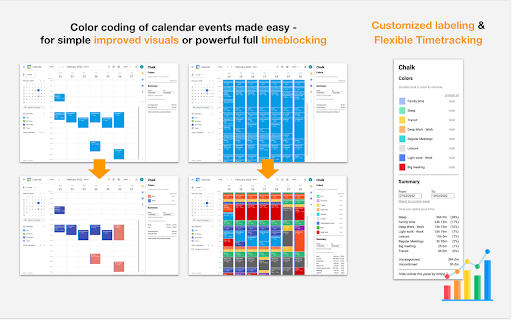
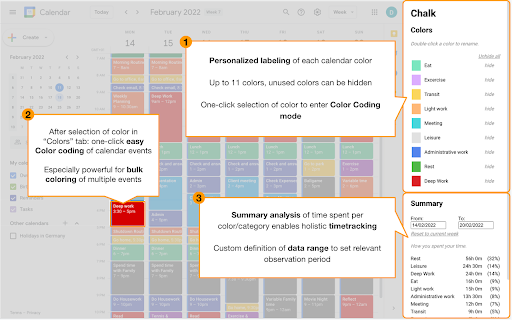
Chalk allows you to easily color code your events, label individual colors and analyze time spent per color - all in your existing Google Calendar. Use it for timeblocking, timetracking, improving your calendar visuals or however else color coding helps your workflow.

*Key Features*
- Color coding of calendar events made easy
- Customized labeling of each calendar color
- Flexible tracking of time spent per color

*Use Cases*
- Turbocharged Timeblocking in your existing Google Calendar environment
- Enhanced color coding-based Calendar Mgmt
- Calendar management-based Timetracking
- Integrated, customizable Reporting, e.g. as input for freelancer invoicing

Please find a short usage guide below the line.

We are continuously improving the tool and are grateful for feedback on existing features, bugs and suggestions on what to improve and suggestions for additional features

Thanks!

-----

*Usage guide*

Starting up

- Download and enable the extension
- Go to your signed-in Google Calendar session
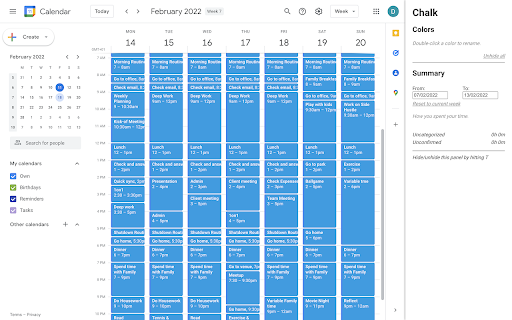
- Press “T” to enable the Chalk panel on the right hand side. This will switch to the current day/week

(Batch) Color coding

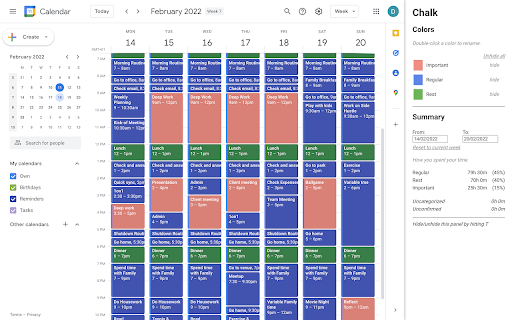
- In the “Colors” section on the top of the panel, click a color to activate it. A black frame around the activated color will appear
- Click an existing time slot in your calendar to assign the activated color to it. This can be done quickly for multiple time slots (batch color coding)
- A delay of a few seconds in the color switch is to be expected. Press the refresh shortcut (“command+r” on mac) to expedite the color switch
- Creating a new time slot with a color activated will not change the color of that new slot
Press “Esc” to deactivate the color, or press on a different color to activate it
- Note: You can also right-click on a time slot to recolor it (and the color will be recognized by Chalk’s time tracking feature - see below), but this process is significantly streamlined by Chalk. The right-click method might be still preferable when you want to color each instance of a recurring time slot.

Color labeling

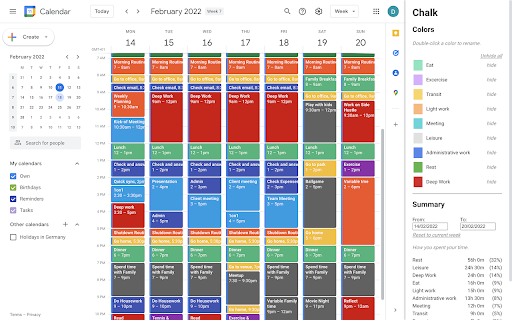
- In the “Colors” section on the top of the panel, double click on a color to rename it; confirm the
renaming by pressing “Enter”
- Click “hide” next to a color to hide it; click “unhide” to unhide all hidden colors

Time tracking

- In the “Summary” section on the bottom of the panel, click the “From:” and “To:” fields to activate a selection field for the time tracking time range. You can also type in custom dates
- Press “”Reset to current week” to switch back to the current week time frame
The table indicates the time spent per category


Chalks icons created by Freepik - Flaticon (https://www.flaticon.com/free-icons/chalks)
Technical
- Version
- 0.0.0.6
- Manifest
- V3
- Size
- 1.36MiB
- Min Chrome
- 88
- Languages
- 1
- Featured
- Yes
Metadata
- ID
- bkdecehhjgpcknienjfgmdlabmmmffea
- Developer ID
- u5d6085e0df83d92d958d4c514a4b1653
- Developer Email
- [email protected]
- Created
- Mar 29, 2022
- Last Updated (Store)
- Jun 5, 2022
- Last Scraped
- Jun 7, 2026
- Website
- —
- Support URL
- —
- Privacy Policy
- https://chalkproductivity.com/privacy/
Similar extensions
Alternatives to Chalk, ranked by description similarity.

Shade Calendar – Time Blocking for Google Calendar
Color-code your time blocks in Google Calendar. Make your schedule easier to read, plan, and manage 📆
4.0K
★ 3.6
Add More Colors to Calendar
Enhance your Google Calendar with a Chrome extension that adds custom colors to each event for a personalized, organized schedule.
5.0K
★ 3.4

Google Calendar Time Spent
Displays time spent on each of your Google Calendar colors!
2.0K
★ 3.9

Custom Labels & Colors for Calendar
Add custom labels, solid & gradient colors to Google Calendar events for better organization, clarity, and productivity.
462
★ 4.0

GCalPlus
Extra Options for Google Calendar
60.0K
★ 3.9

CalendarBoost
Add unlimited colors & tags to Google Calendar. Color-code events, apply themed tags, organize beautifully, boost productivity.
23
★ 5.0

Work Hours Bar
Displays a live work hours progress bar on Google Calendar and the extension homepage.
17

GCal Pro: More Custom Colors for Google Calendar Events
Customize Google Calendar events with more colors for better organization and readability, no OAuth required!
329
★ 5.0
Data sourced from the Chrome Web Store · last verified Jun 7, 2026.