
MultiLine Text Selection
Make, copy, and search multiple concurrent text selections.
As of May 2026, MultiLine Text Selection has 10,000 users and a 3.69/5 rating from 81 reviews in the Productivity category.
Usersno change0%
10.0K
10,000
Ratingno change0%
3.69
81 reviews
Reviewsup 1.3 percent+1.3%
81
Version
14
Manifest V3
History
1 snapshotsTracking since Apr 25, 2026.
View as table
| Date | Users | Rating | Reviews | Version |
|---|---|---|---|---|
| Apr 25, 2026 | 10.0K | 3.69 | 80 | 14 |
| Now | 10.0K | 3.69 | 81 | 14 |
Permissions & access
- Permissions
- contextMenusactiveTabstorage
- Host access
- None declared
Screenshots


About
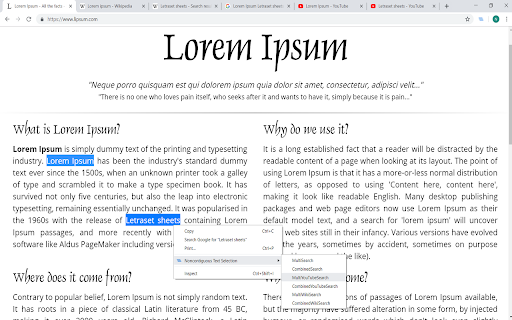
Make multiple noncontiguous text selections at a time in webpages. Text can be copied to clipboard through ctrl+c or the right-click copy option. You can also search your text on Google, YouTube, and Wikipedia through the right click selection menu.

Usage
Make additional text selections while holding down ctrl. Clear all selections by clicking without holding ctrl. Undo the most recent selection with ctrl+z. On Macs, use cmd instead of ctrl.

Lock selections with ctrl+shift+L. When selections are locked, they will not disappear when left-clicking. This prevents accidentally clicking out and clearing your selections. While locked, ctrl/cmd is not needed to make selections. Leave locked mode and clear all highlighted text by pressing ctrl+shift+L again.

Right click any selection for search options. Select MultiSearch to open a search tab for each selection. Select CombinedSearch to open a single search tab for each selection separated by a space. Right click the extension icon in the Chrome toolbar (top-right of the browser) and select options to enable or disable the context menu search options.

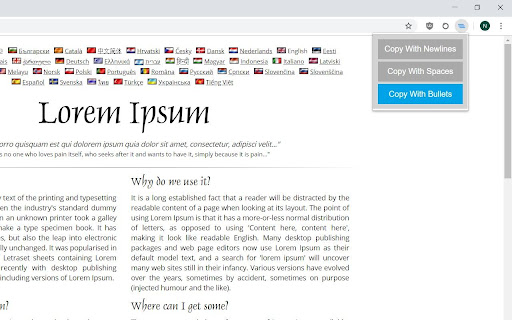
Select the extension icon to toggle copy options. If 'Copy With Newline' is selected, each selection will be separated by a newline when copying. If 'Copy With Spaces' is selected, each selection will be separated by spaces when copying. If 'Copy With Bullets' is selected, each selection will be copied as a bullet point.

Notes
- The extension is automatically disabled by Chrome in the store description. Try it out on other sites.
- Refresh any current tabs when first installing to activate the extension on those pages. This is not necessary for new tabs.
- When selecting separate words throughout a web page, you can double-click while holding ctrl instead of dragging to select.
- When making overlapping selections, ctrl+z will remove the combined selection.
- Selections are sent to the clipboard and searched in the order they are selected.
- Copied selections will be in plain text.
- A single selection containing text on separate lines will be treated as multiple selections when MultiSearching. This keeps you from having to individually select multiple lines that are grouped together.

Updates
- 3/23/21: Removed unused clipboardWrite permission
- 4/15/19: Swapped ctrl with cmd for Mac users
- 5/1/19: Added selection lock with shift+L, see usage for details
- 5/11/19: Replaced shift-L with ctrl+shift+L to prevent accidental activation
- 5/18/19: Added search options for YouTube and Wikipedia
- 6/22/19: Made selections crossing multiple bullets, lines, and hyperlinks possible. Fixed copy options reverting on new pages.
- 7/12/19: Fixed bug where undoing with an active selection would expand the selection instead of removing
- 9/8/19: Users no longer need to hold down ctrl for the first selection. Only additional selections need to be made with ctrl. Fixed bug where search options wouldn't appear the first time in the context menu. Fixed bug when clearing a single selection.
- 9/28/19: Fixed bug where keyboard shortcuts for copying on Google Sheets would fail. Fixed bug when clearing selections in locked mode.
- 10/2/19: Selections are now draggable

Issues
- Selections made on dynamic content sometimes have problems while copying
- Selections crossing multiple elements can rarely include collapsed text.
- Some types of selections cannot be copied or searched. Undo such a selection or refresh to continue.
- Selections are rarely not cleared after clicking. Re-select the text and clear, or refresh the page if this happens.

Privacy
This extension does not collect any information. All data used in this extension is stored locally and temporarily, on the user's computer. The extension's code can be viewed in the linked GitHub repository.
Technical
- Version
- 14
- Manifest
- V3
- Size
- 68.36KiB
- Min Chrome
- 88
- Languages
- 1
- Featured
- No
Metadata
- ID
- ajbomhojbckleofgngogoecoaefclnol
- Developer ID
- u24e1d123d362c72cf2de0924a003ce4b
- Developer Email
- [email protected]
- Created
- Feb 15, 2019
- Last Updated (Store)
- Sep 5, 2023
- Last Scraped
- May 22, 2026
- Website
- —
- Support URL
- —
- Privacy Policy
- —
Similar extensions
Alternatives to MultiLine Text Selection, ranked by description similarity.

Selection Copilot
Copilot for multi select, and copy content as text/markdown/html(with Tex equations)
57
★ 5.0

Click-Line
Boost text selection with a smart popup, mouse gestures for back/forward, and scroll-to-zoom control.
37
★ 5.0

QuickClip
Auto-copy text on double-click or selection. Keep a local history of copied items.
4
★ 5.0

One-Click Select & Copy
Use shortcut key + one click to select or copy a word, sentence/line, or paragraph on any webpage.
15

Multi-Text Selector | Copy Multiple Texts
Select & copy multiple text segments from any webpage at once. Choose separators: space, newline, comma, bullets, or numbered list.
193
★ 4.0

Allow Right Click
Activate this extension to restore right-click, copy, paste, cut and text selection on restricted websites.
299
★ 3.0

Smart Clipboard
Ultimate productivity tool: Auto-copy selections, quick-paste (Alt+Click), and access clipboard history seamlessly on any site.
10
★ 5.0

Select & Right Click Search
Search selected text with various search engines via right-click menu
75
★ 5.0
Data sourced from the Chrome Web Store · last verified May 22, 2026.