
FLOW PAGE
Text reading (automatic reading & scrolling)
As of May 2026, FLOW PAGE has 158 users and a 4.50/5 rating from 2 reviews in the Accessibility category.
Usersdown 6.5 percent−6.5%
158
158
Ratingno change0%
4.50
2 reviews
Reviewsno change0%
2
Version
1.1.6
Manifest V3
History
2 snapshotsTracking since Apr 26, 2026.
View as table
| Date | Users | Rating | Reviews | Version |
|---|---|---|---|---|
| Apr 26, 2026 | 169 | 4.50 | 2 | 1.1.6 |
| May 23, 2026 | 179 | 4.50 | 2 | 1.1.6 |
| Now | 158 | 4.50 | 2 | 1.1.6 |
Permissions & access
- Permissions
- storage
- Host access
- <all_urls>
Screenshots


About
One click on a text portion of a web page and it will start reading out loud. There is no need to cut and paste text or set language settings.

The text will automatically scroll as it is read. You can pause, stop, fast forward, rewind, and display captions using the control bar that appears at the bottom of the screen when you click on text.

You can also register multiple voice settings of your choice.

Even if the control bar is hidden by advertisements, a shortcut (CTRL+J or CTRL+0) will jump the control bar to the top. The jumped state is saved for each site, so you do not need to do that operation for the next time you visit the same site.

<FLOW PAGE version 1.1.4~1.1.6 Release Notes
-Bug fix
Fixed a bug in version 1.1.5 that caused the first phrase to be read twice when fast-forwarding or rewinding

-Specification changes
Preventing unintentional startup by the user.
 Improved the situation in which a text selection is used to start the application.
 The number of characters required to prevent activation by text such as buttons has been changed from 24 characters or less to 35 characters or less.

<Caution for use
When used on login screens or transaction pages of financial institutions, etc., the software may be mistakenly identified as an abnormal program in rare cases. (For stronger deactivation, press the deep close button in the lower left corner of the control panel, and it will not be activated even if you click on the text at that site in the future.)

<Basic Functions
1. Speech (text to speech)
 Clicking on a text portion of the site will start reading the text out loud (selected text is also read out loud).
 (Selected text is also read out.) 2.

Control panel
 Settings, Share, Rewind, Speech/Pause, Fast Forward, Stop, Caption
 Volume, Mute, Close, Deep Close

3. Share
 SNS & QR Code

4. Settings
 1. Site readout settings (individual site readout settings)
 2. Tone and speed adjustment (settings are automatically saved when changed)
 3. Reading mode (default reading mode setting)

5. Captions
 Enlarged display of text being read

6. Extended function icon
 Launch button for this software

<How to operate
1. Start reading out the text portion of the page with a single click.
If the text is written in HTML body tags, it will be automatically selected and start speaking when clicked. (If you do not want automatic selection, refer to "ClickText Mode" in 3.)

Note: If the page was read out in an unknown language...
The language specification of the page could not be read correctly or is absent, or the language specification itself is wrong. In that case, refer to "Manually set the site language" in 3. Pref.

2.Share (SNS, QR Code)
The Share button allows you to share the page you are reading via Twitter, Facebook, or QR Code. (Since version 1.1.0, share screens for China (weibo, weChat) and Korea (LINE, kakao) have been added.)

3. Pref (Voice Settings)
3-1. voice (voice setting)
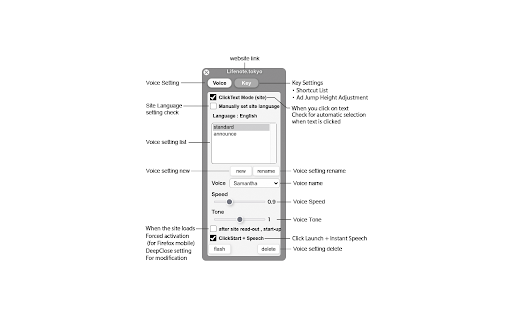
□ClickText Mode (set for each site individually)
For sites that do not require text-to-speech (shopping sites, video sites, financial institutions, translations, documents, etc.), uncheck this checkbox to set a setting that does not automatically select text so that this software will not function.

□Set site language manually
Check to display a pull-down menu to manually set the normal language setting when speaking in an unintelligible language.

Speed,Tone
You can adjust the reading speed, tone height, and other settings. When you have made the adjustments you like, press "new", enter your name, and press "ok" button.

Start after reading out the site (function for smart phones)
This mode forces the interface to be displayed each time a site is loaded. This is a function for smartphones, so it is not used on PCs.

□ClickStart + Speech
 Check: Control panel display and speech (default setting)
 Unchecked: Control panel display only

3-2.key (shortcut key & ad jump function)
When the control panel of this software is hidden by advertisements, pressing the shortcut key CTRL+J will jump to the control panel and allow you to operate it.

To use the shortcut function, press the key button at the top of the settings screen to display a list of shortcuts and to specify the height of the jump.

4. Triangle button on the far right (compact screen display)
When the control bar is in the way on the screen, press the rightmost triangle button, and it will become an icon button on the right edge.

5. Control Panel Clear button
Press the X button on the left end to completely discard the interface screen of this software.

6. Deep close button (power button icon at the bottom left of the control panel)
This button is used when you do not want to use this software at that site. This button closes the control panel with a single push and turns off text-click activation. Once pressed, it will be recorded, so the second time you press it, the software will not be activated by clicking on the text at that site. To restore this setting, start the browser with the application button for this extension in the upper right corner of the browser, and press the red Deep close button in the displayed control buttons.

7. Caption (Enlarged text display)
The rightmost caption button magnifies the text being read out.
Technical
- Version
- 1.1.6
- Manifest
- V3
- Size
- 156KiB
- Min Chrome
- 88
- Languages
- 4
- Featured
- No
Metadata
- ID
- pmllgabdigdpcaepkejmnbecchbhnbmp
- Developer ID
- u45b96bebdf1f9363e5a5b18f29b7d3d6
- Developer Email
- [email protected]
- Created
- Dec 9, 2021
- Last Updated (Store)
- Jan 28, 2024
- Last Scraped
- May 23, 2026
- Website
- —
- Privacy Policy
- —
Similar extensions
Alternatives to FLOW PAGE, ranked by description similarity.

Text to Speech — Read Aloud Any Page
Read any webpage aloud with natural voices. Lightweight, private, works offline.
21

Read Text Out Loud
A Chrome extension to read text out loud with options to paste content and download audio files
5

ReadX Text To Speech
Text to Speech Extension
717
★ 4.2

TapTTS
Text-to-speech extension that lets you read any text on the page with Ctrl/Command + click or by double-tapping the modifier key.
8
★ 5.0
Reedr — Text-to-speech
The simplest text-to-speech extension.
302
★ 3.3

Read Aloud V2
Read Aloud: The fastest way to convert selected text from any website into spoken words, No limitations!
195
★ 3.5

Sasayaki Ghost
Read out comment on Twitch, Youtube for Live streamer. You don't need to set up complex tools anymore
10.0K
★ 4.5
Talkie: text-to-speech (TTS)
Fast & easy text-to-speech. Read aloud from websites, PDF, email. Privacy-aware, open source code.
50.0K
★ 3.6
Data sourced from the Chrome Web Store · last verified May 23, 2026.