
Screen Recorder
Capture high-quality video with system audio and microphone support in WebM or MP4 format.
As of June 2026, Screen Recorder has 1 users in the Productivity category.
Usersno change0%
1
1
Ratingno change0%
—
— reviews
Reviewsno change0%
—
Version
1.0.0
Manifest V3
History
6 snapshotsTracking since Apr 26, 2026.
View as table
| Date | Users | Rating | Reviews | Version |
|---|---|---|---|---|
| Apr 26, 2026 | — | — | — | 1.0.0 |
| May 3, 2026 | — | — | — | 1.0.0 |
| May 9, 2026 | 1 | — | — | 1.0.0 |
| May 20, 2026 | 4 | — | — | 1.0.0 |
| Jun 3, 2026 | 3 | — | — | 1.0.0 |
| Jun 8, 2026 | — | — | — | 1.0.0 |
| Now | 1 | — | — | 1.0.0 |
Changelog
- May 3, 2026description
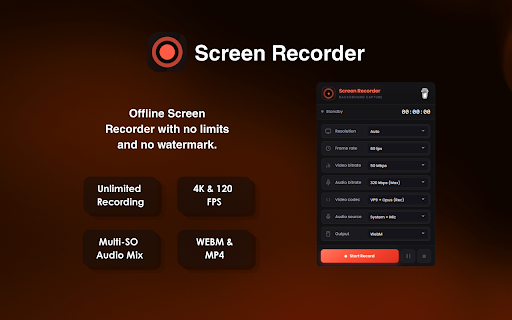
Capture your screen, windows, or specific tabs with professional-grade control. Screen Recorder Pro offers seamless background recording, customizable resolutions, and advanced audio mixing—all without watermarks or time limits.

Features:
- Flexible Audio Mixing: Record system audio, your microphone, or both simultaneously for perfect tutorials and gameplay.

- Pro Video Controls: Choose your resolution (from 720p to 8K or custom), frame rate (up to 144 FPS), and bitrates for crystal-clear quality.

- Background Recording: Powered by Chrome’s latest Offscreen API, your recording continues smoothly even if you close the extension popup.

- Modern Formats: Save your recordings in standard WebM or universal MP4 (H.264) formats for easy sharing.

- Instant Shortcuts: Use Ctrl+Shift+5 (Windows) or Cmd+Shift+9 (Mac) to start/stop recording instantly without clicking a button.

How to Use:
1. Click the extension icon or use the keyboard shortcut to open the recorder.

2. Adjust your settings: select your audio source, resolution, and preferred format.

3. Hit Start Record and choose the screen, window, or tab you want to capture.

4. Stop via the popup or shortcut, and your video will automatically download or prompt you to save.

Privacy: All processing happens locally on your machine. No data is sent to external servers.

Shortcuts:

On Windows:
Ctrl + Shift + 5 — Instantly start or stop recording.
Ctrl + Shift + 6 — Instantly pause the recording.

On Mac:
⌘ Command + Shift + 9 — Instantly start or stop recording.
⌘ Command + Control + 0 — Instantly pause the recording.
Capture your screen, windows, or specific tabs with professional-grade control. Screen Recorder Pro offers seamless background recording, customizable resolutions, and advanced audio mixing—all without watermarks or time limits.

Features:
- Flexible Audio Mixing: Record system audio, your microphone, or both simultaneously for perfect tutorials and gameplay.
- Pro Video Controls: Choose your resolution (from 720p to 8K or custom), frame rate (up to 144 FPS), and bitrates for crystal-clear quality.
- Background Recording: Powered by Chrome’s latest Offscreen API, your recording continues smoothly even if you close the extension popup.
- Modern Formats: Save your recordings in standard WebM or universal MP4 (H.264) formats for easy sharing.
- Instant Shortcuts: Use Ctrl+Shift+5 (Windows) or Cmd+Shift+9 (Mac) to start/stop recording instantly without clicking a button.

How to Use:
1. Click the extension icon or use the keyboard shortcut to open the recorder.
2. Adjust your settings: select your audio source, resolution, and preferred format.
3. Hit Start Record and choose the screen, window, or tab you want to capture.
4. Stop via the popup or shortcut, and your video will automatically download or prompt you to save.

Shortcuts:

On Windows:
Ctrl + Shift + 5 — Instantly start or stop recording.
Ctrl + Shift + 6 — Instantly pause the recording.

On Mac:
⌘ Command + Shift + 9 — Instantly start or stop recording.
⌘ Command + Control + 0 — Instantly pause the recording.

Privacy: All processing happens locally on your machine. No data is sent to external servers.
Permissions & access
- Permissions
- storagedownloadsoffscreen
- Host access
- None declared
Screenshots
About
Capture your screen, windows, or specific tabs with professional-grade control. Screen Recorder Pro offers seamless background recording, customizable resolutions, and advanced audio mixing—all without watermarks or time limits.

Features:
- Flexible Audio Mixing: Record system audio, your microphone, or both simultaneously for perfect tutorials and gameplay.
- Pro Video Controls: Choose your resolution (from 720p to 8K or custom), frame rate (up to 144 FPS), and bitrates for crystal-clear quality.
- Background Recording: Powered by Chrome’s latest Offscreen API, your recording continues smoothly even if you close the extension popup.
- Modern Formats: Save your recordings in standard WebM or universal MP4 (H.264) formats for easy sharing.
- Instant Shortcuts: Use Ctrl+Shift+5 (Windows) or Cmd+Shift+9 (Mac) to start/stop recording instantly without clicking a button.

How to Use:
1. Click the extension icon or use the keyboard shortcut to open the recorder.
2. Adjust your settings: select your audio source, resolution, and preferred format.
3. Hit Start Record and choose the screen, window, or tab you want to capture.
4. Stop via the popup or shortcut, and your video will automatically download or prompt you to save.

Shortcuts:

On Windows:
Ctrl + Shift + 5 — Instantly start or stop recording.
Ctrl + Shift + 6 — Instantly pause the recording.

On Mac:
⌘ Command + Shift + 9 — Instantly start or stop recording.
⌘ Command + Control + 0 — Instantly pause the recording.

Privacy: All processing happens locally on your machine. No data is sent to external servers.
Technical
- Version
- 1.0.0
- Manifest
- V3
- Size
- 116KiB
- Min Chrome
- 88
- Languages
- 1
- Featured
- No
Metadata
- ID
- pjnggmbccolmnhojebinnpeefedfbcbj
- Developer ID
- u62d4b0f86ec29b60fbbe918b1d92cb5d
- Developer Email
- [email protected]
- Created
- Apr 25, 2026
- Last Updated (Store)
- Apr 30, 2026
- Last Scraped
- Jun 8, 2026
- Website
- quintaphon.com
- Support URL
- https://quintaphon.com/support/
- Privacy Policy
- https://quintaphon.com/apps-policy/
Data sourced from the Chrome Web Store · last verified Jun 8, 2026.