
Enable Copy Paste & Allow Right Click
Bypass copy protection, allow right-click, and unblock text selection on restricted websites. Force copy text from protected pages.
As of June 2026, Enable Copy Paste & Allow Right Click has 30 users in the Productivity category.
Usersup 1400.0 percent+1400.0%
30
30
Ratingno change0%
—
— reviews
Reviewsno change0%
—
Version
1.6
Manifest V3
History
10 snapshotsTracking since Apr 1, 2026.
View as table
| Date | Users | Rating | Reviews | Version |
|---|---|---|---|---|
| Apr 1, 2026 | 2 | — | — | 1.6 |
| Apr 17, 2026 | 2 | — | — | 1.6 |
| Apr 24, 2026 | — | — | — | 1.6 |
| May 1, 2026 | 3 | — | — | 1.6 |
| May 8, 2026 | 4 | — | — | 1.6 |
| May 12, 2026 | 14 | — | — | 1.6 |
| May 18, 2026 | 16 | — | — | 1.6 |
| May 24, 2026 | 21 | — | — | 1.6 |
| May 31, 2026 | 23 | — | — | 1.6 |
| Jun 6, 2026 | 26 | — | — | 1.6 |
| Now | 30 | — | — | 1.6 |
Permissions & access
- Permissions
- storage
- Host access
- <all_urls>
Screenshots

About
🔓 Enable Copy Paste & Allow Right Click
Enable Copy Paste & Allow Right Click is a powerful Chrome extension that lets you bypass copy protection and re-enable right-click on any website.
If a website has disabled text selection, blocked the context menu, or restricted copy and paste — this extension removes those restrictions instantly.

No page refresh needed — toggle it on or off in real time.

🔓 WHAT IT DOES

Many websites block right-click, disable text selection, or prevent copy and paste using JavaScript tricks. This extension defeats all of them:

🟡Enables copy and paste on protected websites that block clipboard access
🟡Allows right-click context menu on sites that disable it
🟡Unblocks text selection on pages with user-select: none restrictions
🟡Bypasses copy protection using advanced JavaScript override technology
🟡Forces copy of text from protected pages — even on aggressive sites
🟡Removes inline event blockers (oncontextmenu, onselectstart, onmousedown)
🟡Defeats overlay-based right-click blockers and transparent shield elements
🟡Works on all websites — blogs, news sites, academic papers, online documents

🛡️ TWO PROTECTION MODES
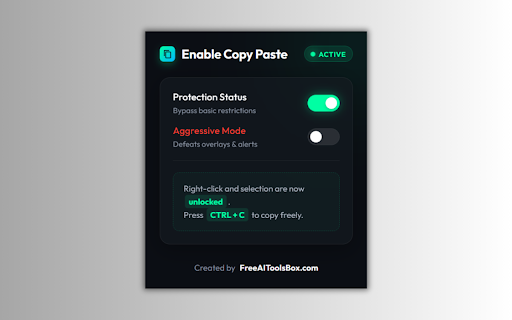
1. Standard Mode (Default — Green Toggle)
✅Removes basic copy/paste and right-click restrictions
✅Perfect for everyday browsing
✅Works silently without breaking page functionality
✅Safe to leave enabled at all times

⚠️ 2. Aggressive Mode (Red Toggle — Use with Caution)
Defeats advanced protection methods including:
✅Invisible overlay elements blocking clicks
✅window.alert() popups triggered by right-click
✅Paste character-limit restrictions
✅Selection-clearing scripts (removeAllRanges)
✅Capture-phase event interceptors

⚠️ Important:
Aggressive Mode modifies deep browser-level JavaScript behavior and may interfere with web apps. If issues occur: Turn OFF Aggressive Mode & Refresh the page (F5)

⚡ KEY FEATURES
✅ One-click toggle — no page refresh required
✅ Live toggle — instant effect
✅ Aggressive Mode — defeats 16+ restriction methods
✅ Works everywhere — all websites, frames, shadow DOM
✅ Zero conflicts with other extensions
✅ Fully dormant when OFF
✅ Lightweight — no background usage
✅ Privacy-first — no tracking, no data collection
✅ Auto onboarding page on install
✅ Feedback collection on uninstall

🎯 WHO IS THIS FOR?
✅Students & researchers copying academic content
✅Writers & journalists extracting quotes
✅Developers inspecting restricted text
✅Online shoppers copying product details
✅Anyone frustrated with blocked copy/paste

📋 HOW TO USE
1. Install:
Install from the Chrome Web Store.

2. Enable:
Click the extension icon → ensure the green toggle is ON.

3. Copy Freely
🟠Select text
🟠Right-click normally
🟠Press Ctrl+C / Cmd+C
🟠Paste anywhere

⚡ Using Aggressive Mode

Enable when needed:

🟠Open extension popup
🟠Turn ON red toggle


💡 PRO TIPS
🟣Standard Mode = safe to keep ON always
🟣Use Aggressive Mode only for stubborn sites
🟣Yellow text highlight = extension is active
🟣Works across all tabs automatically
🟣Compatible with Chrome, Edge, Brave, Opera, Arc

❓ FREQUENTLY ASKED QUESTIONS
Q1: How do I enable copy and paste on blocked websites?
Install the extension, turn ON the green toggle, and it automatically removes restrictions. Use Aggressive Mode for tougher sites.

Q2: How do I re-enable right-click?
The extension removes JavaScript blockers and restores the default context menu instantly.

Q3: Is it safe?
Yes. No tracking, no data collection, no ads — fully privacy-focused.

Q4: Why doesn’t text selection work sometimes?
Some sites use advanced protection. Enable Aggressive Mode to bypass overlays, scripts, and event blockers.

Q5: Does it work with other extensions?
Yes. Designed to avoid conflicts using non-blocking JavaScript overrides.

Q6: Do I need to refresh the page?
🟠Standard Mode → No
🟠After Aggressive Mode → Yes (recommended)

Q7: Can it copy text from images or PDFs?
No. It works on HTML pages only. Use OCR tools for images.

Q8: How to bypass paste restrictions?
Enable Aggressive Mode to remove paste limits and event blockers.

Q10: What happens on uninstall?
You’ll see a feedback page to help improve the extension. No personal data is collected.

🚀 Developed by FreeAIToolsBox.com 🚀
Free tools to make your browsing easier.
Technical
- Version
- 1.6
- Manifest
- V3
- Size
- 47.18KiB
- Min Chrome
- 88
- Languages
- 1
- Featured
- No
Metadata
- ID
- pjjehldanbkdaligjdpknogenphieaka
- Developer ID
- u594c91bd182e99d57467f67960b4d4af
- Developer Email
- [email protected]
- Created
- Mar 25, 2026
- Last Updated (Store)
- Apr 22, 2026
- Last Scraped
- Jun 6, 2026
- Website
- https://freeaitoolsbox.com/
- Support URL
- https://freeaitoolsbox.com/contact-us/
- Privacy Policy
- —
Data sourced from the Chrome Web Store · last verified Jun 6, 2026.