Screen capture and recorder - Screenshot Tool
Record screen and camera, take a screenshot, edit, and share via Google Drive
As of June 2026, Screen capture and recorder - Screenshot Tool has 50,000 users and a 4.73/5 rating from 1,933 reviews in the Workflow & Planning category.
Usersup 25.0 percent+25.0%
50.0K
50,000
Ratingno change0%
4.73
1.9K reviews
Reviewsup 0.9 percent+0.9%
1.9K
Version
1.0.8
Manifest V3
90-day change · In the last 90 days this extension gained 10.0K users.
History
3 snapshotsTracking since Apr 23, 2026.
View as table
| Date | Users | Rating | Reviews | Version |
|---|---|---|---|---|
| Apr 23, 2026 | 40.0K | 4.73 | 1.9K | 1.0.8 |
| May 13, 2026 | 40.0K | 4.73 | 1.9K | 1.0.8 |
| Jun 8, 2026 | 40.0K | 4.73 | 1.9K | 1.0.8 |
| Now | 50.0K | 4.73 | 1.9K | 1.0.8 |
Permissions & access
- Permissions
- tabsactiveTabstorageunlimitedStoragealarmsdesktopCaptureidentity
- Host access
- <all_urls>
Screenshots

About
Unveiling a Comprehensive Screen Capture and Screen Recorder Tool

Navigating the world of screenshots and screen recordings just became simpler. This versatile tool is your one-stop solution for all your screen capture and screen recording needs, designed with a vast array of features tailored for today's digital age.

**SCREEN CAPTURE FEATURES**

⭐ The screenshot function lets you effortlessly capture a full webpage, a designated section, or just the currently visible area.

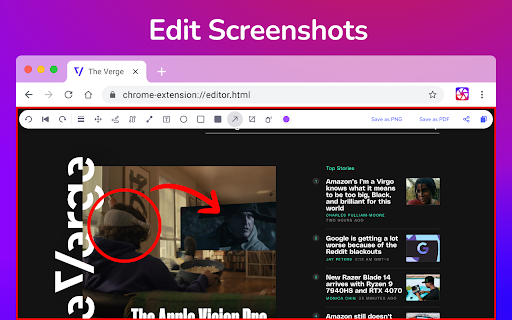
⭐ After making a screen capture, you can immediately dive into editing, then save in formats like PDF, JPEG, and PNG.

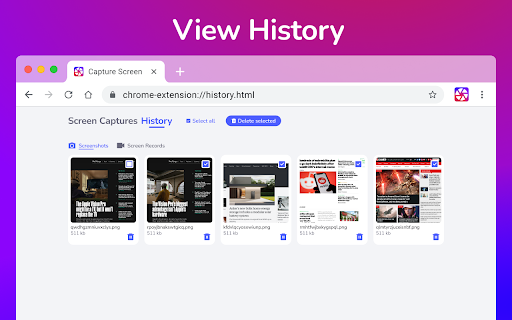
⭐ Quick storage ensures no lag, and the offline mode offers screen capture without any data worries.

❗ Elevate your screenshots with powerful editing tools:
   👉 Easy sharing to Google Drive or through a link.
   👉 Copy your screen captures to your clipboard instantly.
   👉 Resize, crop, and tailor your captures.
   👉 Annotations with various shapes, perfect for highlighting.
   👉 Insert and modify text to convey more with your screenshot.
   👉 Emphasize vital points with the highlight feature.

**SCREEN RECORDER FEATURES**

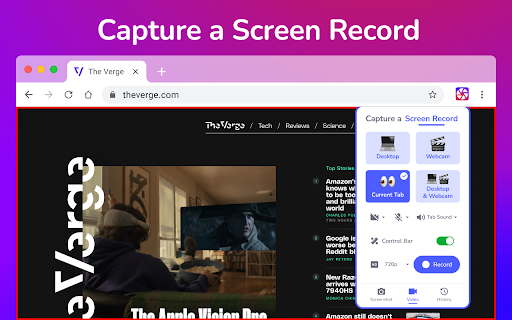
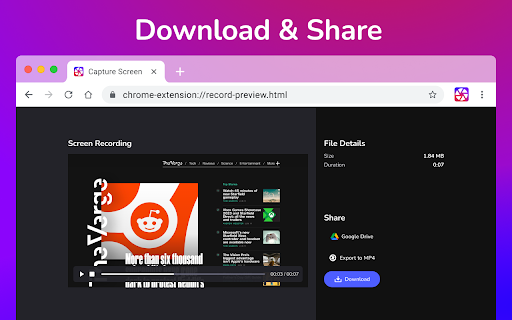
⭐ Dive into the seamless world of screen recording with this tool, allowing you to grab videos and get an immediate sharing link, making collaborations a breeze.

⭐ From product walkthroughs to feedback rounds, the screen recorder ensures you stay synced with your team, thanks to the async video feature.

❗ Screen recorder capabilities include:
   👉 Recording your desktop, a particular browser tab, or your camera feed.
   👉 Integrate your reactions into the screen recording by embedding your webcam.
   👉 Add a personal touch with voiceovers via the microphone option.
   👉 Store your recordings either locally or on Google Drive.
   👉 Choice of WebM or MP4 download formats.
   👉 Instant sharing links after each recording session.

In sum, for those seeking a robust screenshot , and screen recorder tool, this Chrome extension is the answer, housing a myriad of options for all your capturing and recording desires.

In the ever-evolving digital era, there's been a surge in the tools and techniques to document and share what we see on our screens. Among the most utilized are screenshot, screen capture, and screen recorder tools. Whether you're trying to capture a fleeting moment on your desktop or aiming to produce an instructional video, understanding the distinctions and applications of these tools is crucial.

Taking a Screenshot

A screenshot is a static image capture of what is displayed on your screen at any given moment. It’s like taking a photo of your screen. Whether you're using a Mac or a Windows computer, taking a screenshot is a breeze. If you ever wonder how to take a screenshot, especially on a screenshot Mac, you simply press Shift + Command + 4. This allows you to drag and select a portion of your screen for capture.

On the other hand, other platforms might have slightly different methods, but the essence of a screenshot remains consistent - a snapshot of your current screen.

Screen Capture: Beyond Static Images

When people refer to screen capture, they often mean the same thing as taking a screenshot. However, in a broader sense, screen capture can also refer to the recording of screen activities. This is where the screen recorder and screen video recorder functionalities come into play.

The Screen Recorder and Screen Video Recorder

While a screenshot captures a still image of your screen, a screen recorder or screen video recorder captures video footage of the activities on your screen. This is particularly useful for creating tutorials, webinars, or even recording gameplay.

A screen video recorder often comes with added functionalities such as the option to incorporate voiceovers or annotate in real-time. This allows for a more interactive and educational experience for the viewer. The output is a video file, as opposed to the static image format of a screenshot.

How to Take a Screenshot and More on a Mac

For Mac users who often wonder not just about how to take a screenshot but also about recording their screen, the MacOS offers built-in tools. As previously mentioned, for a screenshot Mac users can use the Shift + Command + 4 combination. But for those looking to utilize a screen video recorder, QuickTime Player is a great native application that offers both screen recording and screen video recording functionalities.

In conclusion, whether you're looking to capture a moment in time with a screenshot or wanting to produce a comprehensive tutorial with a screen video recorder, the options available today are vast and varied. The digital age offers tools for every need, and with a bit of practice, mastering the art of capturing your screen, be it through a simple screenshot or a screen video recording, becomes second nature.
Technical
- Version
- 1.0.8
- Manifest
- V3
- Size
- 23.78MiB
- Min Chrome
- 88
- Languages
- 52
- Featured
- Yes
Metadata
- ID
- mmhpmbmabmppoeonpcclfiobhpjdcdjc
- Developer ID
- ucf77a34e1fbfa2bfd86964e7c26e1405
- Developer Email
- [email protected]
- Created
- Aug 21, 2023
- Last Updated (Store)
- Jan 11, 2024
- Last Scraped
- Jun 8, 2026
- Website
- http://capturescreen.net/
- Support URL
- https://chrome.google.com/webstore/detail/capturecast-snap-record/mmhpmbmabmppoeonpcclfiobhpjdcdjc
- Privacy Policy
- https://capturescreen.net/
Similar extensions
Alternatives to Screen capture and recorder - Screenshot Tool, ranked by description similarity.

Screenshot and screen video recording - Screeny
The #1 screen recorder and screenshot tool! Full capture and video recording of your screen.
80.0K
★ 4.7

Screen recorder
Elevate your productivity with Screen Recorder tool. Effortlessly capture and share your screen recordings for optimal efficiency.
4.0K
★ 3.6

Video Recorder
Use Video Recorder, a simple tool to screen record. It also lets you audio recorder online, capturing both your camera and display.
10.0K
★ 4.3

Screen Recorder with Webcam + Video Editor
Screen recorder & desktop capture tool. Record a video, presentation, open a front camera, or a window. Edit, download, and share.
1.0K
★ 4.3
Simple Screen Capture: Full Page Screenshot
Simple Screen Capture is a handy Chrome Extension that allows you to effortlessly capture full page screenshots with just a click.
5.0K
★ 4.3
My Screen Recordeding
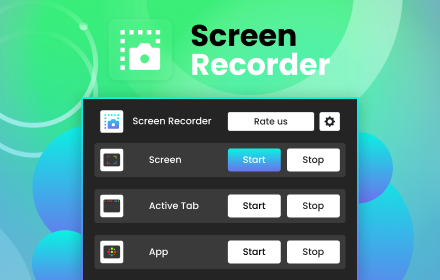
Start a screen recording from admin panel in the browser. Save screen video in various formats
10.0K
★ 4.3

My Screen Recorder
Record your screen and take screenshots
45

Screen Recorder & Capture Full Page Screenshot
Record screen/Tab with audio, embed webcam & mic, capture full-page/visible/selected screenshots with built-in editor, export in HD
133
★ 5.0
Data sourced from the Chrome Web Store · last verified Jun 8, 2026.