
XTag Google Analytics: Record & check UA,GA4
Categorize, record and display Google Analytics tags, with parameters meaning.
As of May 2026, XTag Google Analytics: Record & check UA,GA4 has 472 users and a 5.00/5 rating from 2 reviews in the Workflow & Planning category.
Usersdown 2.7 percent−2.7%
472
472
Ratingno change0%
5.00
2 reviews
Reviewsno change0%
2
Version
9.0.0
Manifest V3
History
5 snapshotsTracking since Apr 1, 2026.
View as table
| Date | Users | Rating | Reviews | Version |
|---|---|---|---|---|
| Apr 1, 2026 | 485 | 5.00 | 2 | 9.0.0 |
| Apr 20, 2026 | 491 | 5.00 | 2 | 9.0.0 |
| May 6, 2026 | 505 | 5.00 | 2 | 9.0.0 |
| May 17, 2026 | 487 | 5.00 | 2 | 9.0.0 |
| May 30, 2026 | 494 | 5.00 | 2 | 9.0.0 |
| Now | 472 | 5.00 | 2 | 9.0.0 |
Permissions & access
- Permissions
- storageclipboardWriteclipboardReadactiveTabtabswebRequest
- Host access
- *://*/__utm.gif*, *://*.google-analytics.com/r*, *://*/collect*, *://stats.g.doubleclick.net/r*
Screenshots
About
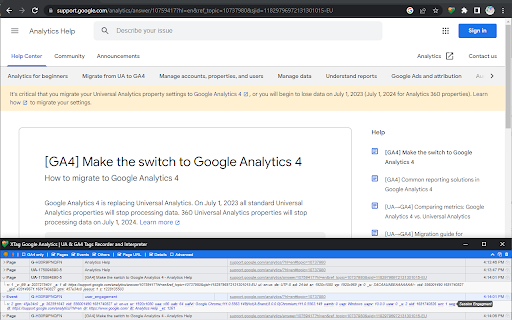
XTag for Google Analytics allows to collect, detail and categorize all Universal Analytics and GA4 tags.
Extension icon:
• Click on grayed icon to start tag recording and highlight the icon. Navigate any GA-tracked website.
• If an Adblocker prevents tag firing, it's not displayed but copied to the clipboard while you're notified.
• Click highlighted icon again to reopen the extension window.
• Closing the extension window ends recording and grays out the icon.
Extension window:
• Click Orange LED icon to pause/resume recording.
• Click Bolt icon to toggle window popup on each tag.
• Check "GA4 only" to ignore legacy UA tags.
» Note: even hidden, UA tags are still recorded, so they will be displayed when unchecked.
• Toggle "Pages" or "Events" or "Others" (Display advertising, Timing...) to show/hide them.
» Note: even hidden, tags are still recorded, so they will be displayed when checked again.
• Check "Page URL" to see the URL that triggered the tag.
• Check "Details" to see a selection of data.
• Check "Advanced" to see all data.
• Click on chevron to collapse control bar (or double click anywhere on it), click on collapsed bar to expand it.
• Double-click on tag type or click on its arrow to show/hide all its details.
• Right-click on main tag values to copy them.
• Mouse hover advanced details to see parameters meaning.
• Click Copy icon to copy tags summaries as TSV (Excel).
• Click Table icon to copy tags queries as TSV (Excel).
• Click on Copy icon on row's left to copy only this tag summary, without header.
• Click Trash icon to clear all recorded tags (after confirmation).
Technical
- Version
- 9.0.0
- Manifest
- V3
- Size
- 298KiB
- Min Chrome
- 88.0.0000
- Languages
- 1
- Featured
- Yes
Metadata
- ID
- mhenhjfdnnhdfejcbhmpebenecffeolh
- Developer ID
- u16b4751c3c17d026a27ea5b7620d59c8
- Developer Email
- [email protected]
- Created
- Feb 12, 2017
- Last Updated (Store)
- Jun 17, 2025
- Last Scraped
- May 30, 2026
- Website
- —
- Support URL
- —
- Privacy Policy
- —
Similar extensions
Alternatives to XTag Google Analytics: Record & check UA,GA4, ranked by description similarity.

Google Analytics UTM Builder
Add UTMs to URL with this hyper version of Google Analytics UTM Builder. Add and manage UTM presets, create workspaces and share
50.0K
★ 4.6

Pizza Boy's UTM Generator
Effortless UTM tag generation, tailor-made for GA4.
—
★ 5.0
Tag Helper for Google™
Install tag helper for Google ™ chrome extension and easily troubleshoot any issue with tags.
1.0K
★ 5.0

Tagmate Tracker for GA/GA4 Events
Tagmate tracker
1.0K
★ 4.3

Event Tracking Google Analytics
Sample extension that uses Google Analytics to track usage.
—

Ad Tracker v1.26 BETA
Provides a clean output of all GTM ad request/response info. Not compatible with AMP or video ads. By Mark Bland (C) 2025
164
★ 5.0
GA4 annotations Test
Create annotations on GA4
38
★ 4.0

Crystal Ball - Automated Annotations and Insights
Automated Google Analytics Annotations directly from your ad accounts, project management platforms, newsletters and more..
2.0K
★ 5.0
Data sourced from the Chrome Web Store · last verified May 30, 2026.