
YouTube Quick Search
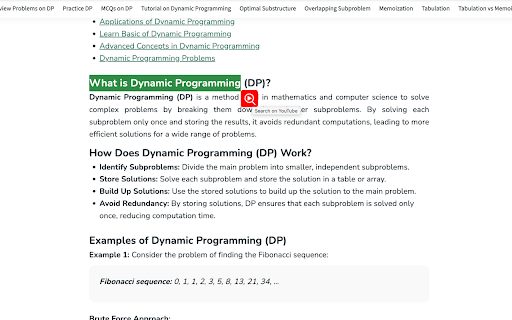
Search selected text on YouTube quickly with a right-click or by clicking an icon. Enable or disable the feature from the popup
As of June 2026, YouTube Quick Search has 171 users and a 5.00/5 rating from 7 reviews in the Productivity category.
Usersdown 6.0 percent−6.0%
171
171
Ratingno change0%
5.00
7 reviews
Reviewsno change0%
7
Version
1.0
Manifest V3
History
3 snapshotsTracking since Apr 1, 2026.
View as table
| Date | Users | Rating | Reviews | Version |
|---|---|---|---|---|
| Apr 1, 2026 | 182 | 5.00 | 7 | 1.0 |
| May 2, 2026 | 178 | 5.00 | 7 | 1.0 |
| Jun 1, 2026 | 184 | 5.00 | 7 | 1.0 |
| Now | 171 | 5.00 | 7 | 1.0 |
Permissions & access
- Permissions
- contextMenusactiveTabstorage
- Host access
- None declared
Screenshots


About
Instructions to use "YouTube Quick Search"

1. Install the Extension:
- Download and install YouTube Quick Search from the Chrome Web Store.

2. Enable/Disable the Search Icon:
- Click on the extension icon in the browser toolbar to open the popup.
- Use the checkbox to enable or disable the display of the search icon next to highlighted text on web pages.

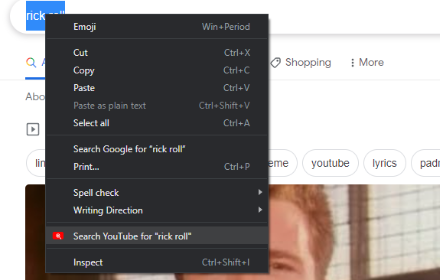
3. Search on YouTube via Right-Click:
- Highlight any text on a webpage that you want to search on YouTube.
- Right-click on the highlighted text.
- In the context menu, select the "Search on YouTube" option.
- A new tab will open, displaying the YouTube search results for the selected text.

4. Search on YouTube via Search Icon:
- If the search icon feature is enabled, highlight any text on a webpage.
- An icon will appear next to the highlighted text.
- Click the icon to instantly search the highlighted text on YouTube.
- A new tab will open with the YouTube search results.

5. Adjusting Settings:
- To change the extension settings, click on the extension icon in the browser toolbar.
- You can enable or disable the search icon feature from the popup window.

Tips:
- Quick Search: Use the right-click context menu option for a fast and easy way to search without having to navigate away from the page.
- Toggle Icon: If you prefer not to see the search icon on every selection, you can easily disable it in the settings.

Troubleshooting:
- Icon Not Appearing: If the search icon does not appear after text selection, ensure it is enabled in the extension's popup settings. If the problem persists, try refreshing your browser.
- Context Menu Option Missing: Ensure the extension is installed and enabled. If the problem persists, try refreshing your browser.
Technical
- Version
- 1.0
- Manifest
- V3
- Size
- 13.77KiB
- Min Chrome
- 88
- Languages
- 1
- Featured
- No
Metadata
- ID
- mfcoaokekilmmmhfcahfdnagjifbkdmg
- Developer ID
- u1109183f9c8513d8014deb780ba9b0b4
- Developer Email
- [email protected]
- Created
- Aug 14, 2024
- Last Updated (Store)
- Aug 14, 2024
- Last Scraped
- Jun 1, 2026
- Website
- —
- Support URL
- https://github.com/tmsanghoclaptrinh/
Similar extensions
Alternatives to YouTube Quick Search, ranked by description similarity.

Video Quick Search
Previously "YouTube Quick Search" (see note below)
Search on YouTube
No need to tediously open a new tab or window to search a…
85
★ 5.0

Highlight to Youtube
Save time with YouTube Quick Search, the must-have extension for seamless YouTube lookups! Instantly search any text you highlight…
11
★ 5.0
YouTube IT
Quick Search for YouTube with Shortcuts, Right-Click, & Omnibox - Instantly search from anywhere on the web.
518
★ 5.0

YouTube™ Context Search
Right-click selected text to search it on YouTube.
6

YouTube Search
Right click on any text to search it directly on YouTube
61
Search on YouTube
Search for anything on YouTube by selecting the text and right clicking.
5.0K
★ 5.0

Quick Search for YouTube™
Quick search selected text on YouTube or quick launch www.youtube.com
2.0K
★ 5.0

YouTube Easy Search
Easily, search YouTube with selected text
51
Data sourced from the Chrome Web Store · last verified Jun 1, 2026.