GPT4 Chat settings using prompts
A Chrome extension to store and copy GPT4 Chat setting instructions using prompts.
As of May 2026, GPT4 Chat settings using prompts has 6 users in the Workflow & Planning category.
Usersdown 33.3 percent−33.3%
6
6
Ratingno change0%
—
— reviews
Reviewsno change0%
—
Version
1.0.0
Manifest V3
History
2 snapshotsTracking since Apr 24, 2026.
View as table
| Date | Users | Rating | Reviews | Version |
|---|---|---|---|---|
| Apr 24, 2026 | 9 | — | — | 1.0.0 |
| May 20, 2026 | 7 | — | — | 1.0.0 |
| Now | 6 | — | — | 1.0.0 |
Permissions & access
- Permissions
- clipboardWrite
- Host access
- None declared
Screenshots

About
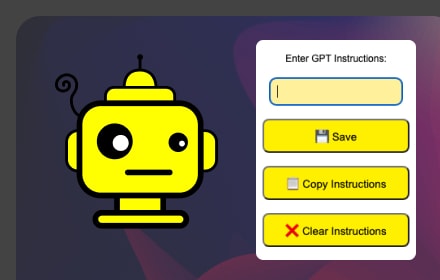
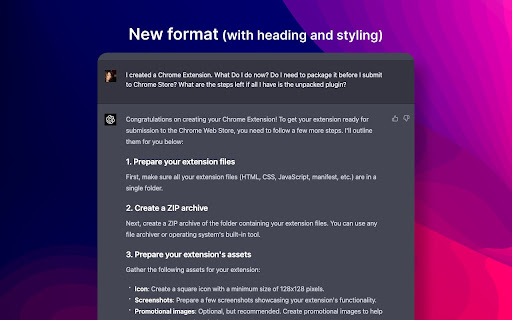
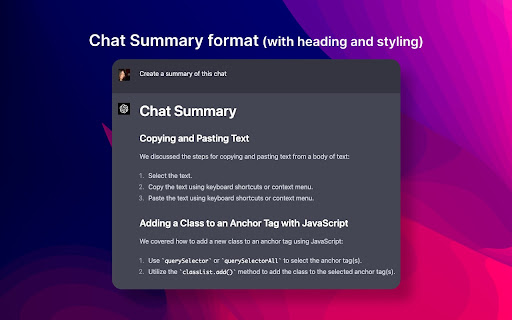
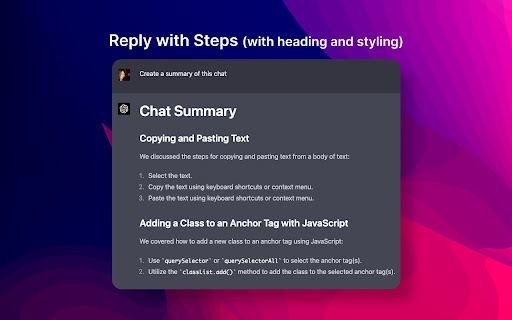
Enhance your GPT4 chat experience with GPT4 Chat Settings! This Chrome extension provides prompts for GPT4 chat sessions, helping you get the best formatting for GPT4 on the web. You can add your own custom prompts and save them locally for future sessions. With the ability to copy prompts to the clipboard and clear saved instructions, GPT4 Chat Settings is a must-have tool for anyone using GPT4 for chat. Note that this extension is designed specifically for GPT4 and may not work with other GPT versions.

* Provides prompts for GPT4 chat sessions to help with formatting.
* Allows users to add their own custom prompts and save them locally for future sessions.
* Offers the ability to copy prompts to the clipboard for easy access.
* Provides a clear instructions button to remove any user-added prompts from local storage.
* Works only with GPT4 and is designed specifically for chat sessions with this version of GPT.

HOW TO USE:

1. Navigate to a GPT4 chat session on the web.
2. Click the GPT4 Chat Settings extension icon in the browser toolbar to open the popup.
3. You can add additional instruction prompts in addition to the default prompts.
4. If you added additional instruction prompts, don't forget to click  "💾 Save" button.
5. Then click "📋 Copy Instructions" button.
6. Enter the GPT instructions in the chat box as your first message. This is important as the instructions have to be entered in every GPT4 session and should be the first entry.
7. To clear the custom prompts you have added, click the "❌ Clear Instructions" button.

Note that this extension is designed specifically for GPT4 and may not work with other GPT versions.

That's it! With GPT4 Chat Settings, you can easily add prompts and instructions to your chat sessions and copy them to the clipboard for easy access.
Technical
- Version
- 1.0.0
- Manifest
- V3
- Size
- 11.24KiB
- Min Chrome
- 88
- Languages
- 1
- Featured
- No
Metadata
- ID
- loieabpeaoogmelgfcmmpaegggjbcehg
- Developer ID
- u4182c2c4fcd6aeb2ce411a94c52bfc64
- Developer Email
- [email protected]
- Created
- Mar 21, 2023
- Last Updated (Store)
- Mar 21, 2023
- Last Scraped
- May 20, 2026
- Website
- https://carmelyne.com/
- Support URL
- http://carmelyne.com/helpdesk
- Privacy Policy
- https://carmelyne.com/privacy-policy/
Similar extensions
Alternatives to GPT4 Chat settings using prompts, ranked by description similarity.

Prompts Library
Chrome extension for chat.openai.com to show a Prompts Library
19

Prompts
Saving common prompts to use on chatGPT or other applications
8

PromptGPT
Easily save and load templates into ChatGPT. Copy pasting is outdated
40

Notes for ChatGPT
Keep your best prompts ready, sorted, and send with a click. Save ChatGPT messages and create personal notes for all you desire.
248
★ 5.0

GPT SmartKit - AI Prompts, ChatGPT Tools & Utilities
Supercharge ChatGPT with prompt builder, prompt library, JSON prompt tools, conversation exporter, and more.
321
★ 4.8
Open in GPT
Open selected text directly in ChatGPT with a customized prompt.
182
★ 4.0

ChatGPT Prompt Library
Built-in prompt manager for ChatGPT — quick, clean, and always at your fingertips.
5

Promptris - Prompt Builder & Manager for ChatGPT & Claude
Build prompts with blocks. Save them. Use them anywhere.
941
★ 4.6
Data sourced from the Chrome Web Store · last verified May 20, 2026.