
Contentstack
Quickly navigate from a live web page to its corresponding entry in Contentstack
As of May 2026, Contentstack has 730 users and a 5.00/5 rating from 4 reviews in the Workflow & Planning category.
Usersup 0.1 percent+0.1%
730
730
Ratingno change0%
5.00
4 reviews
Reviewsno change0%
4
Version
1.2.5
History
3 snapshotsTracking since Apr 1, 2026.
View as table
| Date | Users | Rating | Reviews | Version |
|---|---|---|---|---|
| Apr 1, 2026 | 729 | 5.00 | 4 | 1.2.5 |
| May 1, 2026 | 739 | 5.00 | 4 | 1.2.5 |
| May 29, 2026 | 729 | 5.00 | 4 | 1.2.5 |
| Now | 730 | 5.00 | 4 | 1.2.5 |
Permissions & access
- Permissions
- None declared
- Host access
- None declared
Screenshots

About
How does it work?

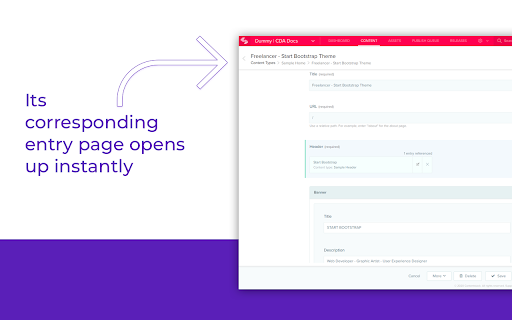
If you are on a web page of a site that is powered by Contentstack, and if you have the permission to edit its content, you will see an edit button at the right/left bottom of the page. Clicking this button will take you to the corresponding entry in Contenstack, where you can edit the entry.

This eliminates the need to search for specific entries within Contentstack’s web application and provides an intuitive editing experience for users who need to quickly find and update content.


How to set up the extension?

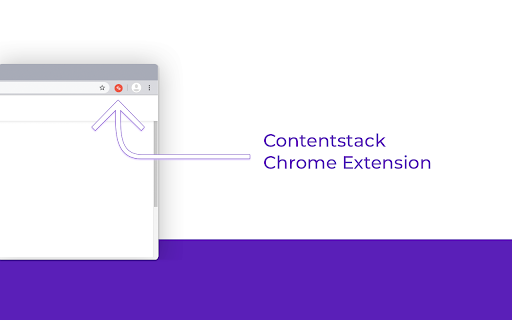
1. Add this extension by clicking on the Add to Chrome button.

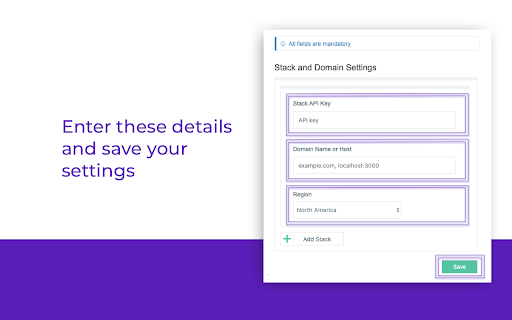
2. Once installed, a pop-up will prompt you to enter the stack details, datacenter region (North America, Europe, & Other), and button preferences. Provide the necessary details in each field (all fields are mandatory) and then save the configuration.

3. Add the following attributes to the body tag of your website’s page templates:

a. data-pageref: Used to identify the entry UID of the current page
b. data-contenttype: Used to identify the content type UID of the entry
c. data-locale: Used to identify the local of the entry for the current page

Here’s an example of how to add these details in your code:

<body data-pageref="bltb8b487559a1b715d" data-contenttype="product" data-locale="en-us">

In the above example:

"bltb8b487559a1b715d" is the UID of the entry
"product" is the UID of the content type
"en-us" is the locale of the entry of the corresponding web page

4. Go to the tab in your Chrome browser where you want to use this extension, and reload or refresh the page.
Note: This is a one-time activity when you add a new domain or an API key.

5. The Edit button will now be visible on your Contentstack-powered web pages.

For more details on the extension, visit our GitHub page: https://github.com/contentstack/contentstack-chrome-extension.git
Technical
- Version
- 1.2.5
- Manifest
- —
- Size
- 32.92KiB
- Min Chrome
- 88
- Languages
- 1
- Featured
- No
Metadata
- ID
- kliacmaffhaakhphcelpjcmienmikgoa
- Developer ID
- ucf7a36800499fc9e8c610952dccbedcc
- Developer Email
- [email protected]
- Created
- Jun 18, 2020
- Last Updated (Store)
- Sep 4, 2024
- Last Scraped
- May 29, 2026
- Website
- contentstack.com
- Privacy Policy
- https://www.contentstack.com/privacy
Similar extensions
Alternatives to Contentstack, ranked by description similarity.

Content cracker
Extension for displaying content identification text and links in your pages to relevant CMS content for easily access and edit.
16

Edition Mode
Enable an edition mode to modify any text in a web page.
5

Edit website
Use Edit Website: Easily web edit, change text, and page edit on and off content instantly. Alter a website with ease
2.0K
★ 4.1

Edit Website Extension
Edit Live Websites Text On The Fly
10.0K
★ 4.6
Your Store Wizards Magic Edit (Multiplatform)
Quick and Easy Editing for Shopify, BigCommerce, Turbify (previously Yahoo! Store), and WordPress websites.
317
★ 5.0

Paage
Quickly access Paages you've made
28
★ 5.0

Good Riddance
This tool helps you modify and even remove content on the screen with just few clicks.
17
★ 5.0

Contentful Sidekick
Chrome Extension that enables inline editing for websites created in Contentful
268
★ 4.5
Data sourced from the Chrome Web Store · last verified May 29, 2026.