
Chording Hints
Shows chord hints for CCOS devices like the CharaChorder on typing training sites to help learn chording libraries faster.
As of June 2026, Chording Hints has 13 users and a 5.00/5 rating from 1 reviews in the Education category.
Usersno change0%
13
13
Ratingno change0%
5.00
1 reviews
Reviewsno change0%
1
Version
1.9
Manifest V3
90-day change · In the last 90 days this extension 3 version updates, changed permissions.
History
9 snapshotsTracking since Apr 18, 2026.
View as table
| Date | Users | Rating | Reviews | Version |
|---|---|---|---|---|
| Apr 18, 2026 | — | — | — | 1.0.0 |
| Apr 23, 2026 | — | — | — | 1.0.0 |
| Apr 28, 2026 | 1 | — | — | 1.4.0 |
| May 6, 2026 | 5 | — | — | 1.6 |
| May 11, 2026 | 11 | — | — | 1.9 |
| May 16, 2026 | 10 | 5.00 | 1 | 1.9 |
| May 23, 2026 | 12 | 5.00 | 1 | 1.9 |
| Jun 5, 2026 | 10 | 5.00 | 1 | 1.9 |
| Jun 12, 2026 | 8 | 5.00 | 1 | 1.9 |
| Now | 13 | 5.00 | 1 | 1.9 |
Changelog
- May 6, 2026description
An extension for anyone trying to learn how to use a chording-enabled keyboard but has trouble remembering not only HOW to chord a certain word, but what words you even have chords FOR. The only required setup is importing your chord library via the extension's Options menu.

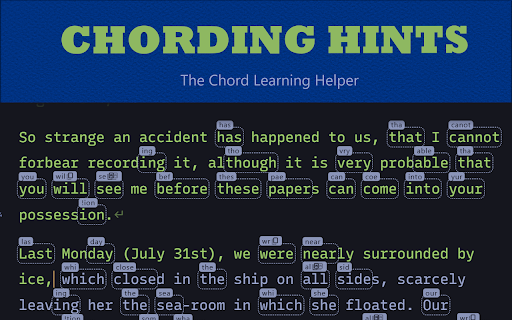
When using typing training sites like Monkeytype, Keybr, and Entertrained while using CCOS-powered devices like the CharaChorder 2.1, words that are in your chord library will have a box floating above them that shows your shortest chord input for that word. For example, if you have the word "helpful" in your chord library as "hpf", then any time you run into the word "helpful" on supported typing sites, you'll see "hpf" hovering above the word.

You can also set it to show an empty box so that you know the word is chordable, but you'll need to remember what the chord input is on your own. Clicking on a hint box will also show/hide it.

Chordable words have an outline around them by default, but you can disable this if you find it distracting or if it's affecting system performance.

Also by default, partial word matches will be shown ("Substring Hints" in the options), so that if, for example, you have the word "great" in your chord library but don't have "greater", but "greater" shows up in a training session, you'll still see a chord hint for "great".

Or, if you run into the word "hippopotomonstrosesquippedaliophobia" and you don't have it in your chord library, but you DO have "hippo" and "phobia", then you'll see hints for "hippo" and "phobia" anchored to the relevant parts of the word so you can chord "hippo", type out "potomonstrosesquippedalio", then chord "phobia".

_____________________________________________

To start, you just need to import your chord library either using the "Sync Chords" button or by importing a JSON file with your chords in it.

Note that any time you make a change to your chord library, you'll need to re-import in order to keep the extension's knowledge of it up-to-date.

When using the Sync Chords button from the options menu, you'll be told that this extension wants to connect to a serial port. Just select your chording device, and the extension will do the rest. Once your library has finished syncing, go to any supported typing training site to experience what it's like to be able to SEE what chords you have available to you.

Let's accelerate your journey to typing at the speed of thought!

If you experience any bugs or have any suggestions on how to make this better, the best way to find me is either by contacting me via the support URL or finding me in the CharaChorder Discord channel.

This extension and its developer are independent from and have no official ties to CharaChorder or any of the typing training sites it has functionality for.

_____________________________________________

🔓SUPPORTED TYPING TRAINING SITES🔓
🐒Monkeytype ➡️A popular general-purpose site for typing tests/practice.
📗Entertrained ➡️A site where you can either upload an ebook or choose from their library of public domain books, and type along as you read. Useful for if you've got some reading to catch up on.
⌨️Keybr (practice mode only)➡️A typing practice site that helps you train your weakest letters. Has some quirks noted below.

_____________________________________________
_____________________________________________

🌟DETAILED SETUP🌟
1. Go to the extension's Options Menu (either via right-click menu or by clicking on the extension icon and clicking on the Sync Chords/Options Menu button there)
2. Click on the Sync Chords button
3. You'll be prompted to select your CCOS device (ex. CharaChorder Two, MasterForge, CharaChorder Lite, etc). Find and select it from the list.
4. Wait for your chord library to load
5. Go to any supported typing training site and see those chord hints! If you don't see them, click on the extension icon in your toolbar and make sure it's on (the Power button should be green).

👀TROUBLESHOOTING👀
❌Unable to connect to your CCOS device to load chord library
If, for whatever reason, the extension can't connect directly to your CCOS device:
1. Export your chord library as a JSON file (likely from the CharaChorder.io site)
2. From this extension's Options page, find your JSON chord file via the Choose File button next to the Import JSON button
3. Import JSON and wait for your chords to load

❌Causing site slowdown during typing sessions
In the Options or Popup menu:
1. Try disabling substring hints - while useful, matching substrings takes more system resources than just matching whole words
2. Try disabling outlines.
3. Try increasing the min word length to reduce possible matches
4. Make sure debug logging is disabled

❌Missing or out-of-date chords
Re-import your chords.
Unfortunately, I haven't been able to find a way to auto-sync the extension to your chord library, so you need to manually re-sync the the two whenever you've made a change if you want to keep the extension's knowledge of your chords up-to-date.

😢KNOWN ISSUES AND LIMITATIONS😢
📍 Keybr-specific: Keybr's normal spacing between lines is too small to easily accommodate chord hints, so by default, this extension adds a bit of space above each line. But due to some Keybr-side position calculations, this causes the typing cursor to start each section at the top of the first word instead of below it. It's not a big deal, but if you have any ideas about how to fix this, let me know.

📖Frequently Asked Questions (for some definitions of frequently)📖
❓Do you read my keystrokes or store of any of my data?
Nope. The only thing the extension stores is extension appearance/behavior preferences and your chord library when you explicitly give it that info so it knows what words to show chord hints for. Other than that, it's display-only.
An extension for anyone trying to learn how to use a chording-enabled keyboard but has trouble remembering not only HOW to chord a certain word, but what words you even have chords FOR. The only required setup is importing your chord library via the extension's Options menu. When using typing training sites like Monkeytype, Keybr, and Entertrained while using CCOS-powered devices like the CharaChorder 2.1, words that are in your chord library will have a box floating above them that shows your shortest chord input for that word. For example, if you have the word "helpful" in your chord library as "hpf", then any time you run into the word "helpful" on supported typing sites, you'll see "hpf" hovering above the word. You can also set it to show an empty box so that you know the word is chordable, but you'll need to remember what the chord input is on your own. Clicking on a hint box will also show/hide it. Chordable words have an outline around them by default, but you can disable this if you find it distracting or if it's affecting system performance. Also by default, partial word matches will be shown ("Substring Hints" in the options), so that if, for example, you have the word "great" in your chord library but don't have "greater", but "greater" shows up in a training session, you'll still see a chord hint for "great". Or, if you run into the word "hippopotomonstrosesquippedaliophobia" and you don't have it in your chord library, but you DO have "hippo" and "phobia", then you'll see hints for "hippo" and "phobia" anchored to the relevant parts of the word so you can chord "hippo", type out "potomonstrosesquippedalio", then chord "phobia". _____________________________________________ EXPORT CHORDABLE WORDS As an extra feature, this extension also provides an easy way to extract all the chordable words from your library so you can copy-paste them into a Monkeytype/Keybr custom session and focus on practicing on your chordable words. It also provides a couple filters to help narrow down your chordable word list to only those you actually care about practicing. _____________________________________________ To start, you just need to import your chord library either using the "Sync Chords" button or by importing a JSON file with your chords in it. Note that any time you make a change to your chord library, you'll need to re-import in order to keep the extension's knowledge of it up-to-date. When using the Sync Chords button from the options menu, you'll be told that this extension wants to connect to a serial port. Just select your chording device, and the extension will do the rest. Once your library has finished syncing, go to any supported typing training site to experience what it's like to be able to SEE what chords you have available to you. Let's accelerate your journey to typing at the speed of thought! If you experience any bugs or have any suggestions on how to make this better, the best way to find me is either by contacting me via the support URL or finding me in the CharaChorder Discord channel. This extension and its developer are independent from and have no official ties to CharaChorder or any of the typing training sites it has functionality for. _____________________________________________ 🔓SUPPORTED TYPING TRAINING SITES🔓 🐒Monkeytype ➡️A popular general-purpose site for typing tests/practice. 📗Entertrained ➡️A site where you can either upload an ebook or choose from their library of public domain books, and type along as you read. Useful for if you've got some reading to catch up on. ⌨️Keybr (practice mode only)➡️A typing practice site that helps you train your weakest letters. Has some quirks noted below. _____________________________________________ _____________________________________________ 🌟DETAILED SETUP🌟 1. Go to the extension's Options Menu (either via right-click menu or by clicking on the extension icon and clicking on the Sync Chords/Options Menu button there) 2. Click on the Sync Chords button 3. You'll be prompted to select your CCOS device (ex. CharaChorder Two, MasterForge, CharaChorder Lite, etc). Find and select it from the list. 4. Wait for your chord library to load 5. Go to any supported typing training site and see those chord hints! If you don't see them, click on the extension icon in your toolbar and make sure it's on (the Power button should be green). 👀TROUBLESHOOTING👀 ❌Unable to connect to your CCOS device to load chord library If, for whatever reason, the extension can't connect directly to your CCOS device: 1. Export your chord library as a JSON file (likely from the CharaChorder.io site) 2. From this extension's Options page, find your JSON chord file via the Choose File button next to the Import JSON button 3. Import JSON and wait for your chords to load ❌Causing site slowdown during typing sessions In the Options or Popup menu: 1. Try disabling substring hints - while useful, matching substrings takes more system resources than just matching whole words 2. Try disabling outlines. 3. Try increasing the min word length to reduce possible matches 4. Make sure debug logging is disabled ❌Missing or out-of-date chords Re-import your chords. Unfortunately, I haven't been able to find a way to auto-sync the extension to your chord library, so you need to manually re-sync the the two whenever you've made a change if you want to keep the extension's knowledge of your chords up-to-date. 😢KNOWN ISSUES AND LIMITATIONS😢 📍 Keybr-specific: Keybr's normal spacing between lines is too small to easily accommodate chord hints, so by default, this extension adds a bit of space above each line. But due to some Keybr-side position calculations, this causes the typing cursor to start each section at the top of the first word instead of below it. It's not a big deal, but if you have any ideas about how to fix this, let me know. 📖Frequently Asked Questions (for some definitions of frequently)📖 ❓Do you read my keystrokes or store of any of my data? Nope. The only thing the extension stores is extension appearance/behavior preferences and your chord library when you explicitly give it that info so it knows what words to show chord hints for. Other than that, it's display-only. - Apr 28, 2026description
An extension for anyone trying to learn how to use a chording-enabled keyboard but has trouble remembering not only HOW to chord a certain word, but what words you even have chords FOR. When using typing training sites like MonkeyType, Keybr, and Entertrained while using CCOS-powered devices like the CharaChorder 2.1, words that are in your chord library will have a box floating above them that shows your shortest chord input for that word. For example, if you have the word "helpful" in your chord library as "hpf", then any time you run into the word "helpful" on supported typing sites, you'll see "hpf" hovering above the word. You can also set it to show an empty box so that you know the word is chordable, but you need to remember what the chord input is on your own. Chordable words have an outline around them by default, but you can disable this if you find it distracting. Also by default, partial word matches will be shown ("Substring Hints" in the options), so that if, for example, you have the word "great" in your chord dictionary but don't have "greater", but "greater" shows up in a training session, you'll still see a chord hint for "great". Or, if you run into the word "hippopotomonstrosesquippedaliophobia" and you don't have it in your chord library, but you DO have "hippo" and "phobia", then you'll see hints for "hippo" and "phobia" anchored to the relevant parts of the word so you can chord "hippo", type out "potomonstrosesquippedalio", then chord "phobia". _____________________________________________ To start, you just need to import your chord library either using the "Sync Chords" button or by importing a JSON file with your chords in it. When using the Sync Chords button from the options menu, you'll be told that this extension wants to connect to a serial port. Just select your chording device, and the extension will do the rest. Once your library has finished syncing, go to any supported typing training site to experience what it's like to be able to SEE what chords you have available to you. Let's accelerate your journey to typing at the speed of thought! If you experience any bugs or have any suggestions on how to make this better, the best way to find me is either by contacting me via the support URL or finding me in the CharaChorder Discord channel. This extension and its developer are independent from and have no official ties to CharaChorder or any of the typing training sites it has functionality for. _____________________________________________ 🔓SUPPORTED TYPING TRAINING SITES🔓 🐒MonkeyType ➡️A popular general-purpose typing test/practice site. 📗Entertrained ➡️A site where you can either upload an ebook or choose from their library of public domain books, and type along as you read. Useful for if you've got some reading to catch up on. ⌨️Keybr (practice mode only). Has some quirks noted below➡️A typing practice site that helps you train your weakest letters. _____________________________________________ _____________________________________________ 🌟DETAILED SETUP🌟 1. Go to the extension's Options Menu (either via right-click menu or by clicking on the extension icon and clicking on the Sync Chords/Options Menu button there) 2. Click on the Sync Chords button 3. You'll be prompted to select your CCOS device (ex. CharaChorder Two, MasterForge, CharaChorder Lite, etc). Find and select it from the list. 4. Wait for your chord library to load 5. Go to any supported typing training site and see those chord hints! If you don't see them, click on the extension icon in your toolbar and make sure it's on (the Power button should be green). 👀TROUBLESHOOTING👀 ❌Unable to connect to CCOS device to load chord library If, for whatever reason, the extension can't connect directly to your CCOS device: 1. Export your chord library to a JSON format (likely from the CharaChorder.io site) 2. From this extension's Options page, find your JSON chord file via the Choose File button next to the Import JSON button 3. Import JSON and wait for your chords to load ❌Causing site slowdown during typing sessions In the Options or Popup menu: 1. Try disabling substring hints - while useful, matching substrings takes more system resources than just matching whole words 2. Try increasing the min word length 3. Make sure debug logging is disabled 😢KNOWN ISSUES AND LIMITATIONS😢 📍 Keybr-specific: Keybr's normal spacing between lines is too small to easily accommodate chord hints, so by default, this extension adds a bit of space above each line. But due to some Keybr-side position calculations, this causes the typing cursor to start each section at the top of the first word instead of below it. It's not a big deal, but if you have any ideas about how to fix this, let me know.An extension for anyone trying to learn how to use a chording-enabled keyboard but has trouble remembering not only HOW to chord a certain word, but what words you even have chords FOR. The only required setup is importing your chord library via the extension's Options menu. When using typing training sites like Monkeytype, Keybr, and Entertrained while using CCOS-powered devices like the CharaChorder 2.1, words that are in your chord library will have a box floating above them that shows your shortest chord input for that word. For example, if you have the word "helpful" in your chord library as "hpf", then any time you run into the word "helpful" on supported typing sites, you'll see "hpf" hovering above the word. You can also set it to show an empty box so that you know the word is chordable, but you'll need to remember what the chord input is on your own. Clicking on a hint box will also show/hide it. Chordable words have an outline around them by default, but you can disable this if you find it distracting or if it's affecting system performance. Also by default, partial word matches will be shown ("Substring Hints" in the options), so that if, for example, you have the word "great" in your chord library but don't have "greater", but "greater" shows up in a training session, you'll still see a chord hint for "great". Or, if you run into the word "hippopotomonstrosesquippedaliophobia" and you don't have it in your chord library, but you DO have "hippo" and "phobia", then you'll see hints for "hippo" and "phobia" anchored to the relevant parts of the word so you can chord "hippo", type out "potomonstrosesquippedalio", then chord "phobia". _____________________________________________ To start, you just need to import your chord library either using the "Sync Chords" button or by importing a JSON file with your chords in it. Note that any time you make a change to your chord library, you'll need to re-import in order to keep the extension's knowledge of it up-to-date. When using the Sync Chords button from the options menu, you'll be told that this extension wants to connect to a serial port. Just select your chording device, and the extension will do the rest. Once your library has finished syncing, go to any supported typing training site to experience what it's like to be able to SEE what chords you have available to you. Let's accelerate your journey to typing at the speed of thought! If you experience any bugs or have any suggestions on how to make this better, the best way to find me is either by contacting me via the support URL or finding me in the CharaChorder Discord channel. This extension and its developer are independent from and have no official ties to CharaChorder or any of the typing training sites it has functionality for. _____________________________________________ 🔓SUPPORTED TYPING TRAINING SITES🔓 🐒Monkeytype ➡️A popular general-purpose site for typing tests/practice. 📗Entertrained ➡️A site where you can either upload an ebook or choose from their library of public domain books, and type along as you read. Useful for if you've got some reading to catch up on. ⌨️Keybr (practice mode only)➡️A typing practice site that helps you train your weakest letters. Has some quirks noted below. _____________________________________________ _____________________________________________ 🌟DETAILED SETUP🌟 1. Go to the extension's Options Menu (either via right-click menu or by clicking on the extension icon and clicking on the Sync Chords/Options Menu button there) 2. Click on the Sync Chords button 3. You'll be prompted to select your CCOS device (ex. CharaChorder Two, MasterForge, CharaChorder Lite, etc). Find and select it from the list. 4. Wait for your chord library to load 5. Go to any supported typing training site and see those chord hints! If you don't see them, click on the extension icon in your toolbar and make sure it's on (the Power button should be green). 👀TROUBLESHOOTING👀 ❌Unable to connect to your CCOS device to load chord library If, for whatever reason, the extension can't connect directly to your CCOS device: 1. Export your chord library as a JSON file (likely from the CharaChorder.io site) 2. From this extension's Options page, find your JSON chord file via the Choose File button next to the Import JSON button 3. Import JSON and wait for your chords to load ❌Causing site slowdown during typing sessions In the Options or Popup menu: 1. Try disabling substring hints - while useful, matching substrings takes more system resources than just matching whole words 2. Try disabling outlines. 3. Try increasing the min word length to reduce possible matches 4. Make sure debug logging is disabled ❌Missing or out-of-date chords Re-import your chords. Unfortunately, I haven't been able to find a way to auto-sync the extension to your chord library, so you need to manually re-sync the the two whenever you've made a change if you want to keep the extension's knowledge of your chords up-to-date. 😢KNOWN ISSUES AND LIMITATIONS😢 📍 Keybr-specific: Keybr's normal spacing between lines is too small to easily accommodate chord hints, so by default, this extension adds a bit of space above each line. But due to some Keybr-side position calculations, this causes the typing cursor to start each section at the top of the first word instead of below it. It's not a big deal, but if you have any ideas about how to fix this, let me know. 📖Frequently Asked Questions (for some definitions of frequently)📖 ❓Do you read my keystrokes or store of any of my data? Nope. The only thing the extension stores is extension appearance/behavior preferences and your chord library when you explicitly give it that info so it knows what words to show chord hints for. Other than that, it's display-only. - Apr 23, 2026description
For anyone trying to learn how to use a chording-enabled keyboard but has trouble remembering, not only how to chord a certain word, but what words you even have chords FOR. When using typing training sites like Entertrained while using CCOS-powered devices like the CharaChorder 2.1, words that are in your chord library will have a box floating above them that shows your shortest chord input for that word. For example, if you have the word "helpful" in your chord library as "hpf", then any time you run into the word "helpful" on supported typing sites, you'll see "hpf" hovering above the word. You just need to import your chord library either using the "Sync Chords" button or by importing a JSON file with your chords in it. When using the Sync Chords button from the options menu, you'll be told that this extension wants to connect to a serial port. Just select your chording device, and the extension will do the rest. Once your library has finished syncing, go to any supported typing training site to experience what it's like to be able to SEE what chords you have available to you. Let's accelerate your journey to typing at the speed of thought. If you experience any bugs or have any suggestions on how to make this better, the best way to find me is either by contacting me via the support URL or finding me in the CharaChorder Discord channel.
An extension for anyone trying to learn how to use a chording-enabled keyboard but has trouble remembering not only HOW to chord a certain word, but what words you even have chords FOR. When using typing training sites like MonkeyType, Keybr, and Entertrained while using CCOS-powered devices like the CharaChorder 2.1, words that are in your chord library will have a box floating above them that shows your shortest chord input for that word. For example, if you have the word "helpful" in your chord library as "hpf", then any time you run into the word "helpful" on supported typing sites, you'll see "hpf" hovering above the word. You can also set it to show an empty box so that you know the word is chordable, but you need to remember what the chord input is on your own. Chordable words have an outline around them by default, but you can disable this if you find it distracting. Also by default, partial word matches will be shown ("Substring Hints" in the options), so that if, for example, you have the word "great" in your chord dictionary but don't have "greater", but "greater" shows up in a training session, you'll still see a chord hint for "great". Or, if you run into the word "hippopotomonstrosesquippedaliophobia" and you don't have it in your chord library, but you DO have "hippo" and "phobia", then you'll see hints for "hippo" and "phobia" anchored to the relevant parts of the word so you can chord "hippo", type out "potomonstrosesquippedalio", then chord "phobia". _____________________________________________ To start, you just need to import your chord library either using the "Sync Chords" button or by importing a JSON file with your chords in it. When using the Sync Chords button from the options menu, you'll be told that this extension wants to connect to a serial port. Just select your chording device, and the extension will do the rest. Once your library has finished syncing, go to any supported typing training site to experience what it's like to be able to SEE what chords you have available to you. Let's accelerate your journey to typing at the speed of thought! If you experience any bugs or have any suggestions on how to make this better, the best way to find me is either by contacting me via the support URL or finding me in the CharaChorder Discord channel. This extension and its developer are independent from and have no official ties to CharaChorder or any of the typing training sites it has functionality for. _____________________________________________ 🔓SUPPORTED TYPING TRAINING SITES🔓 🐒MonkeyType ➡️A popular general-purpose typing test/practice site. 📗Entertrained ➡️A site where you can either upload an ebook or choose from their library of public domain books, and type along as you read. Useful for if you've got some reading to catch up on. ⌨️Keybr (practice mode only). Has some quirks noted below➡️A typing practice site that helps you train your weakest letters. _____________________________________________ _____________________________________________ 🌟DETAILED SETUP🌟 1. Go to the extension's Options Menu (either via right-click menu or by clicking on the extension icon and clicking on the Sync Chords/Options Menu button there) 2. Click on the Sync Chords button 3. You'll be prompted to select your CCOS device (ex. CharaChorder Two, MasterForge, CharaChorder Lite, etc). Find and select it from the list. 4. Wait for your chord library to load 5. Go to any supported typing training site and see those chord hints! If you don't see them, click on the extension icon in your toolbar and make sure it's on (the Power button should be green). 👀TROUBLESHOOTING👀 ❌Unable to connect to CCOS device to load chord library If, for whatever reason, the extension can't connect directly to your CCOS device: 1. Export your chord library to a JSON format (likely from the CharaChorder.io site) 2. From this extension's Options page, find your JSON chord file via the Choose File button next to the Import JSON button 3. Import JSON and wait for your chords to load ❌Causing site slowdown during typing sessions In the Options or Popup menu: 1. Try disabling substring hints - while useful, matching substrings takes more system resources than just matching whole words 2. Try increasing the min word length 3. Make sure debug logging is disabled 😢KNOWN ISSUES AND LIMITATIONS😢 📍 Keybr-specific: Keybr's normal spacing between lines is too small to easily accommodate chord hints, so by default, this extension adds a bit of space above each line. But due to some Keybr-side position calculations, this causes the typing cursor to start each section at the top of the first word instead of below it. It's not a big deal, but if you have any ideas about how to fix this, let me know. - Apr 23, 2026host_permissions
https://entertrained.app/prompt/*
https://entertrained.app/prompt/*, https://monkeytype.com/*, https://www.keybr.com/*
Permissions & access
- Permissions
- storage
- Host access
- https://entertrained.app/prompt/*, https://monkeytype.com/*, https://www.keybr.com/*
Screenshots


About
An extension for anyone trying to learn how to use a chording-enabled keyboard but has trouble remembering not only HOW to chord a certain word, but what words you even have chords FOR. The only required setup is importing your chord library via the extension's Options menu.

When using typing training sites like Monkeytype, Keybr, and Entertrained while using CCOS-powered devices like the CharaChorder 2.1, words that are in your chord library will have a box floating above them that shows your shortest chord input for that word. For example, if you have the word "helpful" in your chord library as "hpf", then any time you run into the word "helpful" on supported typing sites, you'll see "hpf" hovering above the word.

You can also set it to show an empty box so that you know the word is chordable, but you'll need to remember what the chord input is on your own. Clicking on a hint box will also show/hide it.

Chordable words have an outline around them by default, but you can disable this if you find it distracting or if it's affecting system performance.

Also by default, partial word matches will be shown ("Substring Hints" in the options), so that if, for example, you have the word "great" in your chord library but don't have "greater", but "greater" shows up in a training session, you'll still see a chord hint for "great".

Or, if you run into the word "hippopotomonstrosesquippedaliophobia" and you don't have it in your chord library, but you DO have "hippo" and "phobia", then you'll see hints for "hippo" and "phobia" anchored to the relevant parts of the word so you can chord "hippo", type out "potomonstrosesquippedalio", then chord "phobia".

_____________________________________________

EXPORT CHORDABLE WORDS
As an extra feature, this extension also provides an easy way to extract all the chordable words from your library so you can copy-paste them into a Monkeytype/Keybr custom session and focus on practicing on your chordable words. It also provides a couple filters to help narrow down your chordable word list to only those you actually care about practicing.

_____________________________________________

To start, you just need to import your chord library either using the "Sync Chords" button or by importing a JSON file with your chords in it.

Note that any time you make a change to your chord library, you'll need to re-import in order to keep the extension's knowledge of it up-to-date.

When using the Sync Chords button from the options menu, you'll be told that this extension wants to connect to a serial port. Just select your chording device, and the extension will do the rest. Once your library has finished syncing, go to any supported typing training site to experience what it's like to be able to SEE what chords you have available to you.

Let's accelerate your journey to typing at the speed of thought!

If you experience any bugs or have any suggestions on how to make this better, the best way to find me is either by contacting me via the support URL or finding me in the CharaChorder Discord channel.

This extension and its developer are independent from and have no official ties to CharaChorder or any of the typing training sites it has functionality for.

_____________________________________________

🔓SUPPORTED TYPING TRAINING SITES🔓
🐒Monkeytype ➡️A popular general-purpose site for typing tests/practice.
📗Entertrained ➡️A site where you can either upload an ebook or choose from their library of public domain books, and type along as you read. Useful for if you've got some reading to catch up on.
⌨️Keybr (practice mode only)➡️A typing practice site that helps you train your weakest letters. Has some quirks noted below.

_____________________________________________
_____________________________________________

🌟DETAILED SETUP🌟
1. Go to the extension's Options Menu (either via right-click menu or by clicking on the extension icon and clicking on the Sync Chords/Options Menu button there)
2. Click on the Sync Chords button
3. You'll be prompted to select your CCOS device (ex. CharaChorder Two, MasterForge, CharaChorder Lite, etc). Find and select it from the list.
4. Wait for your chord library to load
5. Go to any supported typing training site and see those chord hints! If you don't see them, click on the extension icon in your toolbar and make sure it's on (the Power button should be green).

👀TROUBLESHOOTING👀
❌Unable to connect to your CCOS device to load chord library
If, for whatever reason, the extension can't connect directly to your CCOS device:
1. Export your chord library as a JSON file (likely from the CharaChorder.io site)
2. From this extension's Options page, find your JSON chord file via the Choose File button next to the Import JSON button
3. Import JSON and wait for your chords to load

❌Causing site slowdown during typing sessions
In the Options or Popup menu:
1. Try disabling substring hints - while useful, matching substrings takes more system resources than just matching whole words
2. Try disabling outlines.
3. Try increasing the min word length to reduce possible matches
4. Make sure debug logging is disabled

❌Missing or out-of-date chords
Re-import your chords.
Unfortunately, I haven't been able to find a way to auto-sync the extension to your chord library, so you need to manually re-sync the the two whenever you've made a change if you want to keep the extension's knowledge of your chords up-to-date.

😢KNOWN ISSUES AND LIMITATIONS😢
📍 Keybr-specific: Keybr's normal spacing between lines is too small to easily accommodate chord hints, so by default, this extension adds a bit of space above each line. But due to some Keybr-side position calculations, this causes the typing cursor to start each section at the top of the first word instead of below it. It's not a big deal, but if you have any ideas about how to fix this, let me know.

📖Frequently Asked Questions (for some definitions of frequently)📖
❓Do you read my keystrokes or store of any of my data?
Nope. The only thing the extension stores is extension appearance/behavior preferences and your chord library when you explicitly give it that info so it knows what words to show chord hints for. Other than that, it's display-only.Technical
- Version
- 1.9
- Manifest
- V3
- Size
- 145KiB
- Min Chrome
- 88
- Languages
- 1
- Featured
- No
Metadata
- ID
- kjonpbdnebghldijannjicojhkmebjmn
- Developer ID
- ub98801440f525af97e1ecb8cb66b3798
- Developer Email
- [email protected]
- Created
- Apr 17, 2026
- Last Updated (Store)
- May 5, 2026
- Last Scraped
- Jun 12, 2026
- Website
- —
- Support URL
- —
Data sourced from the Chrome Web Store · last verified Jun 12, 2026.