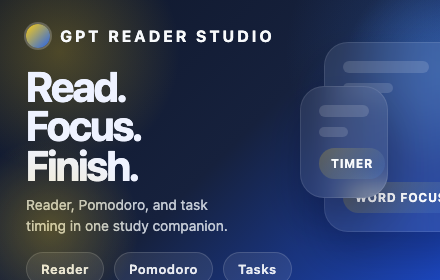
GPT Reader Studio
Read selected text aloud using your browser’s voice or OpenAI TTS, and stay on track with an integrated Pomodoro study timer.
As of June 2026, GPT Reader Studio has 3 users in the Productivity category.
Usersno change0%
3
3
Ratingno change0%
—
— reviews
Reviewsno change0%
—
Version
1.0.1
Manifest V3
90-day change · In the last 90 days this extension 1 version update.
History
7 snapshotsTracking since Apr 4, 2026.
View as table
| Date | Users | Rating | Reviews | Version |
|---|---|---|---|---|
| Apr 4, 2026 | — | — | — | 1.0.0 |
| Apr 17, 2026 | — | — | — | 1.0.0 |
| Apr 28, 2026 | 3 | — | — | 1.0.1 |
| May 5, 2026 | 4 | — | — | 1.0.1 |
| May 11, 2026 | 5 | — | — | 1.0.1 |
| May 16, 2026 | 3 | — | — | 1.0.1 |
| May 29, 2026 | 5 | — | — | 1.0.1 |
| Now | 3 | — | — | 1.0.1 |
Permissions & access
- Permissions
- storagecontextMenusactiveTabtabsscriptingttsnotificationsalarms
- Host access
- https://*/, http://*/
Screenshots


About
GPT Reader Studio is a focused study companion for people who spend a lot of time reading on the web.

It combines three things in one extension:

text-to-speech for selected web content
a persistent Pomodoro timer
a built-in task list with priorities and per-task timers
Instead of bouncing between a reading tool, a timer app, and a notes app, GPT Reader Studio keeps the full study loop in one place.

WHY INSTALL IT

Use GPT Reader Studio if you:

learn better by listening while reading
study from long articles, research pages, or dense web material
want structured focus sessions without opening a separate timer app
want a lightweight task list tied directly to your study sessions
want to try OpenAI text-to-speech without building your own scripts or workflow
WHAT IT DOES

Read selected text aloud
Highlight text on any web page and right-click to choose “Read with GPT Reader”.
A compact reader banner appears on the page with Play, Pause, speed controls, and progress.
Use browser/system voice for a no-cost option, or switch to OpenAI voice for higher-quality text-to-speech.
In browser voice mode, the extension follows along visually so it is easier to track what is being read.
Handle long reads more cleanly
Long selections are split into manageable parts automatically.
In OpenAI mode, you see an estimate before sending large text.
The extension shows approximate text length, expected chunk count, and rough cost so you stay in control.
Reader Mode and Word Focus
Reader Mode helps pull out the main article text on supported pages.
Word Focus opens a centered rapid-word reading view for people who prefer staying visually locked in one place instead of scanning left to right.
Pomodoro timer that keeps running
Start Focus, Short Break, Long Break, or Custom sessions from the popup.
The timer continues in the background even if the popup is closed.
When a session ends, GPT Reader Studio gives you a strong completion signal so it is hard to miss:
an on-page banner when available
a chime
and, when needed, a dedicated extension completion window
Task list built for study sessions
Add tasks directly inside the extension.
Mark tasks complete with one click.
Set task priority as High, Medium, or Low.
Assign a custom timer to each task, down to the second.
Start a task timer directly from the Tasks tab.
See the live countdown for the active task without switching over to the Pomodoro tab.
Pause, resume, or stop the active task timer right from the Tasks view.
WHY THE TASKS TAB MATTERS

The Tasks tab makes the extension feel like a complete study workflow instead of just a reader.

You can:

capture what you need to do
decide what matters most
attach a time budget to each task
run the timer from the same place you manage the work
keep the current focus visible while you study
This is especially useful for reading-heavy work like:

exam prep
paper reading
note review
research sessions
language study
structured deep work blocks
BASIC SETUP

Reader tab

Open the GPT Reader Studio popup from Chrome’s toolbar.
Choose your voice engine:
Browser / system voice for built-in text-to-speech
OpenAI voice for higher-quality TTS
If you choose OpenAI voice:
paste your OpenAI API key
choose a model
choose a voice
set your preferred speed
Your settings are saved so you do not need to re-enter them each time.
To read text

Highlight text on a page
Right-click
Choose “Read with GPT Reader”
Use the on-page controls to play, pause, adjust speed, or close the reader
Pomodoro tab

Choose Focus, Short Break, Long Break, or Custom
Press Start
Pause or reset whenever needed
Let the extension alert you when the session ends
Tasks tab

Add a task
Set its priority
Set a task timer in minutes and seconds
Start the timer directly from the task row
Watch the live countdown in the Tasks tab while you work
OPENAI API KEY IS OPTIONAL

You only need an API key if you want to use OpenAI voice.
Browser/system voice works without any account.

To use OpenAI voice:

Go to https://platform.openai.com
Sign in to your OpenAI account
Create a new secret API key
Paste it into GPT Reader Studio on the Reader tab
Choose your model and voice
Treat your API key like a password and do not share it publicly.

PRIVACY

GPT Reader Studio is designed to be straightforward about what happens to your data.

Browser/system voice mode keeps reading on-device and does not send text to external servers.
OpenAI voice mode sends only the text you choose to read to OpenAI’s API, using the API key you provide.
Reader settings, task data, and timer state are stored in Chrome extension storage for convenience.
The extension does not use third-party analytics or external tracking servers.
OpenAI billing, usage, and limits are handled entirely through your own OpenAI account.
Technical
- Version
- 1.0.1
- Manifest
- V3
- Size
- 60.89KiB
- Min Chrome
- 88
- Languages
- 1
- Featured
- No
Metadata
- ID
- kckampglggfafbffbpcgplanbdbiedge
- Developer ID
- ue62def4c5dada71a1c627be888e75634
- Developer Email
- [email protected]
- Created
- Apr 3, 2026
- Last Updated (Store)
- Apr 4, 2026
- Last Scraped
- Jun 11, 2026
- Website
- —
- Support URL
- —
Data sourced from the Chrome Web Store · last verified Jun 11, 2026.