
Chrodic
A mouseover dictionary for Google Chrome™
As of May 2026, Chrodic has 65 users and a 5.00/5 rating from 1 reviews in the Workflow & Planning category.
Usersdown 11.0 percent−11.0%
65
65
Ratingno change0%
5.00
1 reviews
Reviewsno change0%
1
Version
0.3.3
Manifest V3
History
4 snapshotsTracking since Apr 1, 2026.
View as table
| Date | Users | Rating | Reviews | Version |
|---|---|---|---|---|
| Apr 1, 2026 | 73 | 5.00 | 1 | 0.3.3 |
| Apr 21, 2026 | 69 | 5.00 | 1 | 0.3.3 |
| May 6, 2026 | 68 | 5.00 | 1 | 0.3.3 |
| May 17, 2026 | 66 | 5.00 | 1 | 0.3.3 |
| Now | 65 | 5.00 | 1 | 0.3.3 |
Permissions & access
- Permissions
- None declared
- Host access
- None declared
Screenshots
About
ABOUT

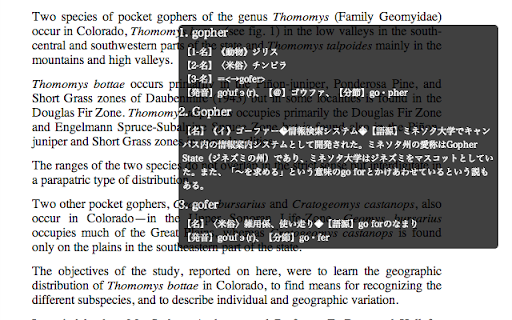
 Chrodic is a Chrome Extension which provides a mouse over text translation
functionality into your browser. Currently it supports translation from English
to Japanese based on the Eijiro dictionary. Because it imports an Eijiro
dictionary file into an IndexedDB inside Chrome, it works fast and also works
offline.


INSTALL

1. Get an Eijiro dictionary file. You can either buy a book which comes with a
   CD containing a dictionary file, or buy a file online at www.eijiro.jp

2. Convert the dictionary file into utf-8. Type this command in your terminal:

   $ iconv -c -f SJIS -t UTF-8 EIJI-118.TXT > EIJI-118-utf-8.TXT

3. Import the dictionary file into Chrome.

   3.1. Go to chrome://extensions in Chrome.
   3.2. Click on the "Options" link on Chrodic. It takes you to the Chrodic
        options page.
   3.2. In the options page, click on "Choose File" button, select the
        EIJI-118-utf-8.TXT file you just created.
   3.3. Wait until "Done!" is shown on the textarea below.


USAGE

 After the installation you can enable Chrodic on any page by keep pressing the
left mouse button more than 500ms. Then Chrodic will start showing translation
of words which are under your mouse. To disable Chrodic simply click on the
left mouse button.
 When you find a word you didn't know its meaning, you can save it for your
later study. To save, during you are seeing its translation in the translation
box, press the number key corresponding to the word. By default it saves the
word and its translation into localStorage, which you can export to a TSV (tab
separated values) file. If you have an Ankiweb account, you can directly save
it to your preferred anki deck, by doing appropriate settings in the options
page. In order for that you need to be logged into Ankiweb in the same browser
you are using Chrodic.
Technical
- Version
- 0.3.3
- Manifest
- V3
- Size
- 47.91KiB
- Min Chrome
- 88
- Languages
- 1
- Featured
- No
Metadata
- ID
- imkpifjflfflpgododdmncfncpdnlgbm
- Developer ID
- u1aeb7e115568a7ac10bb286eb97ae786
- Developer Email
- [email protected]
- Created
- Dec 1, 2013
- Last Updated (Store)
- May 14, 2025
- Last Scraped
- May 17, 2026
- Website
- —
- Support URL
- —
- Privacy Policy
- —
Similar extensions
Alternatives to Chrodic, ranked by description similarity.
Mouse Dictionary
A super fast dictionary for language learners
100.0K
★ 4.7

Ankinow
Ankinow is an extension to add words in a web page to Anki
166
★ 3.0
Japanese IO
Helps you read Japanese text
10.0K
★ 4.5

ScTranslator - Translator, Page Translator, Dictionary
Translate selected text with multiple sources, Webpage translating that have 3 display modes... An all-in-one translation extension.
20.0K
★ 4.9

DeepL Box: Translation history management
Save previous translations, show index, compare one by one, search by keyword, copy to clipboard and provide keyboard shortcut.
321

Translator - Select to Translate
Translate words and phrases while browsing the web using the Google Translator. Full page translator.
60.0K
★ 4.2

Lingua: Universal Translator
GPT-3 powered web translator
33

Kanji Lookup
A light-weight Japanese Kanji look-up dictionary, built specifically for Japanese kanji learners.
1) Simply highlight a kanji on…
105
★ 5.0
Data sourced from the Chrome Web Store · last verified May 17, 2026.