
Find and replace for YouTube Subtitles
Fix misspelled words in YouTube transcripts with a single click!
As of May 2026, Find and replace for YouTube Subtitles has 1,000 users and a 4.00/5 rating from 5 reviews in the Productivity category.
Usersno change0%
1.0K
1,000
Ratingno change0%
4.00
5 reviews
Reviewsno change0%
5
Version
2.0.4
Manifest V3
History
1 snapshotsTracking since Apr 28, 2026.
View as table
| Date | Users | Rating | Reviews | Version |
|---|---|---|---|---|
| Apr 28, 2026 | 1.0K | 4.00 | 5 | 2.0.4 |
| Now | 1.0K | 4.00 | 5 | 2.0.4 |
Permissions & access
- Permissions
- declarativeContentactiveTabstorage
- Host access
- None declared
Screenshots

About
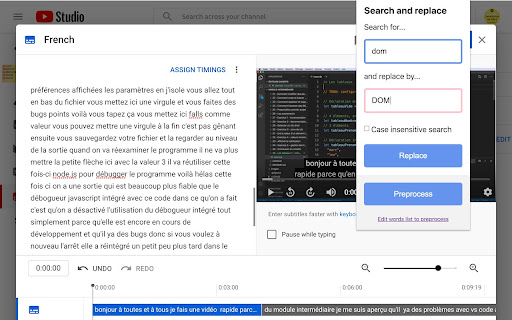
Fix all misspelled words and expressions of YouTube transcripts (subtitles) right from the online YouTube editor with one single click.

Create your own personal list of misspelled words that must be replaced in your video and process them all with one click: huge time saver!

This extension works only when you are on the official online YouTube subtitle editor website.

FEATURES:
- Fix misspelled words in your entire transcript with one click
- Store a list of common misspelled words and fix all of them with one click (preprocess feature)
- Create the start of a sentence easily: click on a word, tap twice on CTRL! It will make the first letter of the word in uppercase and add a dot at the end of the previous word if needed.

KEYBOARD SHORTCUTS
- Open the extension panel with CTRL+SHIFT+F
- Click on the first word of a sentence, tap twice on CTRL to create the start of a sentence

HOW DOES IT WORKS?
1. Log yourself into YouTube
2. Open YouTube Studio
3. Select the "Subtitles" category on the left panel
4. Select the video you want to edit the subtitles from
(at this step the URL should start by https://studio.youtube.com/channel/<your_channel_ID>/translations or https://studio.youtube.com/video/<your_channel_ID>/translations)
5. Click on the "edit" or "duplicate and edit" button next to the subtitle your want to edit
6. WARNING: You MUST use the mode "edit as text" for the extension to work properly. So tap on this button in order to put the entire text of subtitles in one big block of text. That way the extension can search and replace in the whole text otherwise it will modify only a part of the text that is currently displayed in the interface.
7. You can now use this extension, enjoy!

Thanks!
Technical
- Version
- 2.0.4
- Manifest
- V3
- Size
- 19.88KiB
- Min Chrome
- 88
- Languages
- 1
- Featured
- Yes
Metadata
- ID
- idjehecnhghbndalgpfmhahnhkcfeeie
- Developer ID
- u25492e406972b1555c4c12ae03fbc142
- Developer Email
- [email protected]
- Created
- Jan 26, 2020
- Last Updated (Store)
- Dec 6, 2023
- Last Scraped
- May 25, 2026
- Website
- —
- Privacy Policy
- —
Similar extensions
Alternatives to Find and replace for YouTube Subtitles, ranked by description similarity.

Lynote - YouTube Transcript Generator
Instantly convert YouTube videos to text. Generate, copy, and use transcripts for study, research, and content creation.
483
★ 5.0

YouTube Transcription
Use YouTube Transcription to transcribe video to text and effortlessly obtain a transcript of YouTube videos.
10.0K
★ 3.4

YoutubeTS - Video to Text
Convert YouTube videos to text instantly. Get accurate transcripts with one click.
3

YT Video to Text
YouTube Video to Text: Instantly Generate Transcripts for Any YouTube Video.
164
★ 5.0

YouTube Transcript Search
Search through YouTube video transcripts
16

YouTube Transcript Downloader
Download YouTube video transcripts with one click
246
★ 5.0

YouTube Transcription Downloader
Download YouTube video transcriptions for free directly in the YouTube watch page
355
★ 3.7

Copy Youtube Transcript
Copy YouTube video transcripts with one click.
20.0K
★ 4.7
Data sourced from the Chrome Web Store · last verified May 25, 2026.