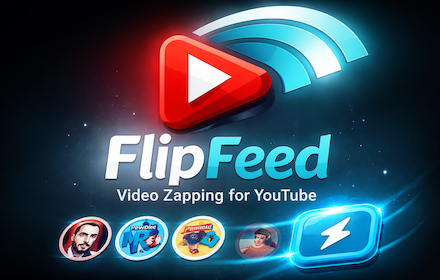
FlipFeed — Video zapping for YouTube
Take back control of YouTube. Zap between your favorite channels with a keyboard shortcut — like a TV remote, no algorithm.
As of June 2026, FlipFeed — Video zapping for YouTube has 8 users in the Entertainment category.
Usersup 60.0 percent+60.0%
8
8
Ratingno change0%
—
— reviews
Reviewsno change0%
—
Version
1.6.9
Manifest V3
90-day change · In the last 90 days this extension 1 version update.
History
7 snapshotsTracking since Apr 16, 2026.
View as table
| Date | Users | Rating | Reviews | Version |
|---|---|---|---|---|
| Apr 16, 2026 | 5 | — | — | 1.6.8 |
| Apr 24, 2026 | 4 | — | — | 1.6.8 |
| May 7, 2026 | 3 | — | — | 1.6.8 |
| May 12, 2026 | 5 | — | — | 1.6.8 |
| May 24, 2026 | 7 | — | — | 1.6.9 |
| May 31, 2026 | 11 | — | — | 1.6.9 |
| Jun 6, 2026 | 10 | — | — | 1.6.9 |
| Now | 8 | — | — | 1.6.9 |
Changelog
- May 12, 2026short_description
Zap between YouTube channels with a quick overlay widget. Configure your favorite channels and switch instantly.
Take back control of YouTube. Zap between your favorite channels with a keyboard shortcut — like a TV remote, no algorithm.
- May 7, 2026description
Your YouTube remote control is finally here.

Remember flipping through TV channels? That instant, effortless jump from one show to the next: no menus, no search bar, just click and you're watching something new. That satisfying, almost tactile feeling of being in control of what you watch and when. YouTube is the greatest TV ever made, but it lost that feeling somewhere along the way. Infinite scroll, algorithmic recommendations, autoplay rabbit holes, YouTube became something that watches you more than you watch it.

FlipFeed gives you the remote back.

Press a shortcut, pick a channel from your personal lineup, and land instantly on the latest video from that creator, no Shorts, no suggested content, no distractions. Just your favorite YouTube channels, one key press away, exactly like flipping channels on a classic TV remote.

THIS IS CHANNEL SURFING FOR YOUTUBE

FlipFeed works like the remote control you never knew YouTube needed. You build your personal channel lineup — up to hundreds of creators — and they appear in a clean overlay widget, arranged in a grid just like the numbered buttons on a TV remote. Press 1 for tech news, press 2 for your favorite podcast, press 3 for the cooking channel you've been following for years. Each press zaps you instantly to their latest upload, skipping YouTube Shorts automatically so you always land on real content.

No searching. No scrolling. No algorithm deciding what you see next. You're in control.

The widget lives quietly in the corner of your YouTube experience and appears the moment you need it, summoned by a keyboard shortcut, dismissed just as fast. It's designed to feel like a remote control: fast, intuitive, always ready, never in the way.

HOW IT WORKS

Open your YouTube remote by pressing Alt+Z on any YouTube page. The FlipFeed channel widget slides in from the bottom-right corner, showing your saved channel lineup in a customizable grid. Click any channel button, or press its mapped keyboard shortcut, and FlipFeed fetches the latest non-Short video from that channel via RSS and navigates there instantly. Done.
No waiting, no loading screens, no YouTube homepage, no recommendations you didn't ask for. Press ESC or the × button to close the widget and get back to what you were watching.
It's the fastest way to navigate YouTube that exists.

FEATURES

Your personal channel remote

Configure your own YouTube channel lineup with as many creators as you want. FlipFeed supports unlimited channels with paginated navigation, use the left/right arrow keys (or click the arrows in the widget) to flip between pages of your lineup, just like cycling through channel banks on an advanced remote. The widget remembers which page you were on, so your most-used channels are always one click away.

Customizable grid layout

Choose the size of your channel remote: 3×3, 3×4, 3×5, or 3×6 grids, giving you between 9 and 18 channels visible at once per page. Smaller grids keep things clean and minimal; larger grids let you see more of your lineup at a glance. Find the layout that matches the way you watch.

Keyboard shortcuts — real remote-control buttons

Map any keyboard key to any channel slot. By default, keys 1–9 act as your channel buttons, exactly like a TV remote's number pad. Press 1 to zap to your first channel, 2 for the second, and so on. You can remap these to any key that feels natural for your workflow — letters, numbers, whatever makes your YouTube remote feel like yours.

Two zap modes

Choose how FlipFeed navigates when you press a channel button:
— Latest video (default): FlipFeed fetches the channel's RSS feed and opens the most recent non-Short video directly. You land straight into the video, no extra clicks.
— Channel page: Opens the channel's videos page sorted by latest uploads, so you can pick from their recent content yourself.

Same tab or new tab

Decide whether zapping opens videos in your current tab (smooth, TV-like channel switching) or in a new tab (multitasking mode, keep your current video running while you queue up the next one). Both modes are available and configurable in the options page.

Add channels without leaving YouTube

You don't need to copy and paste URLs into a settings page. When you're browsing any YouTube channel, open the FlipFeed widget and look for empty slots showing an "+ Add channel" button. Click it and the current channel is saved to your lineup instantly — with automatic duplicate detection so you never add the same channel twice. It's the fastest way to build your personal YouTube channel list.

Drag and drop to reorder your lineup

Your channel remote, your rules. In the FlipFeed options page, drag and drop channels to arrange them exactly the way you want. Put your most-watched creators on the first page, organize by topic, or group channels the way you'd program a TV remote — whatever makes the most sense for how you watch.

Smart Short filtering

YouTube Shorts have their own place, but when you're zapping between channels you want real videos. FlipFeed automatically detects and skips videos under 60 seconds, so every channel zap lands you on actual content. The filtering works by checking video duration metadata in batches, using a concurrent early-win strategy that keeps navigation feeling instant even when a channel has recently published multiple Shorts.

No API key needed — pure RSS-based intelligence

FlipFeed doesn't require a YouTube API key or any account setup. It works directly with YouTube's RSS feeds, which are fast, reliable, and don't count against any API quotas. You install it, add your channels, and start zapping — no configuration required beyond choosing your creators.

Live sync across devices

Your settings — key mappings, open mode, zap action, grid size — sync across devices via Chrome sync. Your channel lineup lives in local storage (5–10MB capacity, supports 100+ channels comfortably) while settings travel with your Chrome profile. Change a setting on one machine and it's reflected everywhere.

PRIVACY — NO TRACKING, EVER

FlipFeed is built on a simple principle: your watch habits are your business.

There is no analytics. There is no tracking. There are no external services, no data brokers, no third-party APIs. When FlipFeed fetches an RSS feed or a video page to check a video's duration, that request goes directly to youtube.com, the same domain you're already on. Nothing passes through any intermediate server. Nothing is logged anywhere outside your own browser.
All your channel data and settings are stored locally in your browser using Chrome's built-in storage APIs. If you have Chrome sync enabled, your settings sync through Google's infrastructure (the same way your bookmarks and passwords do), but FlipFeed itself never touches that data. It just stores it; Chrome handles the sync.
FlipFeed is open source. You can read every line of code on GitHub and verify exactly what it does and doesn't do. No hidden network calls, no obfuscated scripts, no surprises.

PERMISSIONS EXPLAINED

FlipFeed requests only what it needs:
— storage: to save your channel lineup and settings locally and in Chrome sync
— commands: to register the global Alt+Z keyboard shortcut that opens your channel remote
— tabs: to navigate to videos in the same tab or open them in a new tab
— youtube.com host access: to inject the widget into YouTube pages and fetch RSS feeds and video metadata directly from YouTube
No broad host permissions. No access to your browsing history. No microphone, camera, or clipboard access. Just YouTube, which is the only place FlipFeed operates.

WHO IS FLIPFEED FOR?

FlipFeed is built for people who watch YouTube with intention who have a roster of channels they genuinely care about and want to move between them efficiently. If you've ever found yourself typing a channel name into YouTube's search bar just to navigate to a creator you watch every week, FlipFeed is for you. If you've ever been frustrated by YouTube's homepage showing you everything except the channels you actually subscribed to, FlipFeed is for you. If you miss the simple satisfaction of picking up a remote and flipping to your channel, FlipFeed is for you.
It's for power users who want keyboard-driven navigation. It's for people who want to watch YouTube like they're watching TV, lean back, remote in hand, in control of the experience. It's for anyone who wants to get to the content they care about in under a second, without the friction that YouTube's interface has accumulated over the years.

GETTING STARTED

Install FlipFeed from the Chrome Web Store
Click the extension icon (or right-click → Options) to open your channel remote settings
Add your favorite YouTube channels (clicking Add Channel when your are on the channel homepage), paste any YouTube URL format (@handle, /channel/UC..., /user/..., or vanity URLs) and click Resolve to auto-detect the channel name and avatar

Assign keyboard shortcuts to your favorite channels if you want true remote-control navigation
Go to any YouTube page, press Alt+Z, and start zapping

Your YouTube remote control is ready.
Your YouTube remote control is finally here.

Remember flipping through TV channels? That instant, effortless jump from one show to the next: no menus, no search bar, just click and you're watching something new. That satisfying, almost tactile feeling of being in control of what you watch and when. YouTube is the greatest TV ever made, but it lost that feeling somewhere along the way. Infinite scroll, algorithmic recommendations, autoplay rabbit holes — YouTube became something that watches you more than you watch it.

FlipFeed gives you the remote back.

Press a shortcut, pick a channel from your personal lineup, and land instantly on the latest video from that creator. No Shorts, no suggested content, no distractions. Just your favorite YouTube channels, one key press away, exactly like flipping channels on a classic TV remote.

THIS IS CHANNEL SURFING FOR YOUTUBE

FlipFeed works like the remote control you never knew YouTube needed. You build your personal channel lineup — up to hundreds of creators — and they appear in a clean overlay widget, arranged in a grid just like the numbered buttons on a TV remote. Press 1 for tech news, press 2 for your favorite podcast, press 3 for the cooking channel you've been following for years. Each press zaps you instantly to their latest upload, skipping YouTube Shorts automatically so you always land on real content.

No searching. No scrolling. No algorithm deciding what you see next. You're in control.

The widget lives quietly in the corner of your YouTube experience and appears the moment you need it — summoned by a keyboard shortcut, dismissed just as fast. It's designed to feel like a remote control: fast, intuitive, always ready, never in the way.

HOW IT WORKS

Open your YouTube remote by pressing Alt+Z on any YouTube page. The FlipFeed channel widget slides in from the bottom-right corner, showing your saved channel lineup in a customizable grid. Click any channel button, or press its mapped keyboard shortcut, and FlipFeed fetches the latest non-Short video from that channel via RSS and navigates there instantly. Done.

No waiting, no loading screens, no YouTube homepage, no recommendations you didn't ask for. Press ESC or the × button to close the widget and get back to what you were watching.

It's the fastest way to navigate YouTube that exists.

FEATURES

Your personal channel remote
Configure your own YouTube channel lineup with as many creators as you want. FlipFeed supports unlimited channels with paginated navigation: use the left/right arrow keys (or click the arrows in the widget) to flip between pages of your lineup, just like cycling through channel banks on an advanced remote. The widget remembers which page you were on, so your most-used channels are always one click away.

Customizable grid layout
Choose the size of your channel remote: 3×3, 3×4, 3×5, or 3×6 grids, giving you between 9 and 18 channels visible at once per page. Smaller grids keep things clean and minimal; larger grids let you see more of your lineup at a glance. Find the layout that matches the way you watch.

Keyboard shortcuts — real remote-control buttons
Map any keyboard key to any channel slot. By default, keys 1–9 act as your channel buttons, exactly like a TV remote's number pad. Press 1 to zap to your first channel, 2 for the second, and so on. You can remap these to any key that feels natural for your workflow — letters, numbers, whatever makes your YouTube remote feel like yours.

Two zap modes
Choose how FlipFeed navigates when you press a channel button:
— Latest video (default): FlipFeed fetches the channel's RSS feed and opens the most recent non-Short video directly. You land straight into the video, no extra clicks.
— Channel page: opens the channel's videos page sorted by latest uploads, so you can pick from their recent content yourself.

Same tab or new tab
Decide whether zapping opens videos in your current tab (smooth, TV-like channel switching) or in a new tab (multitasking mode — keep your current video running while you queue up the next one). Both modes are available and configurable in the options page.

Add channels without leaving YouTube
You don't need to copy and paste URLs into a settings page. When you're browsing any YouTube channel, open the FlipFeed widget and look for empty slots showing an "+ Add channel" button. Click it and the current channel is saved to your lineup instantly — with automatic duplicate detection so you never add the same channel twice. It's the fastest way to build your personal YouTube channel list.

Drag and drop to reorder your lineup
Your channel remote, your rules. In the FlipFeed options page, drag and drop channels to arrange them exactly the way you want. Put your most-watched creators on the first page, organize by topic, or group channels the way you'd program a TV remote — whatever makes the most sense for how you watch.

Smart Short filtering
YouTube Shorts have their own place, but when you're zapping between channels you want real videos. FlipFeed automatically detects and skips videos 60 seconds or shorter, so every channel zap lands you on actual content. The filtering works by checking video duration metadata in batches, using a concurrent early-win strategy that keeps navigation feeling instant even when a channel has recently published multiple Shorts.

No API key needed — pure RSS-based intelligence
FlipFeed doesn't require a YouTube API key or any account setup. It works directly with YouTube's RSS feeds, which are fast, reliable, and don't count against any API quotas. You install it, add your channels, and start zapping — no configuration required beyond choosing your creators.

Live sync across devices
Your settings — key mappings, open mode, zap action, grid size — sync across devices via Chrome sync. Your channel lineup lives in local storage (5–10MB capacity, supports 100+ channels comfortably) while settings travel with your Chrome profile. Change a setting on one machine and it's reflected everywhere.

PRIVACY — NO TRACKING, EVER

FlipFeed is built on a simple principle: your watch habits are your business.

There is no analytics. There is no tracking. There are no external services, no data brokers, no third-party APIs. When FlipFeed fetches an RSS feed or a video page to check a video's duration, that request goes directly to youtube.com — the same domain you're already on. Nothing passes through any intermediate server. Nothing is logged anywhere outside your own browser.

All your channel data and settings are stored locally in your browser using Chrome's built-in storage APIs. If you have Chrome sync enabled, your settings sync through Google's infrastructure (the same way your bookmarks and passwords do), but FlipFeed itself never touches that data — it just stores it; Chrome handles the sync.

The full source code is publicly available on GitHub. You can read every line and verify exactly what FlipFeed does and doesn't do. No hidden network calls, no obfuscated scripts, no surprises.

PERMISSIONS EXPLAINED

FlipFeed requests only what it needs:
— storage: to save your channel lineup and settings locally and in Chrome sync
— commands: to register the global Alt+Z keyboard shortcut that opens your channel remote
— tabs: to navigate to videos in the same tab or open them in a new tab
— youtube.com host access: to inject the widget into YouTube pages and fetch RSS feeds and video metadata directly from YouTube

No broad host permissions. No access to your browsing history. No microphone, camera, or clipboard access. Just YouTube — the only place FlipFeed operates.

WHO IS FLIPFEED FOR?

FlipFeed is built for people who watch YouTube with intention — who have a roster of channels they genuinely care about and want to move between them efficiently. If you've ever found yourself typing a channel name into YouTube's search bar just to navigate to a creator you watch every week, FlipFeed is for you. If you've ever been frustrated by YouTube's homepage showing you everything except the channels you actually subscribed to, FlipFeed is for you. If you miss the simple satisfaction of picking up a remote and flipping to your channel, FlipFeed is for you.

It's for power users who want keyboard-driven navigation. It's for people who want to watch YouTube like they're watching TV — lean back, remote in hand, in control of the experience. It's for anyone who wants to get to the content they care about in under a second, without the friction that YouTube's interface has accumulated over the years.

GETTING STARTED

1. Install FlipFeed from the Chrome Web Store.
2. Right-click the FlipFeed extension icon → Options to open your channel remote settings.
3. Add your favorite YouTube channels: paste any YouTube URL format (@handle, /channel/UC..., /user/..., or vanity URLs) and click Resolve to auto-detect the channel name and avatar. Or, even faster, navigate to a channel on YouTube, open the widget with Alt+Z, and click an empty "+ Add channel" slot.
4. Assign keyboard shortcuts to your favorite channels for true remote-control navigation.
5. Go to any YouTube page, press Alt+Z, and start zapping.

Your YouTube remote control is ready.
Permissions & access
- Permissions
- storagecommandstabs
- Host access
- https://www.youtube.com/*
Screenshots

About
Your YouTube remote control is finally here.

Remember flipping through TV channels? That instant, effortless jump from one show to the next: no menus, no search bar, just click and you're watching something new. That satisfying, almost tactile feeling of being in control of what you watch and when. YouTube is the greatest TV ever made, but it lost that feeling somewhere along the way. Infinite scroll, algorithmic recommendations, autoplay rabbit holes — YouTube became something that watches you more than you watch it.

FlipFeed gives you the remote back.

Press a shortcut, pick a channel from your personal lineup, and land instantly on the latest video from that creator. No Shorts, no suggested content, no distractions. Just your favorite YouTube channels, one key press away, exactly like flipping channels on a classic TV remote.

THIS IS CHANNEL SURFING FOR YOUTUBE

FlipFeed works like the remote control you never knew YouTube needed. You build your personal channel lineup — up to hundreds of creators — and they appear in a clean overlay widget, arranged in a grid just like the numbered buttons on a TV remote. Press 1 for tech news, press 2 for your favorite podcast, press 3 for the cooking channel you've been following for years. Each press zaps you instantly to their latest upload, skipping YouTube Shorts automatically so you always land on real content.

No searching. No scrolling. No algorithm deciding what you see next. You're in control.

The widget lives quietly in the corner of your YouTube experience and appears the moment you need it — summoned by a keyboard shortcut, dismissed just as fast. It's designed to feel like a remote control: fast, intuitive, always ready, never in the way.

HOW IT WORKS

Open your YouTube remote by pressing Alt+Z on any YouTube page. The FlipFeed channel widget slides in from the bottom-right corner, showing your saved channel lineup in a customizable grid. Click any channel button, or press its mapped keyboard shortcut, and FlipFeed fetches the latest non-Short video from that channel via RSS and navigates there instantly. Done.

No waiting, no loading screens, no YouTube homepage, no recommendations you didn't ask for. Press ESC or the × button to close the widget and get back to what you were watching.

It's the fastest way to navigate YouTube that exists.

FEATURES

Your personal channel remote
Configure your own YouTube channel lineup with as many creators as you want. FlipFeed supports unlimited channels with paginated navigation: use the left/right arrow keys (or click the arrows in the widget) to flip between pages of your lineup, just like cycling through channel banks on an advanced remote. The widget remembers which page you were on, so your most-used channels are always one click away.

Customizable grid layout
Choose the size of your channel remote: 3×3, 3×4, 3×5, or 3×6 grids, giving you between 9 and 18 channels visible at once per page. Smaller grids keep things clean and minimal; larger grids let you see more of your lineup at a glance. Find the layout that matches the way you watch.

Keyboard shortcuts — real remote-control buttons
Map any keyboard key to any channel slot. By default, keys 1–9 act as your channel buttons, exactly like a TV remote's number pad. Press 1 to zap to your first channel, 2 for the second, and so on. You can remap these to any key that feels natural for your workflow — letters, numbers, whatever makes your YouTube remote feel like yours.

Two zap modes
Choose how FlipFeed navigates when you press a channel button:
— Latest video (default): FlipFeed fetches the channel's RSS feed and opens the most recent non-Short video directly. You land straight into the video, no extra clicks.
— Channel page: opens the channel's videos page sorted by latest uploads, so you can pick from their recent content yourself.

Same tab or new tab
Decide whether zapping opens videos in your current tab (smooth, TV-like channel switching) or in a new tab (multitasking mode — keep your current video running while you queue up the next one). Both modes are available and configurable in the options page.

Add channels without leaving YouTube
You don't need to copy and paste URLs into a settings page. When you're browsing any YouTube channel, open the FlipFeed widget and look for empty slots showing an "+ Add channel" button. Click it and the current channel is saved to your lineup instantly — with automatic duplicate detection so you never add the same channel twice. It's the fastest way to build your personal YouTube channel list.

Drag and drop to reorder your lineup
Your channel remote, your rules. In the FlipFeed options page, drag and drop channels to arrange them exactly the way you want. Put your most-watched creators on the first page, organize by topic, or group channels the way you'd program a TV remote — whatever makes the most sense for how you watch.

Smart Short filtering
YouTube Shorts have their own place, but when you're zapping between channels you want real videos. FlipFeed automatically detects and skips videos 60 seconds or shorter, so every channel zap lands you on actual content. The filtering works by checking video duration metadata in batches, using a concurrent early-win strategy that keeps navigation feeling instant even when a channel has recently published multiple Shorts.

No API key needed — pure RSS-based intelligence
FlipFeed doesn't require a YouTube API key or any account setup. It works directly with YouTube's RSS feeds, which are fast, reliable, and don't count against any API quotas. You install it, add your channels, and start zapping — no configuration required beyond choosing your creators.

Live sync across devices
Your settings — key mappings, open mode, zap action, grid size — sync across devices via Chrome sync. Your channel lineup lives in local storage (5–10MB capacity, supports 100+ channels comfortably) while settings travel with your Chrome profile. Change a setting on one machine and it's reflected everywhere.

PRIVACY — NO TRACKING, EVER

FlipFeed is built on a simple principle: your watch habits are your business.

There is no analytics. There is no tracking. There are no external services, no data brokers, no third-party APIs. When FlipFeed fetches an RSS feed or a video page to check a video's duration, that request goes directly to youtube.com — the same domain you're already on. Nothing passes through any intermediate server. Nothing is logged anywhere outside your own browser.

All your channel data and settings are stored locally in your browser using Chrome's built-in storage APIs. If you have Chrome sync enabled, your settings sync through Google's infrastructure (the same way your bookmarks and passwords do), but FlipFeed itself never touches that data — it just stores it; Chrome handles the sync.

The full source code is publicly available on GitHub. You can read every line and verify exactly what FlipFeed does and doesn't do. No hidden network calls, no obfuscated scripts, no surprises.

PERMISSIONS EXPLAINED

FlipFeed requests only what it needs:
— storage: to save your channel lineup and settings locally and in Chrome sync
— commands: to register the global Alt+Z keyboard shortcut that opens your channel remote
— tabs: to navigate to videos in the same tab or open them in a new tab
— youtube.com host access: to inject the widget into YouTube pages and fetch RSS feeds and video metadata directly from YouTube

No broad host permissions. No access to your browsing history. No microphone, camera, or clipboard access. Just YouTube — the only place FlipFeed operates.

WHO IS FLIPFEED FOR?

FlipFeed is built for people who watch YouTube with intention — who have a roster of channels they genuinely care about and want to move between them efficiently. If you've ever found yourself typing a channel name into YouTube's search bar just to navigate to a creator you watch every week, FlipFeed is for you. If you've ever been frustrated by YouTube's homepage showing you everything except the channels you actually subscribed to, FlipFeed is for you. If you miss the simple satisfaction of picking up a remote and flipping to your channel, FlipFeed is for you.

It's for power users who want keyboard-driven navigation. It's for people who want to watch YouTube like they're watching TV — lean back, remote in hand, in control of the experience. It's for anyone who wants to get to the content they care about in under a second, without the friction that YouTube's interface has accumulated over the years.

GETTING STARTED

1. Install FlipFeed from the Chrome Web Store.
2. Right-click the FlipFeed extension icon → Options to open your channel remote settings.
3. Add your favorite YouTube channels: paste any YouTube URL format (@handle, /channel/UC..., /user/..., or vanity URLs) and click Resolve to auto-detect the channel name and avatar. Or, even faster, navigate to a channel on YouTube, open the widget with Alt+Z, and click an empty "+ Add channel" slot.
4. Assign keyboard shortcuts to your favorite channels for true remote-control navigation.
5. Go to any YouTube page, press Alt+Z, and start zapping.

Your YouTube remote control is ready.
Technical
- Version
- 1.6.9
- Manifest
- V3
- Size
- 93.08KiB
- Min Chrome
- 88
- Languages
- 1
- Featured
- No
Metadata
- ID
- hgpnhgogfocccboaommnmmhcgpgijnnj
- Developer ID
- ud8c20ad5a37a8258a464a6129f636d07
- Developer Email
- [email protected]
- Created
- Feb 13, 2026
- Last Updated (Store)
- May 8, 2026
- Last Scraped
- Jun 6, 2026
- Website
- —
- Support URL
- https://github.com/carlosacchi/flipfeed
Similar extensions
Alternatives to FlipFeed — Video zapping for YouTube, ranked by description similarity.

YouTube TV (RSS) — Grouped Channels
Group YouTube channels via RSS and play newest→oldest inline inside the extension.
22

Youtube Collections
Organize your YouTube subscriptions into custom categories and filter your feed with ease
9

YouTube Interaction Manager
Smart interaction manager for YouTube. Auto-like whitelist, auto-dislike blacklist, and detailed activity logging.
160
★ 5.0

Youtube Preview Popup
Watch and control YouTube videos in a sleek preview popup for a more immersive and cool viewing experience.
35
★ 5.0

Block YouTube Shorts
Remove all YouTube Shorts and focus on long‑form videos.
205
★ 3.7

SkipCut - YouTube Ad Blocker
Add SkipCut buttons to YouTube videos for ad-free viewing in one click
639
★ 5.0

Shorts scroller, works with Youtube [QVI]
Independent software - not affiliated with YouTube. Auto-scroll Shorts, use custom keyboard shortcuts and quick access button.
10.0K
★ 4.0
'Improve YouTube!' TEST (for YouTube)
YouTube, tidy & smart? Supercharge YouTube! Give it strong features, filter only the videos you want & exactly the look you like
20.0K
★ 4.0
Data sourced from the Chrome Web Store · last verified Jun 6, 2026.