
AiPal - Multi AI Sidebar Assistant for Chrome
Instantly Chat and Work with ChatGPT, Claude, Gemini & 5 more AI Tools directly from your Chrome side panel without switching tabs
As of June 2026, AiPal - Multi AI Sidebar Assistant for Chrome has — users in the Workflow & Planning category.
Usersno change0%
—
—
Ratingno change0%
—
— reviews
Reviewsno change0%
—
Version
1.0
Manifest V3
History
1 snapshotsTracking since Jun 24, 2026.
Not enough history yet for this metric — the chart fills in as we collect more snapshots.
View as table
| Date | Users | Rating | Reviews | Version |
|---|---|---|---|---|
| Jun 24, 2026 | — | — | — | 1.0 |
| Now | — | — | — | 1.0 |
Permissions & access
- Permissions
- contextMenusstoragesidePanelactiveTabscriptingdeclarativeNetRequest
- Host access
- https://chatgpt.com/*, https://gemini.google.com/*, https://www.perplexity.ai/*, https://claude.ai/*, https://chat.deepseek.com/*, https://grok.com/*, https://copilot.microsoft.com/*, https://www.meta.ai/*
Screenshots



About
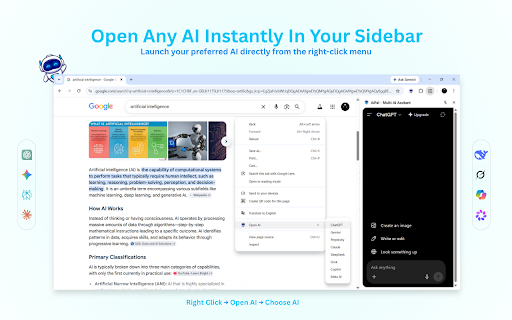
AiPal is a multi AI sidebar assistant that gives you quick access to the most popular AI services directly from your browser's side panel.

Whether you're researching, writing, coding, studying, or brainstorming, AiPal helps you access 8 of the world's leading AI assistants instantly from a single sidebar, eliminating the need to constantly switch tabs or dig through bookmarks.

Features:

• Instant Access : Open any supported AI instantly inside the Chrome side panel.
• Easy Selection : Highlight any text on a webpage and instantly send it to your chosen AI.
• Keyboard Shortcut : Speed up your workflow by using the Alt+A shortcut to continue conversations with selected text.
• Customizable Popup : Enable or disable individual AI providers from the extension popup.
• Lightweight and easy to use interface

How to use:

1. Open any AI provider by right-clicking anywhere on a page and choosing "Open AI" from the context menu.
2. Select any text on a webpage, right-click, and choose "Ask AI" to get instant AI responses based on the selected content.
3. Select text and press Alt+A to continue your existing conversation with the chosen AI. (To use this feature, an AI provider must be already open in the side bar)
4. Click the extension icon to enable or disable AI services according to your preferences.

Important Notes:

• Make sure you are signed into your respective AI accounts in your browser before use.
• If the Alt+A shortcut is not working, you can easily configure it via your Chrome Keyboard Shortcuts menu.

AiPal requires no additional account, does not store or use your data, and works directly with supported AI services through your browser.
Technical
- Version
- 1.0
- Manifest
- V3
- Size
- 59.76KiB
- Min Chrome
- 88
- Languages
- 1
- Featured
- No
Metadata
- ID
- ghjbaeififjeacjfcpmfhboggbakopdm
- Developer ID
- u730d23d523519ee60838fd69a1f98505
- Developer Email
- [email protected]
- Created
- Jun 23, 2026
- Last Updated (Store)
- Jun 23, 2026
- Last Scraped
- Jun 24, 2026
- Website
- —
Data sourced from the Chrome Web Store · last verified Jun 24, 2026.