
Play to Kodi
Play, queue and remote control your favourite online media on Kodi / XBMC.
As of June 2026, Play to Kodi has 10,000 users and a 4.44/5 rating from 528 reviews in the fun category.
Usersno change0%
10.0K
10,000
Ratingno change0%
4.44
528 reviews
Reviewsno change0%
528
Version
2.0.0
Manifest V3
History
2 snapshotsTracking since Apr 19, 2026.
View as table
| Date | Users | Rating | Reviews | Version |
|---|---|---|---|---|
| Apr 19, 2026 | 10.0K | 4.44 | 528 | 2.0.0 |
| May 4, 2026 | 10.0K | 4.44 | 528 | 2.0.0 |
| Now | 10.0K | 4.44 | 528 | 2.0.0 |
Permissions & access
- Permissions
- tabscontextMenusstorage
- Host access
- <all_urls>
Screenshots


About
A Google Chrome Extension for playing online content on Kodi. Supported sites include YouTube, Twitch.tv, and many more.

Requirements:
-Kodi Eden (v11) or later
-The relevant plugin installed on Kodi
-YouTube plugin must be version 4.4.4 or later

How to use:
- "Play now" button sends the currently playing video of your active tab to Kodi. If there are videos currently in a queue, it would be cleared and the current video would be played.
- "+Queue (X)" button puts the video of your current tab to the end of the playlist on Kodi. A number in parenthesis shows the number of items currently in the queue.
- "+Favourite" button keeps the video of your current tab in your favourite list for easy access.
- Drag and drop your favourites to rearrange them.
- With the extension window open, you can use some of your keyboard keys to remotely control Kodi. These keys are: Arrow keys, Backspace, Enter, "I" and "C".
- Right click on YouTube links to play or queue.

Permissions:
- Your data on all websites: Needed so that the extension could send JSON requests to any URL that you might put in the settings.
- Your tabs and browsing activity: Used only for getting the URL of the current tab so that we could use it to obtain the video id for sending to Kodi.

Setup:
- On Kodi, go under System > Settings > Services > Webserver
- Enable "Allow control of Kodi via HTTP, leave the port as default or set it to something else (if you know what you're doing). Write down the port number.
- Username and password are optional
- Right click on the 'Play to Kodi' icon and select 'Options'
- Put in the IP address or hostname of your Kodi box and fill in the port number with the port number you wrote down earlier. Fill in the username and password if you entered one into Kodi.
- Visit YouTube, watch some videos and click on the 'Play to Kodi' icon to play them on Kodi.

Alternatively, you could also visit the source code on
https://github.com/khloke/play-to-xbmc-chrome
to submit issue tickets.

Credits:
Icon was generously provided for free by IconDock.com :)
Technical
- Version
- 2.0.0
- Manifest
- V3
- Size
- 555KiB
- Min Chrome
- 88
- Languages
- 1
- Featured
- No
Metadata
- ID
- fncjhcjfnnooidlkijollckpakkebden
- Developer ID
- u05308b94927cbf2d5a9188e545c17b4f
- Developer Email
- [email protected]
- Created
- Sep 28, 2012
- Last Updated (Store)
- Oct 13, 2025
- Last Scraped
- Jun 6, 2026
- Website
- —
- Privacy Policy
- —
Similar extensions
Alternatives to Play to Kodi, ranked by description similarity.

Cast Kodi
Cast videos and music from more than 50 sites (YouTube, Twitch, Vimeo, SoundCloud, torrent, …) to Kodi.
10.0K
★ 3.9

CastBuddy
This extension finds videos on the web sites you are browsing and allows you to play them on your Chromecast device.
70.0K
★ 3.6

uKick — Block & Stream Tweaks for Kick
All-in-one extension to block, boost, and tweak everything on Kick for a better streaming experience.
705
★ 4.5

Roku Channel Hotkeys: keyboard shortcuts
Extension allows using keyboard shortcuts on Roku Channel
156
★ 5.0

Mitsubishi Lancer Evolution Anime Live Wallpaper
Transform your browser into an anime car showcase with this Mitsubishi Lancer Evolution live wallpaper.
200
★ 5.0

Audio Only for YouTube™
Listen to audio (no video) in YouTube and all embedded videos.
5.0K
★ 3.5

YouNow Koi Addons
Enhanced YouNow features - Auto-chest, Auto-guest, Auto-refresh, Discord bridge, and more
1
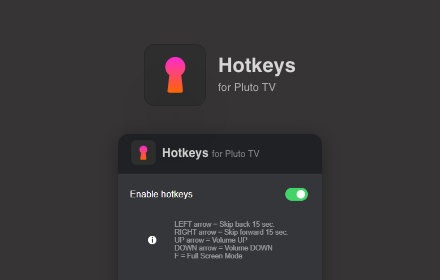
Hotkeys for PlutoTV: keyboard shortcuts
Extension allows using keyboard shortcuts on PlutoTV
56
★ 5.0
Data sourced from the Chrome Web Store · last verified Jun 6, 2026.