
Auto Data Filler
Fill test data using the right-click context menu to assist with exploratory testing.
As of June 2026, Auto Data Filler has 9,000 users and a 4.88/5 rating from 26 reviews in the Developer Tools category.
Usersup 12.5 percent+12.5%
9.0K
9,000
Ratingno change0%
4.88
26 reviews
Reviewsno change0%
26
Version
0.1.8
Manifest V3
90-day change · In the last 90 days this extension gained 1.0K users, 3 version updates.
History
7 snapshotsTracking since Apr 16, 2026.
View as table
| Date | Users | Rating | Reviews | Version |
|---|---|---|---|---|
| Apr 16, 2026 | 8.0K | 4.88 | 26 | 0.1.3 |
| Apr 22, 2026 | 8.0K | 4.88 | 26 | 0.1.4 |
| Apr 26, 2026 | 9.0K | 4.88 | 26 | 0.1.4 |
| May 7, 2026 | 8.0K | 4.88 | 26 | 0.1.4 |
| Jun 1, 2026 | 9.0K | 4.88 | 26 | 0.1.4 |
| Jun 6, 2026 | 8.0K | 4.88 | 26 | 0.1.7 |
| Jun 20, 2026 | 9.0K | 4.88 | 26 | 0.1.7 |
| Now | 9.0K | 4.88 | 26 | 0.1.8 |
Changelog
- Apr 16, 2026description
Fill test data using the right-click context menu to assist with exploratory testing.

New Feature: Click on the logo from the toolbar to fill the form and all input fields in the page automatically.

How to use Auto Data Filler:
1. After adding it to browser, open any website.
2. Right click on any input box field and navigate to Auto Data Filler.
3. Navigate to the required sub menu and click on the desired option and it will automatically fill the value in the input field.
4. User can customise the data, update the context menu name and add own json data. Please refer this article for customisation - https://selectorshub.com/how-to-customize-data-in-auto-data-filler/
5. To fill automatically all the fields in a page or form, just click on the logo of Auto Data Filler from the chrome toolbar.

Note: Auto Data Filler option will not appear in context menu if the element is not an input or testarea field.

Enhance your exploratory testing in Chrome with a specialized right-click context menu. Auto Data Filler provides quick access to common problematic values and edge cases for editable elements, streamlining your testing process.

For any query or feature suggestion, please write to us at [email protected]
Fill test data using the right-click context menu to assist with exploratory testing.

New Feature: Click on the logo from the toolbar to fill the form and all input fields in the page automatically.

How to use Auto Data Filler-
1. After adding it to browser, open any website.
2. Right click on any input box field and navigate to Auto Data Filler.
3. Navigate to the required sub menu and click on the desired option and it will automatically fill the value in the input field.
4. User can customise the data, update the context menu name and add own json data. Please refer this article for customisation - https://selectorshub.com/how-to-customize-data-in-auto-data-filler/
5. To fill automatically all the fields in a page or form, just click on the logo of Auto Data Filler from the chrome toolbar.

Note: Auto Data Filler option will not appear in context menu if the element is not an input or testarea field.

Enhance your exploratory testing in Chrome with a specialized right-click context menu. Auto Data Filler provides quick access to common problematic values and edge cases for editable elements, streamlining your testing process.

For any query or feature suggestion, please write to us at [email protected]
Permissions & access
- Permissions
- activeTabscriptingcontextMenusstorage
- Host access
- None declared
Screenshots


About
Fill test data using the right-click context menu to assist with exploratory testing.

New Feature: Click on the logo from the toolbar to fill the form and all input fields in the page automatically.

How to use Auto Data Filler-
1. After adding it to browser, open any website.
2. Right click on any input box field and navigate to Auto Data Filler.
3. Navigate to the required sub menu and click on the desired option and it will automatically fill the value in the input field.
4. User can customise the data, update the context menu name and add own json data. Please refer this article for customisation - https://selectorshub.com/how-to-customize-data-in-auto-data-filler/
5. To fill automatically all the fields in a page or form, just click on the logo of Auto Data Filler from the chrome toolbar.

Note: Auto Data Filler option will not appear in context menu if the element is not an input or testarea field.

Enhance your exploratory testing in Chrome with a specialized right-click context menu. Auto Data Filler provides quick access to common problematic values and edge cases for editable elements, streamlining your testing process.

For any query or feature suggestion, please write to us at [email protected]
Technical
- Version
- 0.1.8
- Manifest
- V3
- Size
- 156KiB
- Min Chrome
- 88
- Languages
- 1
- Featured
- Yes
Metadata
- ID
- emejgoaioepelbhkhnfjpkmfbfmnfkbj
- Developer ID
- u4698647846035b295f5a657f894e32f6
- Developer Email
- [email protected]
- Created
- May 16, 2024
- Last Updated (Store)
- Jun 17, 2026
- Last Scraped
- Jun 20, 2026
- Website
- selectorshub.com
- Support URL
- https://selectorshub.com/contact-us/
- Privacy Policy
- —
Similar extensions
Alternatives to Auto Data Filler, ranked by description similarity.

FormFiller
Intelligent form filling with smart field detection. Save time with context-aware data generation for any web form.
75
★ 5.0
Form Filler
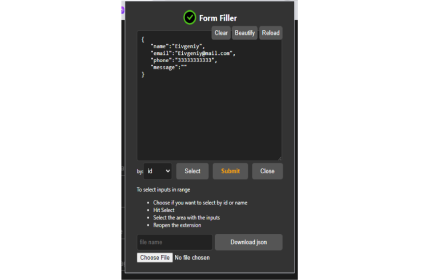
Automate form filling, extract and generate JSON data, and simplify QA testing with Form Filler
363
★ 4.0

MockFill – Autofill Forms with Mock/Fake Data
A web form filler that autofills page inputs with realistic dummy data for testing.
805
★ 5.0

Input Filler
Fill inputs with specified text based on their ID
31

QA Data Inserter
Automatically generate and insert test data into forms on specified sites. Speed up QA testing and eliminate duplication!
9

AutoFill Form Extension
AutoFill Form Helper is a powerful and easy-to-use Chrome extension designed to streamline your online form-filling experience.…
171

Form Filler Extension
Auto-fill forms with realistic dummy data
28
★ 5.0

AutoFiller
Fill form once. Auto fill it forever.
82
★ 5.0
Data sourced from the Chrome Web Store · last verified Jun 20, 2026.