
InsertLearning
Insert instructional content on any web page
As of May 2026, InsertLearning has — users and a 4.33/5 rating from 60 reviews in the Social & Communication category.
Usersno change0%
—
—
Ratingno change0%
4.33
60 reviews
Reviewsno change0%
60
Version
2.2.0
Manifest V3
History
2 snapshotsTracking since Apr 24, 2026.
Not enough history yet for this metric — the chart fills in as we collect more snapshots.
View as table
| Date | Users | Rating | Reviews | Version |
|---|---|---|---|---|
| Apr 24, 2026 | — | 4.33 | 60 | 2.2.0 |
| May 19, 2026 | 900.0K | 4.33 | 60 | 2.2.0 |
| Now | — | 4.33 | 60 | 2.2.0 |
Permissions & access
- Permissions
- activeTabscriptingstoragewebNavigation
- Host access
- <all_urls>
Screenshots

About
InsertLearning saves teachers and students time while keeping students engaged.

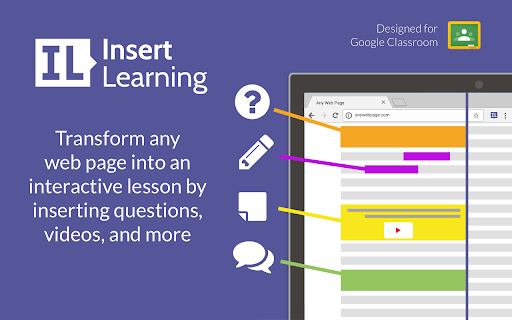
Teachers can insert questions, discussions, and insight directly into any website.

When students go to that website, they can respond to those questions and discussions, see that insight, and take their own notes.

Use InsertLearning to turn any website into an interactive learning experience!


Here are some tips on how to use InsertLearning:

- Click on our extension button to make our toolbar appear. This button has our logo and is located at the top right of your window.

- To insert a question, click on the question icon on our toolbar and then click on a paragraph. Inserting a question within an article is a good way to assess what your students are learning as they read.

- To insert a video, the first step is to insert a sticky note. To do so, click on the sticky note icon on our toolbar and then click on a paragraph. After inserting a sticky note, either paste in a YouTube link or an embed code from another video provider. Inserting a video is a good way to address different learning styles in your classroom.

- As the previous tip suggests, you can also insert other interactive items with sticky notes by pasting in an embed code. Again, interactive items are a good way to address different learning styles.

- To insert a discussion, click on the discussion icon on our toolbar (looks like two speech bubbles) and then click on a paragraph. Inserting a discussion is a good way to have students learn from each other.

- To highlight text, click on the highlight icon on our toolbar (some people think it looks like a pencil) and then select the text you want to highlight. You can add a comment to a highlight by clicking on the plus that appears when you first make a highlight or whenever you click on the highlight. Similarly, you can change the color of a highlight by clicking on the paint brush that appears when you first make a highlight or whenever you click on the highlight.

- Students can also highlight text and insert sticky notes. Having them annotate like this can be a good way to assess what they are learning. If there are student annotations available to view, a button will appear at the top left of your screen with an icon that looks like a group of people. Click on this button and then select a student to view their annotations. When you have a student selected, you'll even see what they annotate in real time.

- To assign your lesson to a class, click on a our logo on our toolbar and then click on the class you want your lesson assigned to. Once your lesson is assigned to a class, every student enrolled in that class will be able to see the things your inserted into the article.

- During the assigning process, you can choose to share your lesson to Google Classroom. Below the list of your classes, is a button that says "Share to Google Classroom." Click on that button, select the classes from Google Classroom you wish to share to, and then click the button that says "Share to these classes." After doing this, a link to your lesson will appear in Google Classroom. Also, if you haven't already imported your class, this process will import your roster from Google Classroom into InsertLearning.
Technical
- Version
- 2.2.0
- Manifest
- V3
- Size
- 297KiB
- Min Chrome
- 88
- Languages
- 1
- Featured
- Yes
Metadata
- ID
- dehajjkfchegiinhcmoclkfbnmpgcahj
- Developer ID
- u9c1e726b546f7840797c657e3c86a232
- Developer Email
- [email protected]
- Created
- Jan 20, 2015
- Last Updated (Store)
- Jan 19, 2024
- Last Scraped
- May 19, 2026
- Website
- https://insertlearning.com/
- Support URL
- —
Similar extensions
Alternatives to InsertLearning, ranked by description similarity.

Sniply Browser Extension
An Integration of Sniply into your favourite Browser.
10.0K
★ 4.7

Elephango
The Elephango extension provides a seamless learning experience that delivers personalized resources selected just for you.
1.0K
★ 4.0

FunnelAmplified
Share to FunnelAmplified From Anywhere
34
★ 5.0

Netboard.me
Create engaging educational pages.
613
★ 3.7

Meltwater Extension
A simple way to tag or add content to your Meltwater account.
8.0K
★ 5.0

KODE.link
Allows user to add current tab url to KODE.link as a new link with one click.
8
★ 5.0

Connectlift Mate - Your AI Job Hunt Assistant
AI-powered assistant to help job seekers write notes, messages, and comments while networking on professional platforms.
77
★ 4.8

Heylink.me
Allows user to add current tab url to Heylink.me as a new link with one click.
250
★ 5.0
Data sourced from the Chrome Web Store · last verified May 19, 2026.