
YouTube Trinity
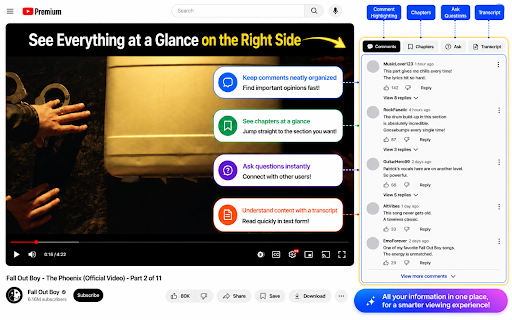
Check comments, chapters, and transcripts at a glance in the YouTube sidebar.
As of June 2026, YouTube Trinity has 38 users and a 5.00/5 rating from 3 reviews in the Functionality & UI category.
Usersup 52.0 percent+52.0%
38
38
Ratingno change0%
5.00
3 reviews
Reviewsno change0%
3
Version
1.0.6
Manifest V3
90-day change · In the last 90 days this extension 2 version updates.
History
11 snapshotsTracking since Apr 1, 2026.
View as table
| Date | Users | Rating | Reviews | Version |
|---|---|---|---|---|
| Apr 1, 2026 | 25 | 5.00 | 3 | 1.0.4 |
| Apr 8, 2026 | 24 | 5.00 | 3 | 1.0.4 |
| Apr 19, 2026 | 20 | 5.00 | 3 | 1.0.5 |
| Apr 26, 2026 | 30 | 5.00 | 3 | 1.0.5 |
| May 3, 2026 | 33 | 5.00 | 3 | 1.0.5 |
| May 9, 2026 | 32 | 5.00 | 3 | 1.0.5 |
| May 14, 2026 | 29 | 5.00 | 3 | 1.0.6 |
| May 20, 2026 | 34 | 5.00 | 3 | 1.0.6 |
| May 27, 2026 | 38 | 5.00 | 3 | 1.0.6 |
| Jun 3, 2026 | 37 | 5.00 | 3 | 1.0.6 |
| Jun 9, 2026 | 42 | 5.00 | 3 | 1.0.6 |
| Now | 38 | 5.00 | 3 | 1.0.6 |
Changelog
- May 9, 2026description
YouTube Trinity is an extension that neatly organizes the information you check most often on YouTube into the right sidebar.

When watching YouTube on a PC, situations like these come up all the time.

💬 To read comments, you have to scroll down and the video gets covered.
🔖 To check chapters, you end up looking back and forth between the player area and the right side.
📝 To open the transcript, you have to click "Show more" in the description and scroll all the way down.

YouTube Trinity arranges recommended videos, comments, chapters, and transcripts into right sidebar tabs so you can move between them more quickly within a single screen.

🎬 Videos
It keeps the existing recommended video list intact while making it easy to switch to other tabs.

💬 Comments
You can read and write comments while continuing to watch the video. No more losing sight of the video just to scroll down.

🔖 Chapters
You can see chapter titles in a list right away and jump to the section you want without delay.

📝 Transcript
Instead of digging through the description for the transcript button, you can scan the text and click a line to move to that moment.

↔ Reorder Tabs
You can drag your most-used tabs into the order you want. The order is saved, so it stays the same the next time you open YouTube.

⚙ Choose Visible Tabs
Click the extension icon to open the settings menu. From there, you can keep only the sections you want to see, such as Videos, Comments, Chapters, Ask, or Transcript, and hide the rest.

Why YouTube Trinity?
It reduces unnecessary movement. Instead of bouncing between below the video, the description, and the comments area, everything is gathered into one sidebar.
It gets you to the information you need faster. Comments, chapters, and transcripts are separated into tabs so you can open only what you want.
It keeps the viewing flow more natural. Checking information and going back to the video feels much smoother.

2026-03-25
Added a feature to choose which tabs are shown when clicking the extension icon.

💬 Bug Reports and Contact
If you run into any issues or have suggestions, feel free to reach out anytime. 📧 Email : [email protected]
YouTube Trinity is an extension that neatly organizes the information you check most often on YouTube into the right sidebar.

When watching YouTube on a PC, situations like these come up all the time.

💬 To read comments, you have to scroll down and the video gets covered.
🔖 To check chapters, you end up looking back and forth between the player area and the right side.
📝 To open the transcript, you have to click "Show more" in the description and scroll all the way down.

YouTube Trinity arranges recommended videos, comments, chapters, and transcripts into right sidebar tabs so you can move between them more quickly within a single screen.

🎬 Videos
It keeps the existing recommended video list intact while making it easy to switch to other tabs.

💬 Comments
You can read and write comments while continuing to watch the video. No more losing sight of the video just to scroll down.

🔖 Chapters
You can see chapter titles in a list right away and jump to the section you want without delay.

📝 Transcript
Instead of digging through the description for the transcript button, you can scan the text and click a line to move to that moment.

↔ Reorder Tabs
You can drag your most-used tabs into the order you want. The order is saved, so it stays the same the next time you open YouTube.

⚙ Choose Visible Tabs
Click the extension icon to open the settings menu. From there, you can keep only the sections you want to see, such as Videos, Comments, Chapters, Ask, or Transcript, and hide the rest.

Why YouTube Trinity?
It reduces unnecessary movement. Instead of bouncing between below the video, the description, and the comments area, everything is gathered into one sidebar.
It gets you to the information you need faster. Comments, chapters, and transcripts are separated into tabs so you can open only what you want.
It keeps the viewing flow more natural. Checking information and going back to the video feels much smoother.

2026-03-25
Added a feature to choose which tabs are shown when clicking the extension icon.

💬 Bug Reports and Contact
If you run into any issues or have suggestions, feel free to reach out anytime. 📧 Email : [email protected]

☕ Support with a coffee: https://ko-fi.com/fortunecookie7
- Apr 8, 2026description
YouTube Trinity로 모든 정보를 한눈에 시청과 정보 탐색을 동시에 즐기세요!

PC 환경에서 유튜브를 보다보면 불편한 점이 이만저만이 아닙니다!

  💬 댓글 좀 읽으려 하면 스크롤을 내려야 해서 영상이 안 보이고
  🔖 챕터 좀 확인하려 하면 영상 하단 눌렀다가 우측 확인했다가 시선 분산되고
  📝 스크립트(자막) 보려면 설명란 더 보기 누르고 스크롤 맨 밑까지 내려야 하고

추천 영상부터 댓글, 챕터, 스크립트까지 흩어져 있던 기능들을 우측 사이드바 탭으로 깔끔하게 통합했습니다.

🎬 추천 영상 (Videos)
기존의 추천 영상 리스트를 그대로 유지하면서 다른 기능들과 쉽게 오갈 수 있습니다.

💬 댓글 (Comments) : 스크롤 없는 실시간 소통
가장 강력한 기능! 영상을 시청하면서 동시에 댓글을 읽고 작성할 수 있습니다. 화면을 내리느라 영상을 놓치는 일은 이제 없습니다.

🔖 챕터 (Chapters) : 원하는 구간으로 순간 이동
영상 하단의 버튼을 누르거나 타임라인을 더듬거릴 필요가 없습니다. 우측 목록에서 챕터 제목을 확인하고 클릭 한 번으로 해당 구간으로 이동하세요.

📝 스크립트 (Transcript) : 언어 공부와 요약의 필수품
설명란 깊숙이 숨겨진 스크립트 버튼을 찾지 마세요. 우측 탭에서 자막을 텍스트로 훑어보고, 클릭하면 해당 장면으로 바로 이동합니다.

왜 YouTube Trinity인가요?
동선 최소화 & 클릭 감소 : 팝업이 화면을 가리거나 별도의 버튼을 찾아 헤매는 수고를 없앴습니다. 모든 기능이 사이드바에 고정되어 마우스 이동이 획기적으로 줄어듭니다.

직관적인 UI : 상단 탭 전환 방식을 통해 필요한 정보만 빠르고 쉽게 골라볼 수 있습니다.
끊김 없는 몰입감 : 영상의 흐름을 끊지 않고, 모든 정보를 한눈에 파악하며 진정한 멀티태스킹을 경험할 수 있습니다.

💬 버그 제보 및 문의
사용 중 불편한 점이나 건의 사항이 있다면 언제든 연락해 주세요. 📧 Email : [email protected]

---------------------------------------------------------------------------------------------------------------------------------------------------
YouTube Trinity : View Everything at a Glance, Enjoy Watching and Browsing Simultaneously!

Watching YouTube on a PC can often be quite inconvenient!

💬 Want to read comments? You have to scroll down, losing sight of the video. 🔖 Checking chapters? You have to click the bottom of the video, then check the right side, scattering your focus. 📝 Need the transcript? You have to click "Show more" in the description and scroll all the way to the bottom.

From recommended videos to comments, chapters, and transcripts. We have neatly integrated these scattered features into the right sidebar tabs.

🎬 Videos It maintains the existing recommended video list while allowing easy switching between other features.

💬 Comments : Scroll-Free Real-Time Interaction The most powerful feature! Read and write comments while watching the video. No more missing out on the video because you scrolled down.

🔖 Chapters : Jump to Any Section Instantly No need to press buttons at the bottom or fumble with the timeline. Check chapter titles in the right list and jump to that section with a single click.

📝 Transcript : Essential for Language Learning & Summaries Stop searching for the hidden transcript button deep in the description. Scan the subtitles as text in the right tab and click to jump directly to that scene.

Why Choose YouTube Trinity?

Minimize Movement & Reduce Clicks : Eliminated the hassle of pop-ups blocking the screen or searching for separate buttons. All features are fixed to the sidebar, drastically reducing mouse movement.

Intuitive UI : Quickly and easily select only the information you need through the top tab switching method.

Seamless Immersion : Experience true multitasking by grasping all information at a glance without breaking the flow of the video.

💬 Bug Reports & Inquiries If you have any inconveniences or suggestions while using it, please contact us anytime. 📧 Email : [email protected]
YouTube Trinity is an extension that neatly organizes the information you check most often on YouTube into the right sidebar.

When watching YouTube on a PC, situations like these come up all the time.

💬 To read comments, you have to scroll down and the video gets covered.
🔖 To check chapters, you end up looking back and forth between the player area and the right side.
📝 To open the transcript, you have to click "Show more" in the description and scroll all the way down.

YouTube Trinity arranges recommended videos, comments, chapters, and transcripts into right sidebar tabs so you can move between them more quickly within a single screen.

🎬 Videos
It keeps the existing recommended video list intact while making it easy to switch to other tabs.

💬 Comments
You can read and write comments while continuing to watch the video. No more losing sight of the video just to scroll down.

🔖 Chapters
You can see chapter titles in a list right away and jump to the section you want without delay.

📝 Transcript
Instead of digging through the description for the transcript button, you can scan the text and click a line to move to that moment.

↔ Reorder Tabs
You can drag your most-used tabs into the order you want. The order is saved, so it stays the same the next time you open YouTube.

⚙ Choose Visible Tabs
Click the extension icon to open the settings menu. From there, you can keep only the sections you want to see, such as Videos, Comments, Chapters, Ask, or Transcript, and hide the rest.

Why YouTube Trinity?
It reduces unnecessary movement. Instead of bouncing between below the video, the description, and the comments area, everything is gathered into one sidebar.
It gets you to the information you need faster. Comments, chapters, and transcripts are separated into tabs so you can open only what you want.
It keeps the viewing flow more natural. Checking information and going back to the video feels much smoother.

2026-03-25
Added a feature to choose which tabs are shown when clicking the extension icon.

💬 Bug Reports and Contact
If you run into any issues or have suggestions, feel free to reach out anytime. 📧 Email : [email protected]
- Apr 8, 2026short_description
유튜브 사이드바에 댓글, 챕터, 스크립트 탭을 추가합니다.
Check comments, chapters, and transcripts at a glance in the YouTube sidebar.
- Apr 8, 2026category
lifestyle/entertainment
make_chrome_yours/functionality
Permissions & access
- Permissions
- storage
- Host access
- None declared
Screenshots


About
YouTube Trinity is an extension that neatly organizes the information you check most often on YouTube into the right sidebar.

When watching YouTube on a PC, situations like these come up all the time.

💬 To read comments, you have to scroll down and the video gets covered.
🔖 To check chapters, you end up looking back and forth between the player area and the right side.
📝 To open the transcript, you have to click "Show more" in the description and scroll all the way down.

YouTube Trinity arranges recommended videos, comments, chapters, and transcripts into right sidebar tabs so you can move between them more quickly within a single screen.

🎬 Videos
It keeps the existing recommended video list intact while making it easy to switch to other tabs.

💬 Comments
You can read and write comments while continuing to watch the video. No more losing sight of the video just to scroll down.

🔖 Chapters
You can see chapter titles in a list right away and jump to the section you want without delay.

📝 Transcript
Instead of digging through the description for the transcript button, you can scan the text and click a line to move to that moment.

↔ Reorder Tabs
You can drag your most-used tabs into the order you want. The order is saved, so it stays the same the next time you open YouTube.

⚙ Choose Visible Tabs
Click the extension icon to open the settings menu. From there, you can keep only the sections you want to see, such as Videos, Comments, Chapters, Ask, or Transcript, and hide the rest.

Why YouTube Trinity?
It reduces unnecessary movement. Instead of bouncing between below the video, the description, and the comments area, everything is gathered into one sidebar.
It gets you to the information you need faster. Comments, chapters, and transcripts are separated into tabs so you can open only what you want.
It keeps the viewing flow more natural. Checking information and going back to the video feels much smoother.

2026-03-25
Added a feature to choose which tabs are shown when clicking the extension icon.

💬 Bug Reports and Contact
If you run into any issues or have suggestions, feel free to reach out anytime. 📧 Email : [email protected]

☕ Support with a coffee: https://ko-fi.com/fortunecookie7
Technical
- Version
- 1.0.6
- Manifest
- V3
- Size
- 1.11MiB
- Min Chrome
- 88
- Languages
- 6
- Featured
- No
Metadata
- ID
- bhlbodgbbcaecfncjennphkambbkakej
- Developer ID
- ua255f63cdc4ae5a5a3f16ac3447decaa
- Developer Email
- [email protected]
- Created
- Nov 28, 2025
- Last Updated (Store)
- May 11, 2026
- Last Scraped
- Jun 9, 2026
- Website
- —
- Support URL
- —
Similar extensions
Alternatives to YouTube Trinity, ranked by description similarity.

YouTube Enhancer
Enhance your YouTube experience with bookmarks, transcripts, and speed control.
4

YouTube Enhanced Control
Blur thumbnails, hide comments/recommended/home feed, grayscale mode for minimal, distraction-free YouTube browsing
11

Optube
Focus your YouTube experience. Block distracting elements and enhance productivity.
16

YouTidy
Tidy up YouTube's player - hide unwanted controls, lock view modes, and block distracting hotkeys
—

Truthwatch
Truthwatch Description
—

YTSimple
A simplified YouTube experience — just the video, the title, and a search bar.
2
★ 5.0

YouTube スマートタブ - YouTube Smart Tabs
YouTube視聴をもっと快適に!コメントや動画情報をタブで整理.
32
★ 5.0

TweakTube
Helps you to customize youtube to your liking!
67
★ 5.0
Data sourced from the Chrome Web Store · last verified Jun 9, 2026.